Client Administration Team Guide
- Getting Started with Client Assignment
- Finding and Reviewing Pending Engagements
- Assigning a Mentor
- Reassigning Declined and Dormant Engagements
- Getting Help and Next Steps
Getting Started with Client Assignment
Who this guide is for.This guide is for the CBM Client Assignment team, and it assumes you've already read the CRM Introduction — so you know what Contacts, Companies, Engagements, and Sessions are, how to sign in and navigate, and how the records connect. It picks up from there and walks you through what your team does.
What your team does.Your team makes sure every client is matched with the right mentor. In practice that means reviewing new Engagements as they come in, checking that the records are correct, and assigning each one to a capable mentor. You also handle engagements that come back to be re-matched — ones a mentor has declined, or that have gone dormant. The sections that follow take these in turn.
Where engagements come from.New engagements arrive in the CRM from the client intake form— the form a prospective client completes to request mentoring. Each submission creates a new Engagement, with the client's information, for your team to review and assign; you don't create these by hand.
Signing in.You reach the CRM the same way as any user — see "Signing In" in the Introduction. If you're ever unable to sign in, or can't see something you think you need, contact Sharon Rose[contact method to be added].
The rule that runs through everything — mentor and user together.The single most important habit in this role: whenever you assign an engagement, you set two fields — the mentor (the person who will do the mentoring) and the matching user-assigned field (their login account). They go together. As the Introduction explained, what a person can see is governed by their User account, not by being named as the mentor — so if you set the mentor but not the matching user, that mentor won't be able to open their own engagement. Every assignment in this guide sets both.
Finding and Reviewing Pending Engagements
Finding new engagements.
Your work starts by reviewing the Pending Client Engagements Report. This information is available in two places within the system:
- The Pending Client Engagements Report
- The CBM Engagements Panel.
The Pending Client Engagements Report
The Reports provides a number of reports that may be useful, and they are pre-configured to show all Pending Mentor candidates. To access the Pending Mentor Candidate report:
- Click on the Reports link on the left side of your screen.
- Select the Folder “Client Administration Team Reports”
- Click on “Pending Client Engagements” to display the report.
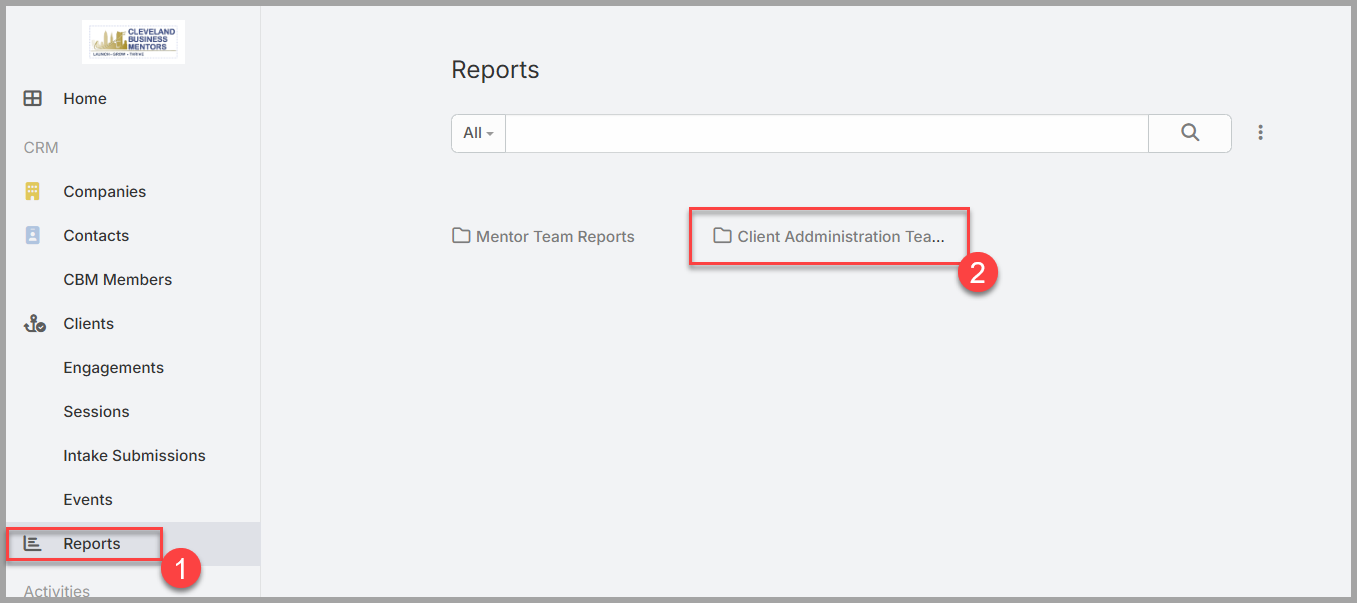
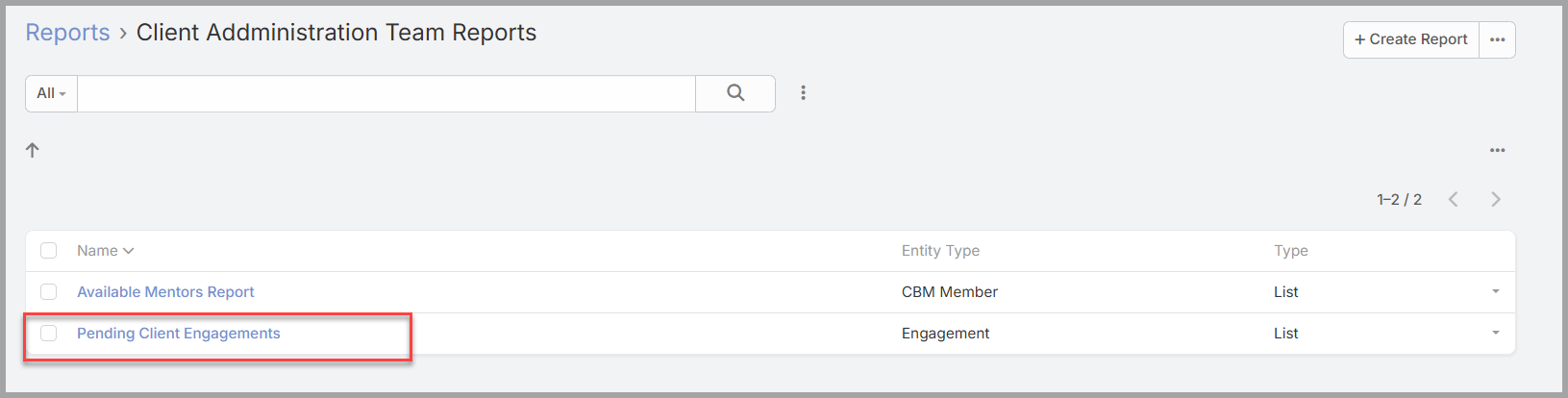
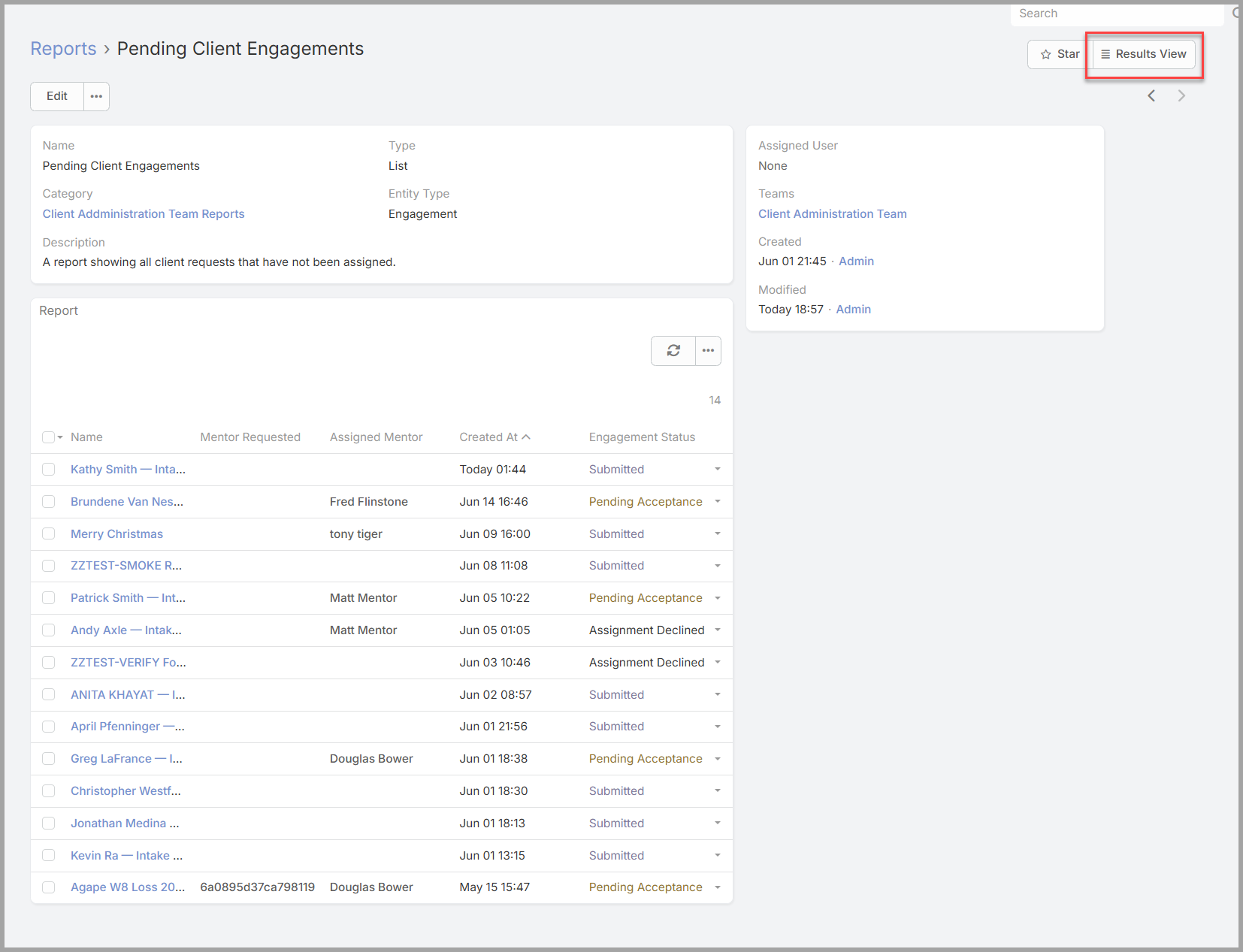
This report lists all of the engagements that need your team's attention — those with a status of Submitted (new, straight from the intake form), along with Assignment Declined and Dormant ones that have come back for reassignment. A new engagement to review is one marked Submitted.
The Engagement List
The Engagement List can be filtered to provide the same information as the Pending Client Report, and offers more flexible interactive searching that may be useful in some situations. To access the Engagement List:
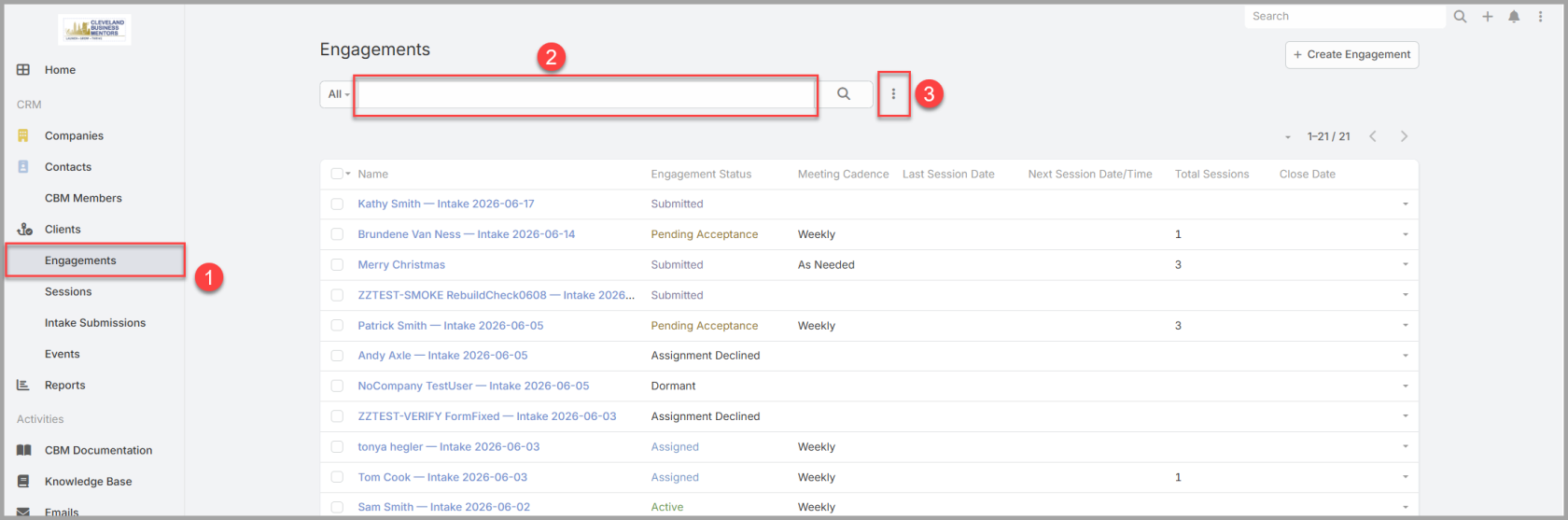
- Click on the "Engagements" on the left panel.
- Use the search box (2) to enter a Candidate Name to locate an individual candidate.
- Click on the filter list three buttons, and select a field to filter. Usually Engagement Status.
- Enter the status values that you want to review and the list will be filtered to make it easier to find.
Opening and verifying the records.
Select an engagement has been located, it can be opened it by clicking on the Engagement Name. It will display the Engagement Detail page. Because the intake form creates the engagement together with the client Company and the client Contacts, your first job is to confirm those are right and properly linked:
- the Company— the client business (or a "(Pre-Startup)" placeholder if the business doesn't exist yet);
- the Contacts— the people at the client who'll take part;
- the Engagementitself — that it's connected to the right company and people.
If something is off or missing, correct it before you assign — a clean record now saves confusion later.
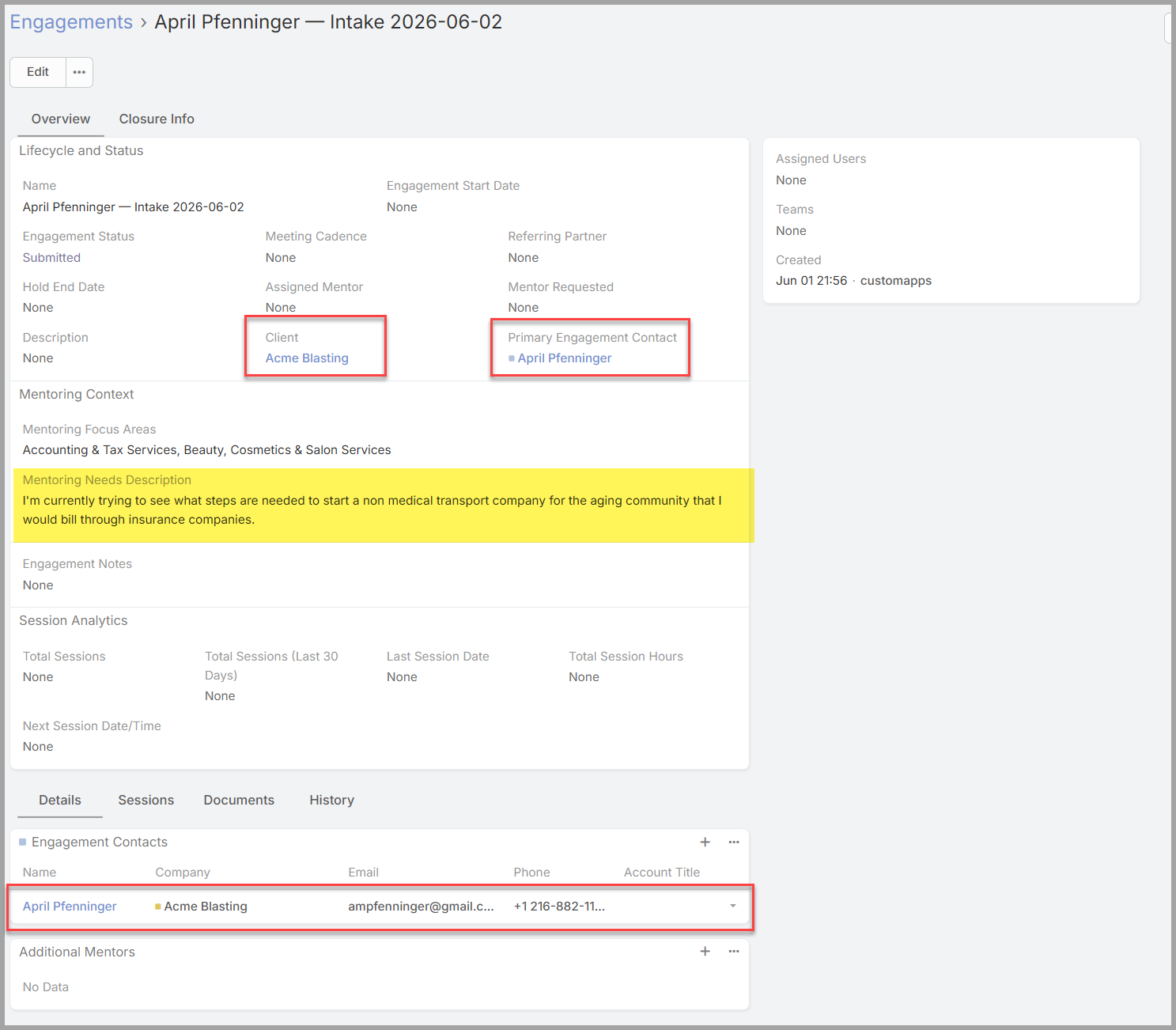
Reviewing what the client needs.
With the records verified, read the substance of the request: the client's industry and the mentoring areas they've asked for. This is what you'll match a mentor against in the next section, so understand it clearly before you go looking for the right person.
Assigning a Mentor
Finding the best match.
With the client's industry and requested mentoring areas in mind, there are two ways to locate available and matching Mentors:
- The CBM Members page can be searched and filtered to show mentors that might meet the Clients needs.
- The Available Mentors Report shows similar information, but provides more flexibility when searching for Mentors.
Locating Mentors via CBM Members
Open the CBM Members area to review the available mentors. Look across each mentor's profile for the fit that matters:
- focus / expertise areas— do they line up with what the client needs?
- availability— are they open to taking someone on right now?
- capacity— do they have room for another engagement?
Scan or filter the list to narrow to capable mentors, and choose the one who best fits the client. Consulting a colleague or doing a little research before you decide is part of the job — there's no rush to assign.
Making the assignment.Open the engagement you're assigning. The goal isn't just to name the mentor — it's to give them access to everything they'll need (the engagement, the people, and the client), so a few steps repeat the mentor across related records.
- In the engagement's Assigned Mentor field, select the mentor you chose.
- In the Assigned Users field, select that same mentor. (This is the access step — the Assigned User, not the Assigned Mentor, is what actually lets them open the record.)
- Change the Status to Pending Acceptance, and save the engagement.
- Select each of the Engagement Contact and select the mentor for the "Assigned User"
- Click on the "Client" to view the Client record, and select the Mentor for the "Assigned User".
- Open the client record linked to the engagement, set its Assigned User to the mentor, and save.
Why the extra steps.Access follows the Assigned User on each record, so the mentor needs to be the Assigned User everywhere they'll look — the engagement, its contacts, and the client. Miss one and the mentor will see the engagement but won't be able to open a contact or the client.
What happens next.Setting the status to Pending Acceptance hands the engagement to the mentor: it appears in their My Engagements list, where they accept it (moving it to Assigned) or decline it (sending it back to your queue as Assignment Declined). Your part is done once a capable mentor and their matching user are set and the status is Pending Acceptance.
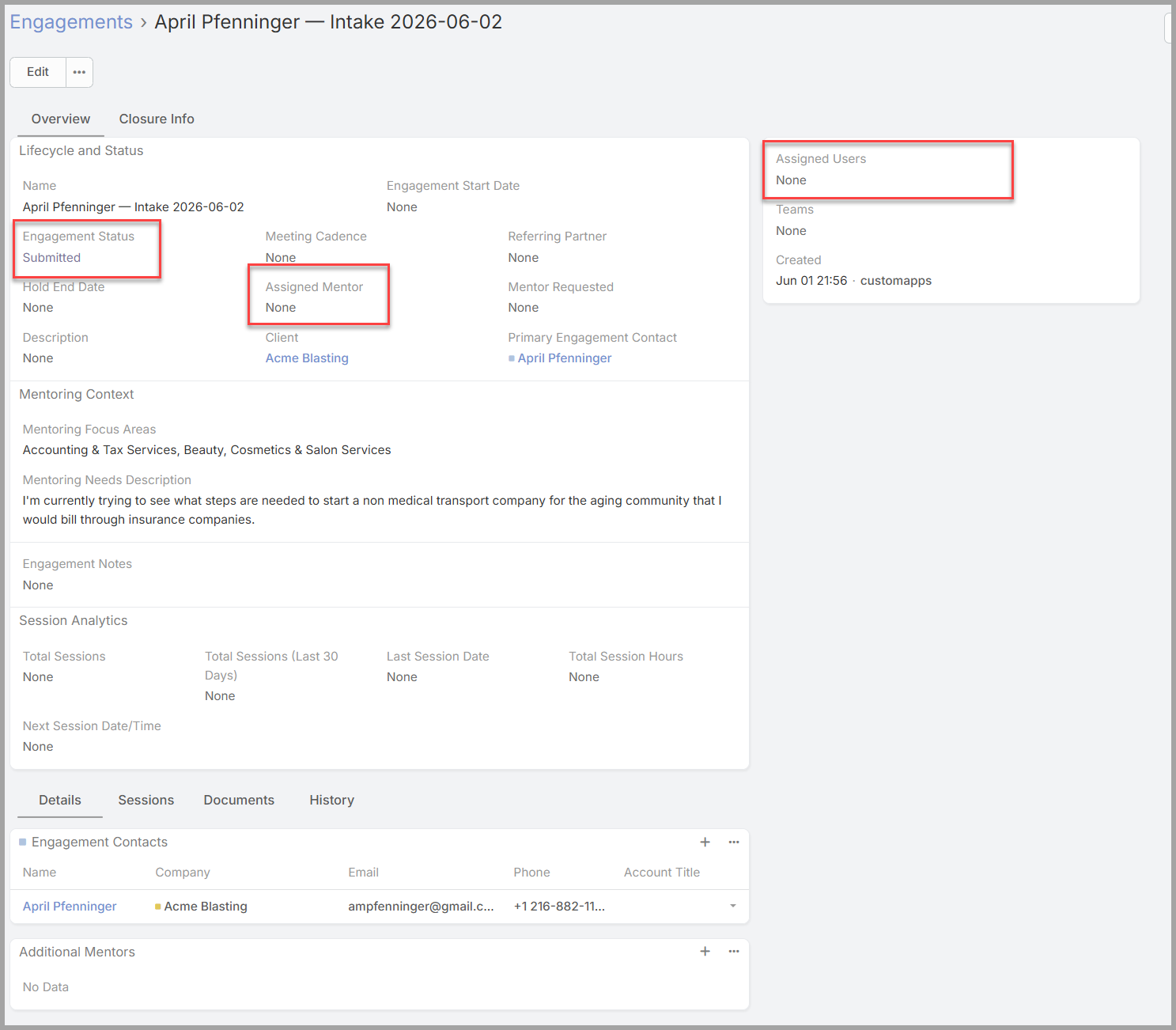 Adding a co-mentor or transferring an engagement.The same fields let you adjust who's on an engagement after it's assigned:
- To add a co-mentor, select from the list of available Mentors to the Assigned Mentors and Assigned Users fields alongside the primary mentor, and give them access to the contacts and client the same way (steps 4–5 above) so they see the full picture.
- To transfer an engagement to a different mentor, replace the mentor in those fields and move the Assigned User on the contacts and the client to the new mentor as well.
Mentors can make these same changes themselves; the Mentor Guide covers it from their side.
Reassigning Declined and Dormant Engagements
Not every assignment sticks the first time, and that's expected. Two kinds of engagement come back to your queue, and you'll see both in the Client Assignment Team dashlet alongside the new Submitted ones:
- Assignment Declined— a mentor reviewed the engagement you assigned and decided it wasn't the right fit, so they declined it. It returns to you to be matched with someone else.
- Dormant— an engagement that had been under way but has gone inactive, and has come back to your team to be picked up again.
Reassigning is the same process.Handling a returned engagement works just like a new one: review the client's industry and requested areas, look across the CBM Members for a capable mentor — a different one this time — and repeat the Section 3 assignment steps for them: set the Assigned Mentor and Assigned Users, move the Assigned User on the engagement's contacts and the client to the new mentor, and set the status back to Pending Acceptance. The engagement is then offered to the new mentor.
A quick look before you reassign.It's worth a glance at why an engagement came back. For a declined one, the records and the client's needs haven't changed — you're simply finding a better-matched mentor. For a dormant one, check the engagement's history — its Sessions and notes — so the next mentor knows where things stand before they accept.
Getting Help and Next Steps
Where to get help.For anything about access— signing in, your password, or not being able to see the dashlet or a record you think you need — contact Sharon Rose[contact method to be added]. For judgment calls — a hard-to-place engagement, or which mentor is the right fit — a colleague on your team or your lead is usually the best sounding board.
Your workflow at a glance.Working from the Client Assignment Team dashlet, you review each new Submitted engagement and verify its records (Section 2), find a capable mentor against the client's industry and requested areas (Section 3), and assign it by setting the Assigned Mentor and Assigned Users, making that mentor the Assigned User on the engagement's contacts and the client too, and setting the status to Pending Acceptance. Declined and dormant engagements come back to the same dashlet, and you reassign them the same way (Section 4).
The one thing to never skip.Make the mentor the Assigned Usereverywhere they'll need to look — the engagement, its contacts, and the client, not just the Assigned Mentor field. It's the easiest step to overlook and the one that quietly breaks things — a mentor who can't open their engagement or its records almost always traces back to a missing or mismatched Assigned User.
Keep the Introduction handy.This guide builds on the CRM Introduction — the records, how they connect, and why access follows the User account. Keep it nearby as a refresher whenever something is unfamiliar.
Thank you.Your matches are where every mentoring relationship begins. Getting the right mentor — and their access — set up cleanly is what lets the work start smoothly, so thank you for the care you put into it.