CRM Introduction Guide
- About the CBM CRM
- Signing In
- The Lay of the Land
- Core Concepts and CBM Vocabulary
- Finding and Reading Information
- Your Role and What You Can See
- Good Habits
- Getting Help and Next Steps
About the CBM CRM
Welcome to the Cleveland Business Mentors CRM. This guide is your starting point. It doesn't assume you've used a system like this before, and it won't ask you to do anything yet — its job is to help you understand what the system is, find your way around it, and read the information it holds. Once you're comfortable with the basics here, a separate guide for your specific role will walk you through the tasks you'll actually perform.
What a CRM is. CRM stands for "customer relationship management," but at CBM it's easiest to think of it as the organization's shared memory: a single, organized place that keeps track of the people CBM works with and the work CBM does with them, so that information lives in one trusted location instead of being scattered across email, spreadsheets, and individual notebooks. CBM's CRM runs on a platform called EspoCRM. You don't need to know anything about the platform itself to use it well — this guide explains everything in CBM's own terms.
Why CBM uses one. CBM's work depends on relationships that often involve several people over a long stretch of time — a business owner, the mentor helping them, the coordinator who made the match, and sometimes a referring partner or a supporting donor. The CRM keeps everyone working from the same up-to-date picture. When information lives in the system rather than in one person's head, nothing is lost when someone is away, a mentoring relationship can be picked up smoothly by whoever needs to step in, and CBM can see the larger picture of who it serves and how well.
What the system keeps track of. At a high level, the CRM holds two kinds of things: the people and organizations CBM works with — business owners and their companies, mentors, partner organizations, and donors — and the mentoring work itself — the relationships between mentors and the people they help, and the individual meetings within those relationships. You'll meet each of these by name in Section 4. For now, the key idea is that everything in the system connects back to a person, an organization, or the work being done.
How to use this guide. Read it once from start to finish before you begin working in the system; it's short by design. You can return to any section later as a refresher. Whenever a term appears in bold, it's a piece of CBM CRM vocabulary worth remembering. At the end, you'll be pointed to the guide for your role, which covers the day-to-day tasks that are yours to do.
The name for our CRM: CONTACT -- Community Online Tracking And Communications Technology.
Signing In
Before your first sign-in. Your CONTACT account is created for you by a CBM administrator — you don't set one up yourself. When your account is ready, the system sends you an email with a temporary password, which you'll be prompted to change the first time you log in. If you expected this email and it hasn't arrived, check your spam folder first, then email helpme@cbmentors.org.
Before signing in to CONTACT, Open Chrome and ensure that you are in your CBM profile by clicking the profile icon in the top right corner of Chrome. Check that the screen shows your name and cbmentors.org.
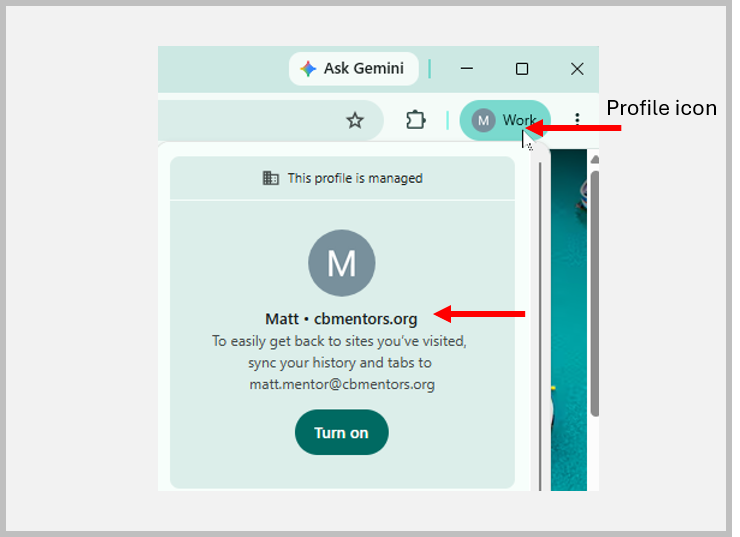
Where to sign in. In Chrome, enter the following https://apps.clevelandbusinessmentors.org/ into the address bar. Bookmark this page so it's easy to return to. CONTACT works in any current web browser — Chrome, Edge, Firefox, or Safari — and runs best when your browser is kept up to date. We recommend using Chrome for your work within the CBM environment.
Signing in. On the sign-in screen, enter your username (Your CBM email address) and password, then select Sign in. The screen you land on first depends on your role; that's expected, and the next section helps you get your bearings.
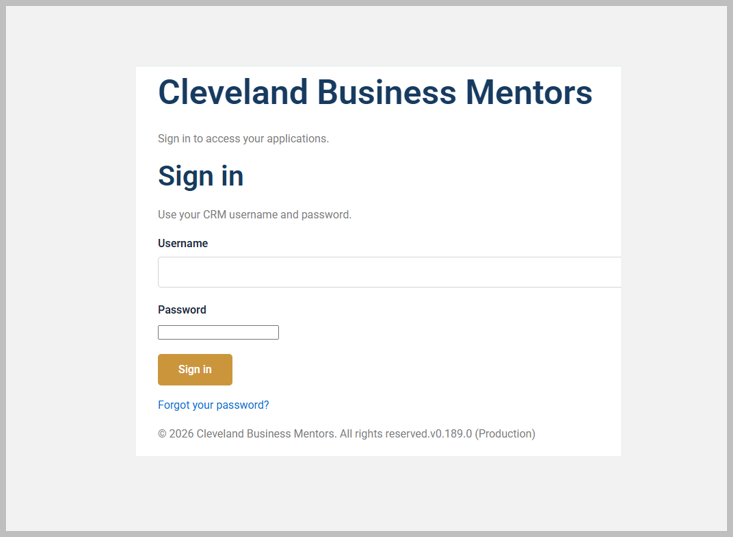
If you forget your password. use the Forgot your password option on the sign-in screen. If you are still having difficulty, email helpme@cbmentors.org for assistance.
Signing out, and a word on security. To sign out, click the Sign Out button at the top of your home screen. Because the CONTACT holds real information about real people, always log out when you're on a shared or public computer, and never share your login with anyone — if a colleague needs access, an administrator can create an account for them.
The Lay of the Land
When you log in, you'll see the CONTACT's main interface or Home Page. A handful of elements stay with you everywhere you go, and getting familiar with them is most of what it takes to feel at home. One thing to know up front: the exact set of items you see is tailored to your role, so your screen may not look identical to a colleague's — that's intentional, and Section 6 explains why. (The screenshots in this section show CBM's actual setup.)
|
|
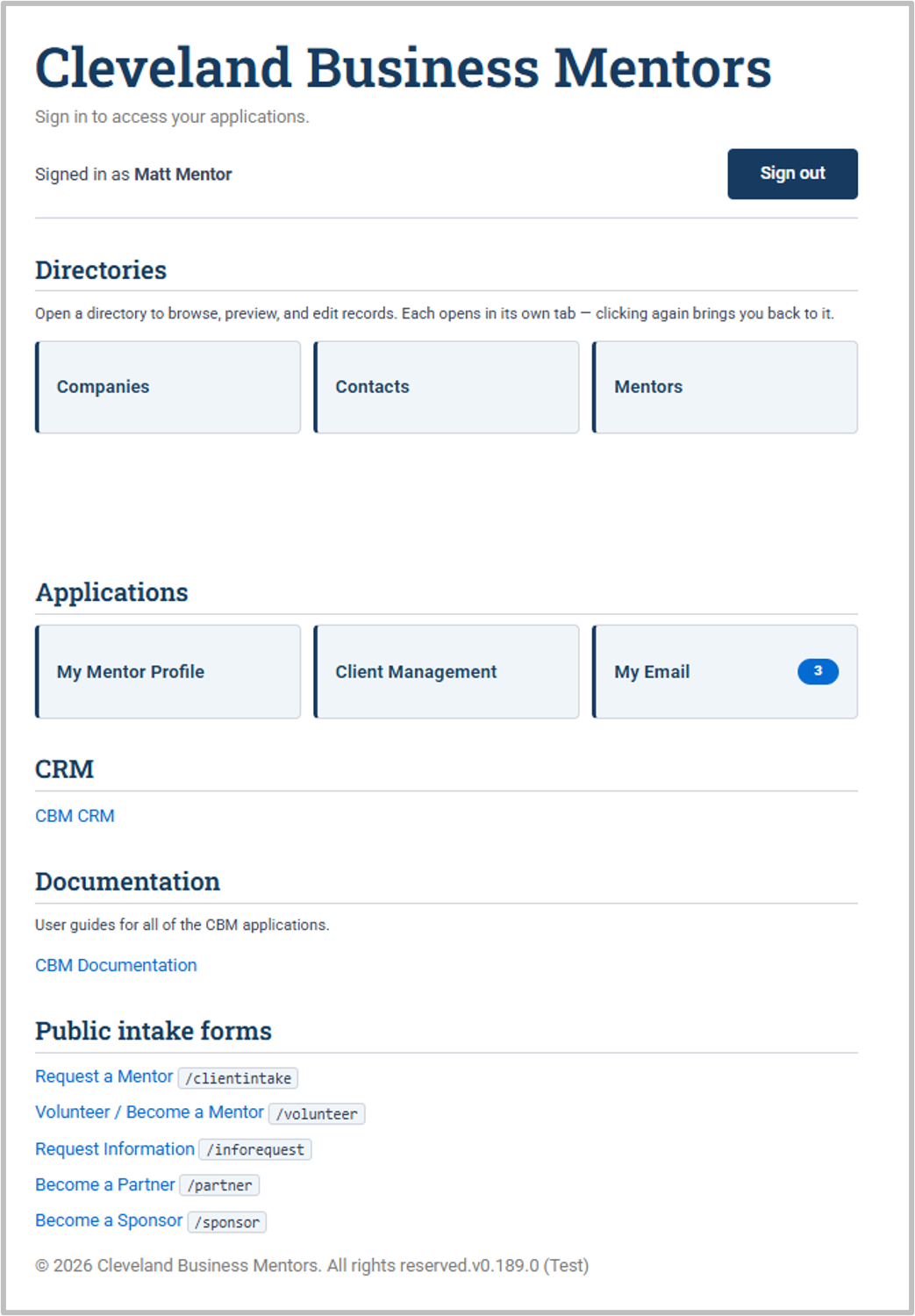
Each option on your Home Page opens in a separate tab when clicking on it. Close the application tab to return to the tab containing the Home Page.
Search. The search box and/or filters at the top of each screen is the fastest way to jump straight to what you are looking for.
Core Concepts and CBM Vocabulary
This is the most important section to absorb, because it gives you the words for everything that follows. Everything in the CONTACT is a record — the system's file on one thing, gathered in one place. Records fall into three groups — the people CBM knows, the companies CBM works with, and the mentoring work itself — and we close with one more idea: the User accounts that control who may use the system. We'll take them in that order. The ideas are common sense once named, and getting them straight is what keeps the system from feeling confusing.
People
Every person is a Contact. A person is a living, breathing human being. The moment CBM knows anything about a person, that person gets a Contact record — the system's file on them as an individual. It holds their personal information: name, personal address, personal phone, and personal email. Every person CBM knows of lives in one place — the Contacts area — no matter how they're connected to CBM.
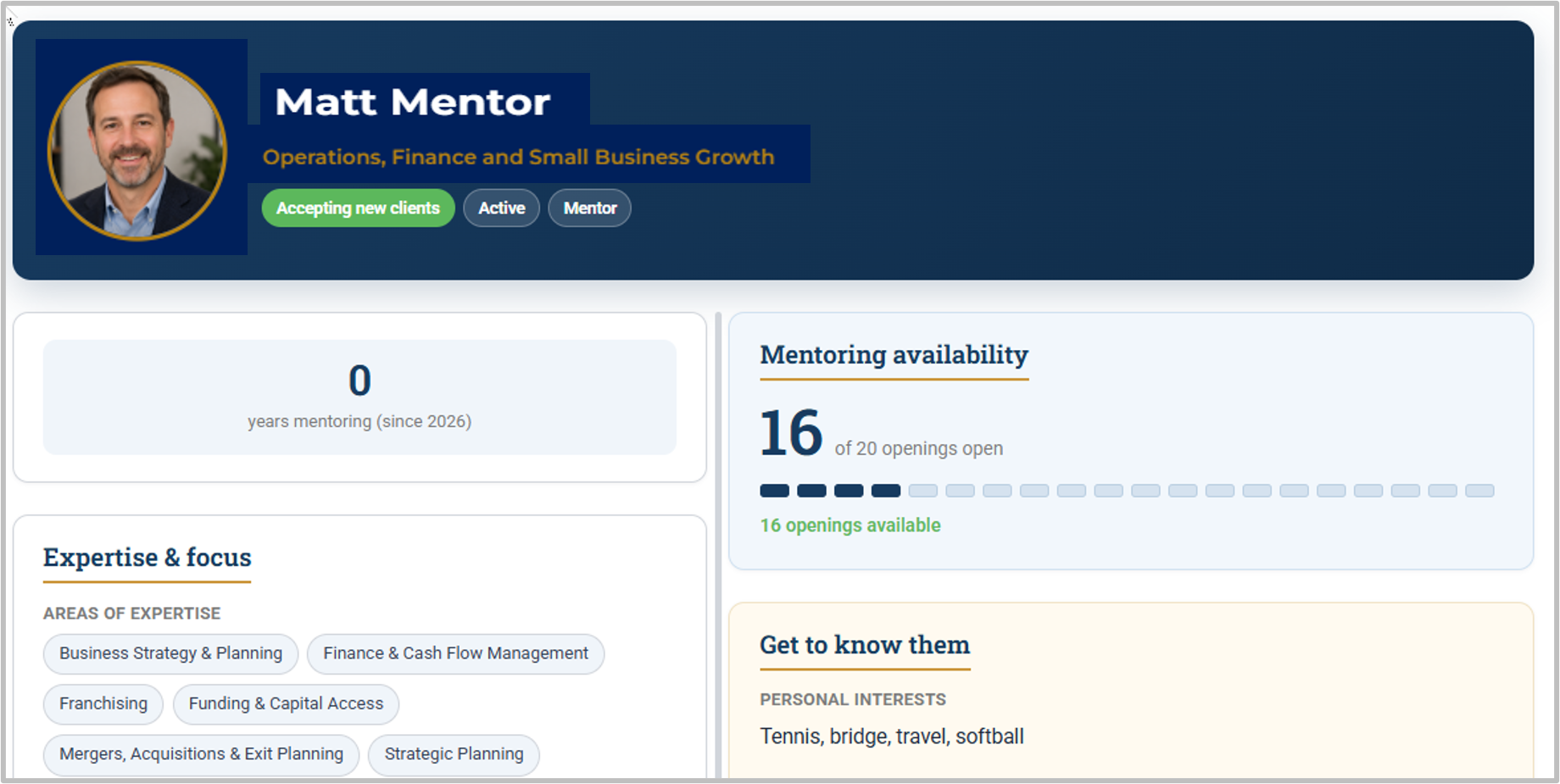
CBM team members also have a Mentor Profile. When a person is part of the CBM team, their Contact gains a Mentor Profile, reached through the My Mentor Profile application. This profile is the home for everything about their work on the CBM side. The name is a piece of CBM history worth knowing: because the large majority of CBM's people are mentors, CBM uses this one profile as the shared home for everyone on its team, rather than building a separate profile for each kind of helper. Details inside it record what a given person actually does — mentoring, volunteering, serving on the board, or a combination. In other words, read "Mentor Profile" as "CBM team-member profile"; not everyone who has one is strictly a mentor.
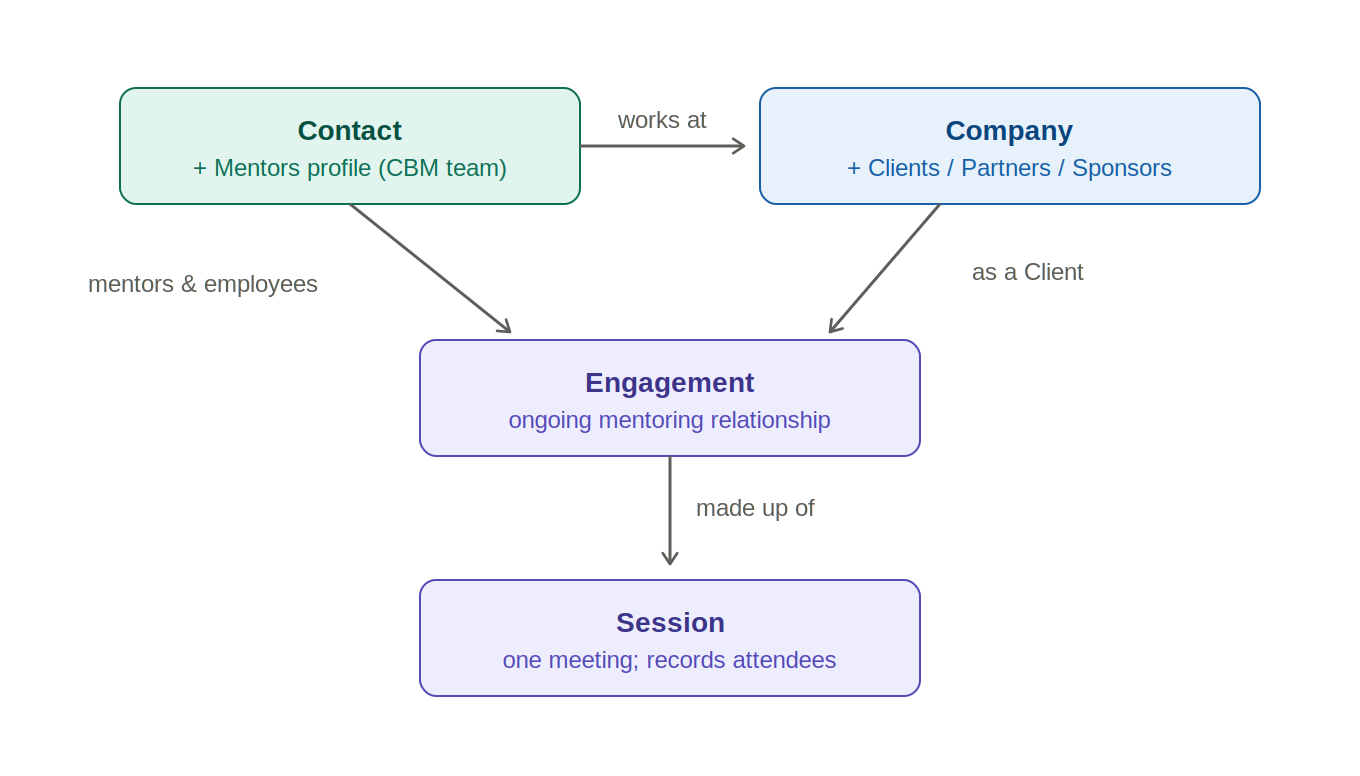
A person is never a Client, Partner, or Sponsor. This is the single most important distinction in the whole system, and it's where confusion usually begins. Client, Partner, and Sponsor are roles a company plays — never a person. The owner of a client business is not "a Client" in the CONTACT; they are a Contact who is connected to a Client company. The same is true for a contact at a partner organization or a sponsor — they are people (Contacts) linked to those companies. The rule of thumb: when you want information about a person, open their Contact; when you want client, partner, or sponsor information, open the company.
In short. Every person is a Contact. CBM team members additionally have a Mentor Profile. People connected to client, partner, or sponsor companies are simply Contacts linked to those companies — they are never themselves the Client, Partner, or Sponsor.
Companies
Every organization is a Company. Just as every person is a Contact, every organization CBM knows is a Company record. A Company holds the generic facts about the organization itself — its name, main phone number, address, and other details that stay true no matter what relationship the company has with CBM. Companies live in the Companies area.
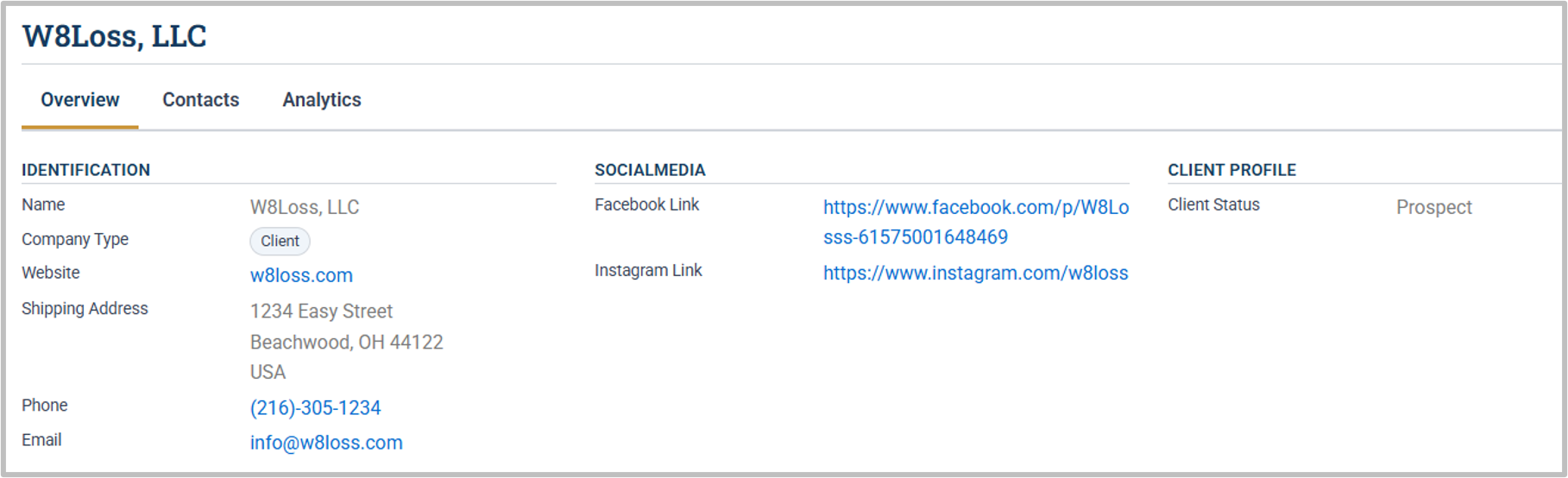
A Company gains a Profile for each role it plays. Here the company side differs from the person side: where a CBM team member has the single Mentor Profile, a company gets a separate Profile for each distinct role it plays with CBM:
- A Client Profile when the company is a mentoring client — the extra information CBM gathers once an organization becomes a client.
- A Partner Profile when the company refers clients to CBM or partners with CBM to deliver programs.
- A Sponsor Profile when the company helps fund CBM's work.
A single company can hold several of these at once — the same organization might be a client, a partner, and a sponsor — and each profile sits on its own tab: the Client Profile on the Clients tab, the Partner Profile on the Partners tab, the Sponsor Profile on the Sponsors tab, all on top of the one set of generic company facts. Open a company, and its tabs tell you at a glance every way CBM works with it.
The client is always a company — even one that doesn't exist yet. Because a Client is a company, CBM mentors a business, not an individual — even when that business is still just an idea. When someone asks for mentoring to start a business they haven't launched, the system still creates a Company record for the would-be business, giving it a temporary name built from the person's name plus "(Pre-Startup)." For example, if Greg Smith requests mentoring before he has started his company, CBM creates the Company "Greg Smith (Pre-Startup)." Greg himself is a Contact, linked to that company; the company — even as a placeholder — is the client. If and when the business actually launches, the temporary name is simply updated to the real business name.
In short. Every organization is a Company. A Company carries a separate Profile — Client, Partner, or Sponsor — for each role it plays with CBM, and can hold more than one. Even a business that doesn't exist yet is represented as a Company, named "(Pre-Startup)" until it launches.
The Work: Engagements and Sessions
An Engagement is an ongoing mentoring relationship. When CBM mentors a client, the work itself is captured in an Engagement record. An Engagement always belongs to a client company — never to a person — and represents one mentoring relationship with that client: an ongoing effort that usually unfolds over many sessions, not a single meeting. Because a company may come to CBM for help on more than one occasion, a single client can have several Engagements over time; each is its own record, with its own mentors, people, and history.
Who's on an Engagement. An Engagement brings together two sides:
- On the client side, the employees being mentored — the Contacts at the client company who are taking part, whether that's one person or several. (This is exactly why the client is the company and not an individual: if two employees of the same business are mentored together, that's still one client, with two people in the engagement.)
- On the CBM side, the mentors — one primary mentor, a Contact who carries a Mentor Profile, plus any number of co-mentors, or none at all.
Sessions are the individual meetings. The actual meetings happen as Sessions. Each Session belongs to one Engagement and records a single mentoring meeting — when it took place and which employees attended. Over the life of an Engagement, its Sessions build up the running history of the mentoring: who met, when, and how often.
Putting it together. The whole picture reads in one line: a Company, acting as a Client, has one or more Engagements; each Engagement involves the client's employees and one or more CBM mentors; and each Engagement is made up of Sessions, each recording the employees who attended. Open an Engagement and you see the entire mentoring relationship in one place — the company, the people, the mentors, and every meeting.
In short. An Engagement is one mentoring relationship with a client company — an ongoing effort that spans many sessions — joining the employees being mentored with a primary mentor (and any co-mentors). Each Engagement is made up of Sessions, the individual meetings, and every Session records who attended.
Users and Access
A User is a login account. Everything so far has been about the information CONTACT holds. A User is different — it's the login account that lets a person actually get into the system and work. If you can sign in, you have a User account.
A User is not the same as a Contact. Every User is also a Contact — a person CBM knows — but the reverse isn't true: most Contacts are not Users. A client never logs in, so they're a Contact but not a User. And even a CBM team member may not be one: a retired mentor keeps their Contact and their Mentors profile, with their full history intact, but no longer has a User account, because they no longer need to sign in.
Your User account decides what you can see. This is the part worth holding onto. CONTACT grants access based on your User account — not on the fact that you're a mentor, and not simply because your name appears on a record. That's why two people can sign in and see different things, and why you might occasionally find your name on a record you can't open. Access follows the User; Section 6 explains how that shapes your view of the system.
In short. A Contact is the record of a person; a User is the login account that lets a person work in the system. Every User is a Contact, but most Contacts are not Users — and what you can see in the CONTACT is governed by your User account.
Finding and Reading Information
Now that you know what the records are, here's how to find them and read them. Along with Section 3, this is most of what you'll do at first — looking things up and understanding what you see.
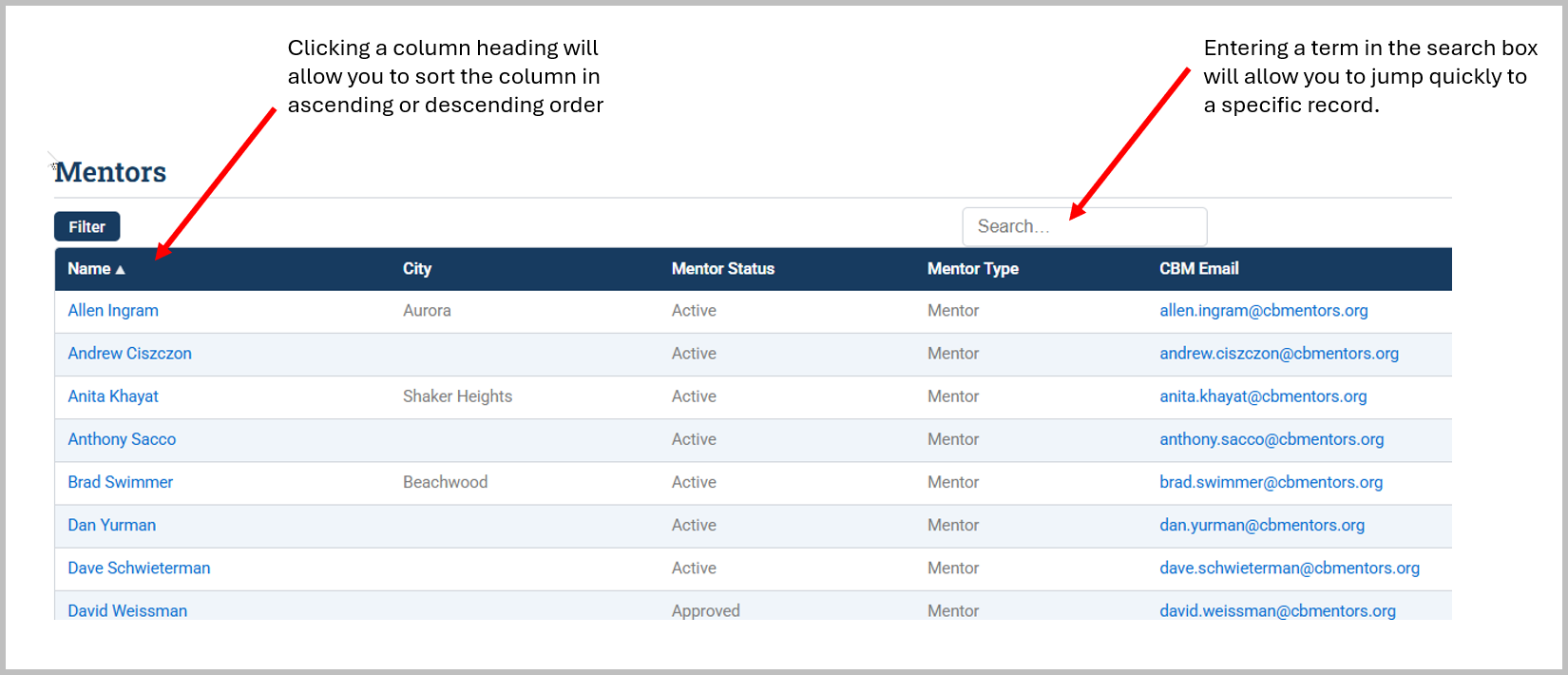
Search is the fastest way to a specific record. The search box at the top finds records anywhere in the system by name — a person, a company, an engagement, a session. Start typing a name and matching records appear; select one to open it. Search is the quickest route when you already know what you're after.
Browse from the left-hand menu. When you want to look through a group rather than a single record, use the left-hand menu, which lists the areas you have access to — for example Contacts, Companies, Engagements, Sessions, and the role areas Mentors, Clients, Partners, and Sponsors. Selecting an area opens its list view.
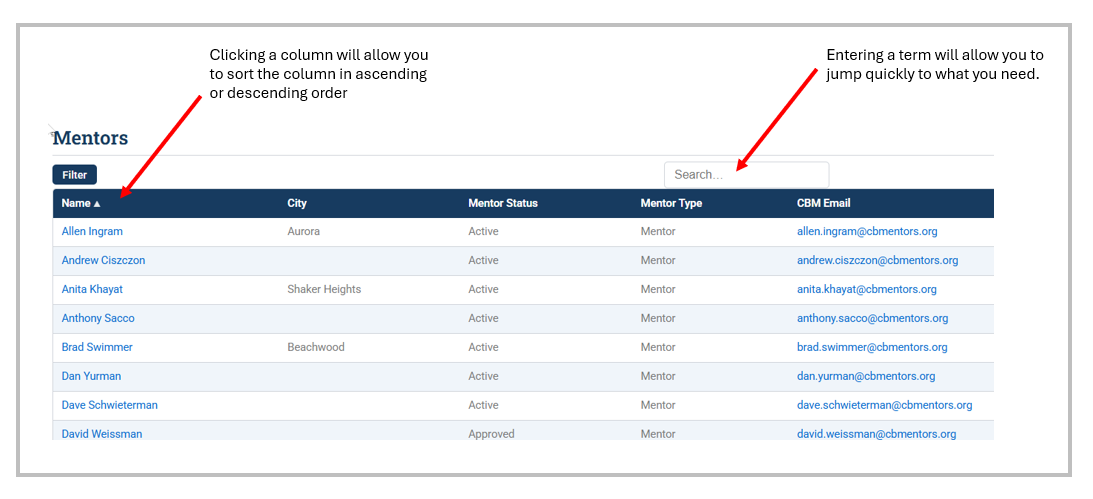
Working with a list view. A list view is a table of records, with one per row. Click any column heading to sort the records in ascending or descending order. Use the Search box to quickly find a specific record or filter the list by entering a keyword or phrase.
Opening and reading a record. Select any row to open its detail view — everything the system holds about that one record, in one place. Information is grouped into menus, and a record's related information sits on its own menu. Below is a detail view of a portion of a mentor record.
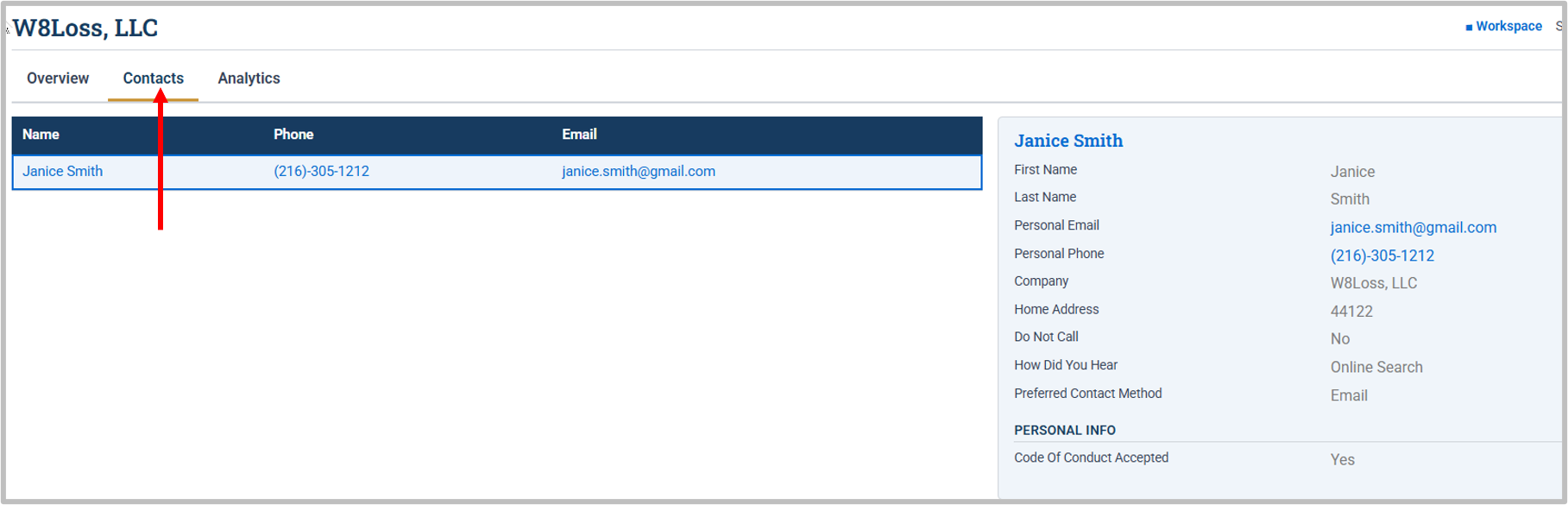
Open a Company and you'll find its information including identification, social media, client profile status and contacts,
Open an Engagement in Client Management and you'll find its mentors, the employees being mentored, its sessions and all related emails created within the CONTACT system or uploaded from your Google mail account under the Communications menu.
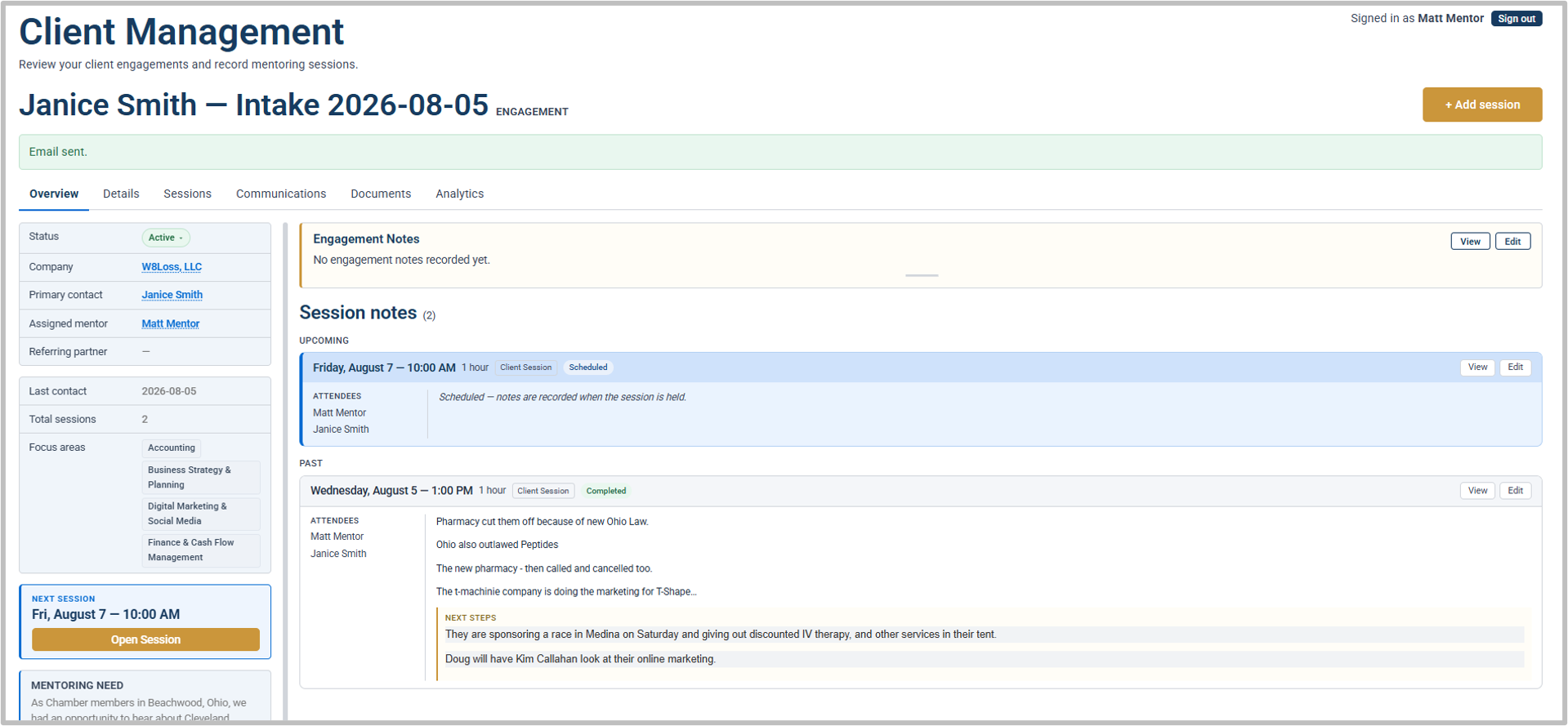

A record's detail view (an Engagement): its menus.
- Use Overview to see all the engagement information at a glance
- Use Details to accept an Engagement assignment to Assigned, add or edit information in the Engagement record.
- Use Sessions to view or edit a full session.
- Use Communications to see all Engagement related emails.
Your Role and What You Can See
The system tailors itself to you. CONTACT deliberately shows different things to different people. The applications and directories on your CONTACT home page shaped by your role and your User account. Two colleagues can sign in side by side and see genuinely different screens — that's the system working as intended, not a glitch.
Why you might not see everything. Much of what CONTACT holds is sensitive — personal details, client information, mentoring notes. Access is granted deliberately: you see what your role needs, and not what it doesn't. If you can't see a particular record, area, or field, it's almost always because your role isn't set up to need it, not because anything is broken. Access follows your User account — which is also why you might occasionally find your name on a record you can't open.
What this means day to day. Treat your view as the correct one for your role. When this guide or a colleague mentions an area or feature you don't see, it most likely belongs to a different role; your own role guide will cover exactly what's yours to use.
If you think you're missing access you need. Sometimes a role genuinely needs access it doesn't yet have. If you believe you should be able to see or do something and can't, don't work around it — email helpme@cbmentors.org. This group is monitored by the technical team who can check whether your access is set correctly.
In short. What you see is tailored to your role and governed by your User account. Seeing less than a colleague is normal and intentional.
Good Habits
A few simple habits keep CONTACT trustworthy for everyone who relies on it. None are difficult — they're mostly about being thoughtful with shared information.
Keep information current. The CRM is only as useful as it is up to date. When you learn that something has changed — a new phone number, a completed session, a changed status — update it promptly, so the next person sees the true picture.
Put information where it belongs.personal details go on the Contact, role information on the matching Profile, the mentoring relationship in the Engagement, and what happened at a meeting in its Session. Putting things in the right place is what lets everyone find them later.
Search before you create. Every person should have exactly one Contact, and every organization exactly one Company. Before adding a new record, search first — the person or company may already be in the system. A duplicate splits the history in two and causes confusion down the line.
Correct, don't delete. CONTACT keeps records and their history on purpose — a retired mentor, a closed engagement, a past session all stay, because that history matters. If something is wrong, correct it rather than deleting it; if you think a record truly shouldn't exist, ask before removing anything.
Treat what you see as confidential. CONTACT holds personal and sensitive information that people have trusted CBM with. Use it only for your CBM work, and don't share what you see beyond the people who need it.
When in doubt, ask. You won't break anything by asking. If you're unsure where something goes, whether a record already exists, or whether to make a change, email helpme@cbmentors.org or your coach before guessing.
In short. Keep information current, put it where it belongs, search before creating, correct rather than delete, keep it confidential, and ask when unsure.
Getting Help and Next Steps
Where to get help. If you get stuck, you have people to turn to. For anything about access — signing in, your password, or not being able to see something you think you need — email helpme@cbmentors.org. For questions about how to do your work — which records to use, how a process runs — your coach is usually the fastest source, and your role guide (below) answers most of them.
What comes next. This introduction has given you the lay of the land: what CONTACT is, how to sign in and find your way around, the records it holds and how they connect, why your view is tailored to your role, and the habits that keep it trustworthy. That's the shared foundation every CONTACT user needs.
The next step is your role guide — a separate, shorter guide written for what you do day to day. Where this introduction stops at finding and reading information, your role guide picks up the tasks that are yours: creating and updating records, and the specific workflows your role follows. Read it next, and keep this introduction nearby as a refresher whenever a term or concept needs one.
Welcome to the CONTACT— you're ready to begin.