The Lay of the Land
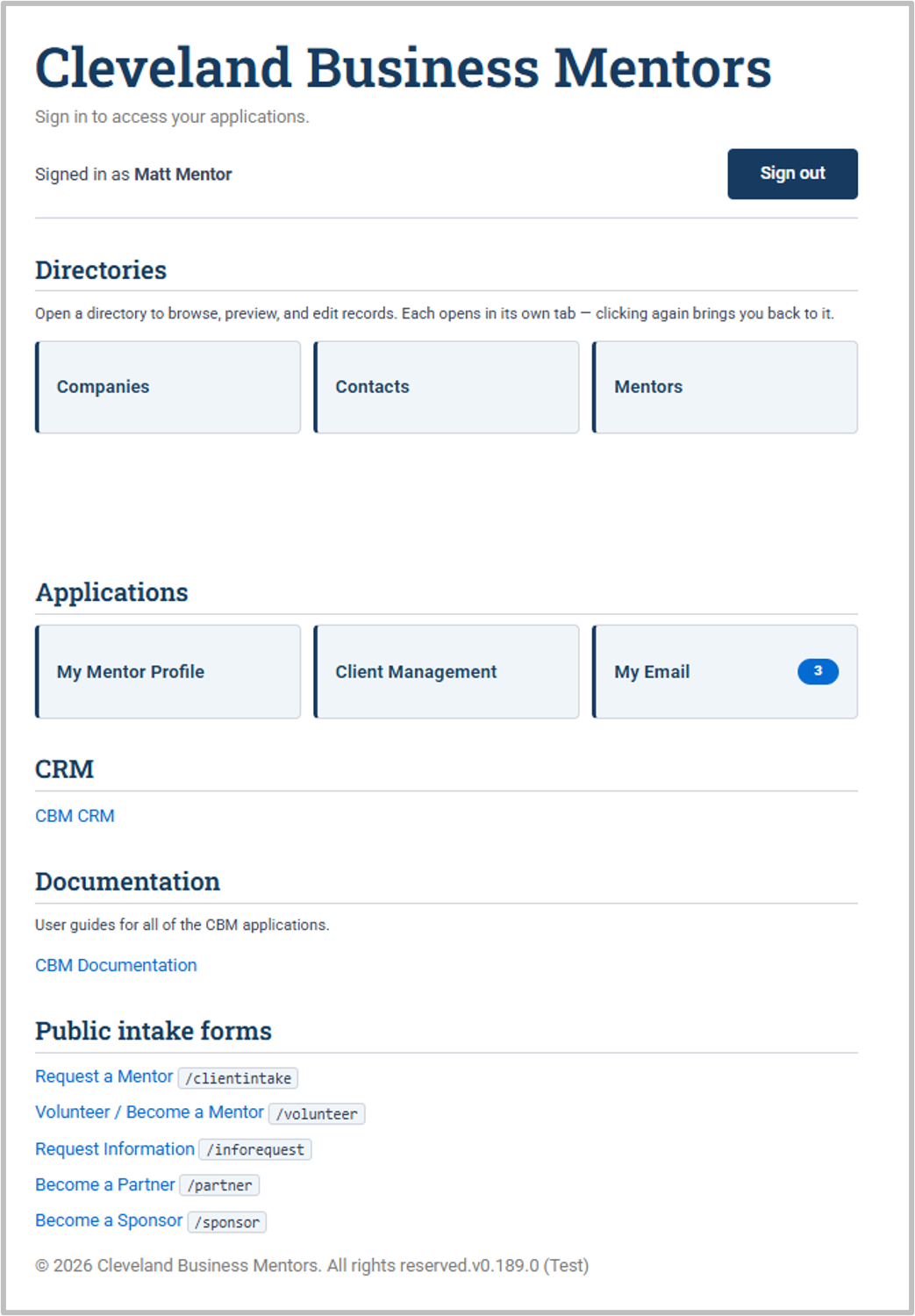
When you log in, you'll see the CONTACT's main interface or Home Page. A handful of elements stay with you everywhere you go, and getting familiar with them is most of what it takes to feel at home. One thing to know up front: the exact set of items you see is tailored to your role, so your screen may not look identical to a colleague's — that's intentional, and Section 6 explains why. (The screenshots in this section show CBM's actual setup.)
- Directories: Browse, preview and edit records. Each opens in its own tab. Close the tab when you're finished to return to the list.
- Applications: Use these tools to perform the tasks associated with your role.
- My Mentor Profile: Use this application to view and edit your mentor profile.
- Client Management: Use this application to review and accept client engagements, schedule mentoring sessions, send emails to your clients, and record your mentoring sessions. Most of your work with clients will be done here.
- My Email: View every conversation associated with the records you manage, including communications with clients, partners, and funders.
- CRM: This is the CONTACT system in its raw form. Because CONTACT includes Directories, Applications, and Documentation that organize and simplify your work, there is generally no reason to work directly in the CRM.
- Documentation: Click here to read the documentation. Each shelf is divided into books, which are further divided into sections, making it easy to jump directly to the information you need.
- Public intake forms: These are links to the forms that allow clients, volunteers, partners, and sponsors to become part of CONTACT.
|

|
Each option on your Home Page opens in a separate tab when clicking on it. Close the application tab to return to the tab containing the Home Page.
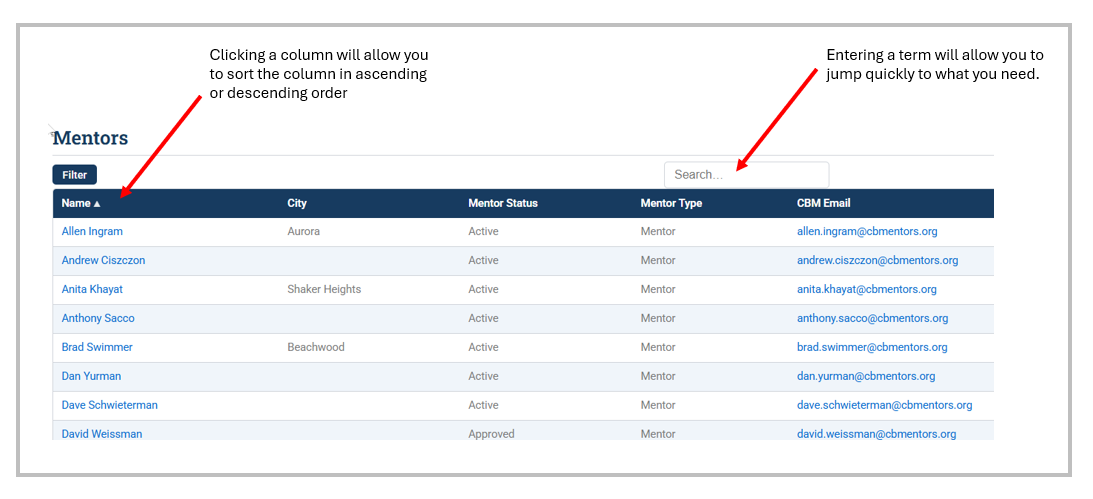
Search. The search box and/or filters at the top of each screen is the fastest way to jump straight to what you are looking for.