# Finding Your Engagements
## Finding Your Engagements
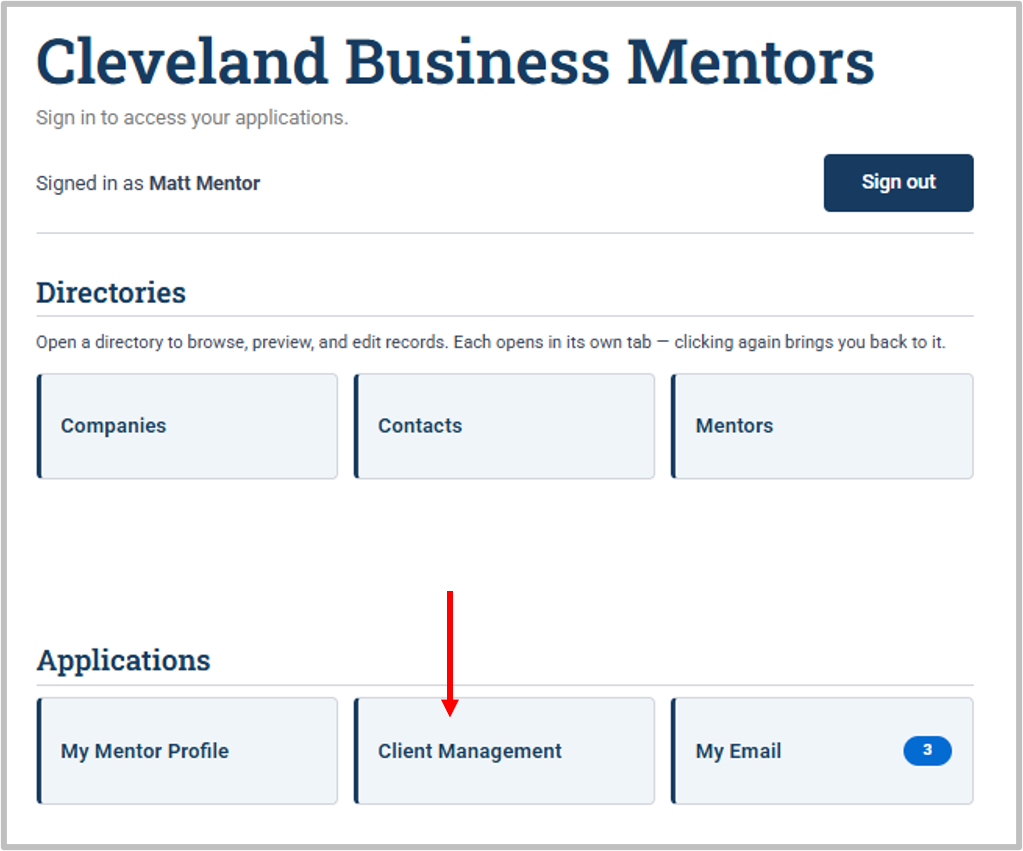
*Find all your engagements* from your **Contact Home Page** by clicking **Client Management** under **Applications.**
[](https://docs.clevelandbusinessmentors.org/uploads/images/gallery/2026-08/evrimage.png)
#### *Viewing Your Engagements*
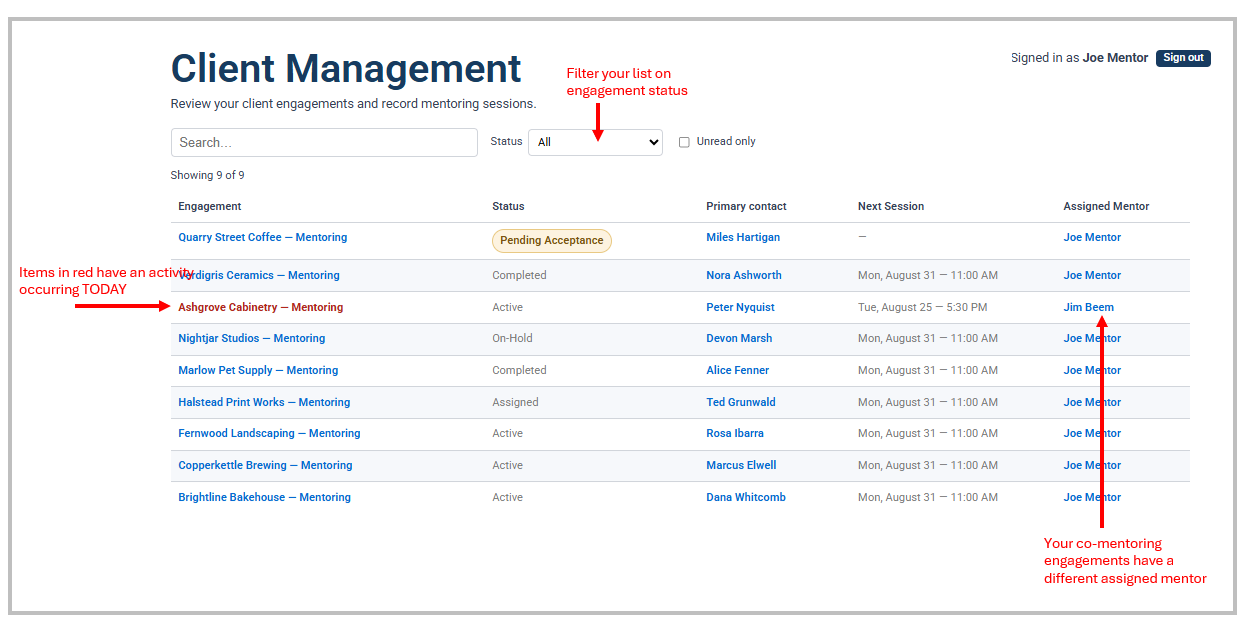
You will see a list of your engagements which you can access if you are the **Primary** or **Co-mentor** regardless of **status**:
[](https://docs.clevelandbusinessmentors.org/uploads/images/gallery/2026-08/bipimage.png)
**Engagement Status:**
- **Pending Acceptance** - these are clients that have been assigned to you but you have not accepted or declined yet.
- **Assigned** - you have accepted the client for mentoring
- **Active** - these are clients that have had at least one mentoring session.
- **Completed** - no further work is planned with this client. This status can be changed back to Active if the client contacts you again in the future.
- **On-Hold -** these are clients whose mentoring is paused for a specific time period. A note and a tickler file entry can be entered into the Details screen as indicated below.
*Your My Active Engagements dashlet on the Mentor Dashboard, showing Pending Acceptance and Active engagements together. Click the Engagement Name to view the details.*
#### *Opening an engagement.*
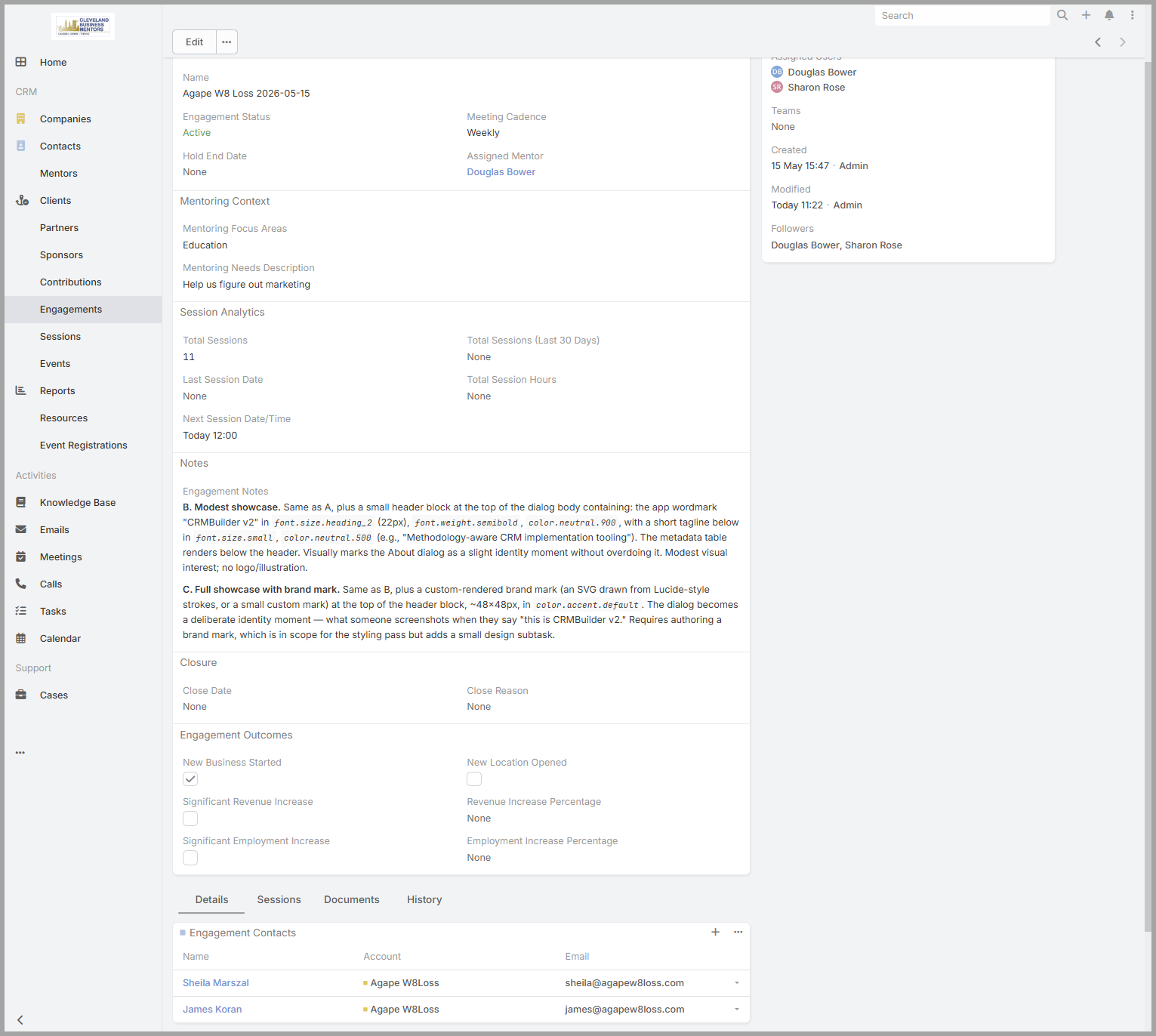
Select an engagement's name to open it. (For a refresher on reading a record — its panels, tabs, and Stream — see "Finding and Reading Information" in the Introduction.)
*What an engagement shows you.* Each engagement gathers the whole mentoring relationship in one place:
- the **client company** you're helping;
- the **people you're mentoring** — the client's employees named on the engagement;
- your **co-mentors**, if any;
- the engagement's **status** and **meeting cadence**;
- the **Sessions** logged so far, which build the history of your work together.
*Two kinds of engagements.* Your list holds two kinds:
- **Existing engagements** — the ones you're already working on.
- **Pending Acceptance engagements** — new assignments the system has given you, waiting on your decision. They appear right in your engagements list, marked **Pending Acceptance**, so a new one is easy to spot.
#### [](https://docs.clevelandbusinessmentors.org/uploads/images/gallery/2026-06/engagement-details-2026-06-08-17-01-22.png)
*An opened engagement Details Screen — its status and assigned mentor/users, the client's focus areas, the Engagement Contacts, and any additional (co-)mentors.*
#### *Accepting or declining a new assignment.*
New engagements are assigned to mentors automatically, so from time to time a **Pending Acceptance** engagement will turn up in your list. When one does:
1. Open it and review the client and the work against your **focus and expertise areas** — is it a good fit?
2. If you want to accept the Pending Engagement, change the engagement status to "**Assigned"** (you've taken it on, but haven't contacted the client yet).
3. If there is a reason why you cannot accept the engagement, decline it by setting the status to "**Assignment Declined"**.
Once you accept, the engagement is yours. After your first meeting — when you log that first session — set the status to **Active** to show the work is underway.
#### *Get oriented before each session.*
Before you meet with a client, it's worth opening the engagement to review the client, your notes from last time, and the action items you set — so you pick up right where you left off. The next sections cover logging the session and following up.