
Assigning a Mentor
Finding the best match.With the client's industry and requested mentoring areas in mind (Section 2), open the CBM Members area to review the available mentors. Look across each mentor's profile for the fit that matters:
- focus / expertise areas— do they line up with what the client needs?
- availability— are they open to taking someone on right now?
- capacity— do they have room for another engagement?
Scan or filter the list to narrow to capable mentors, and choose the one who best fits the client. Consulting a colleague or doing a little research before you decide is part of the job — there's no rush to assign.
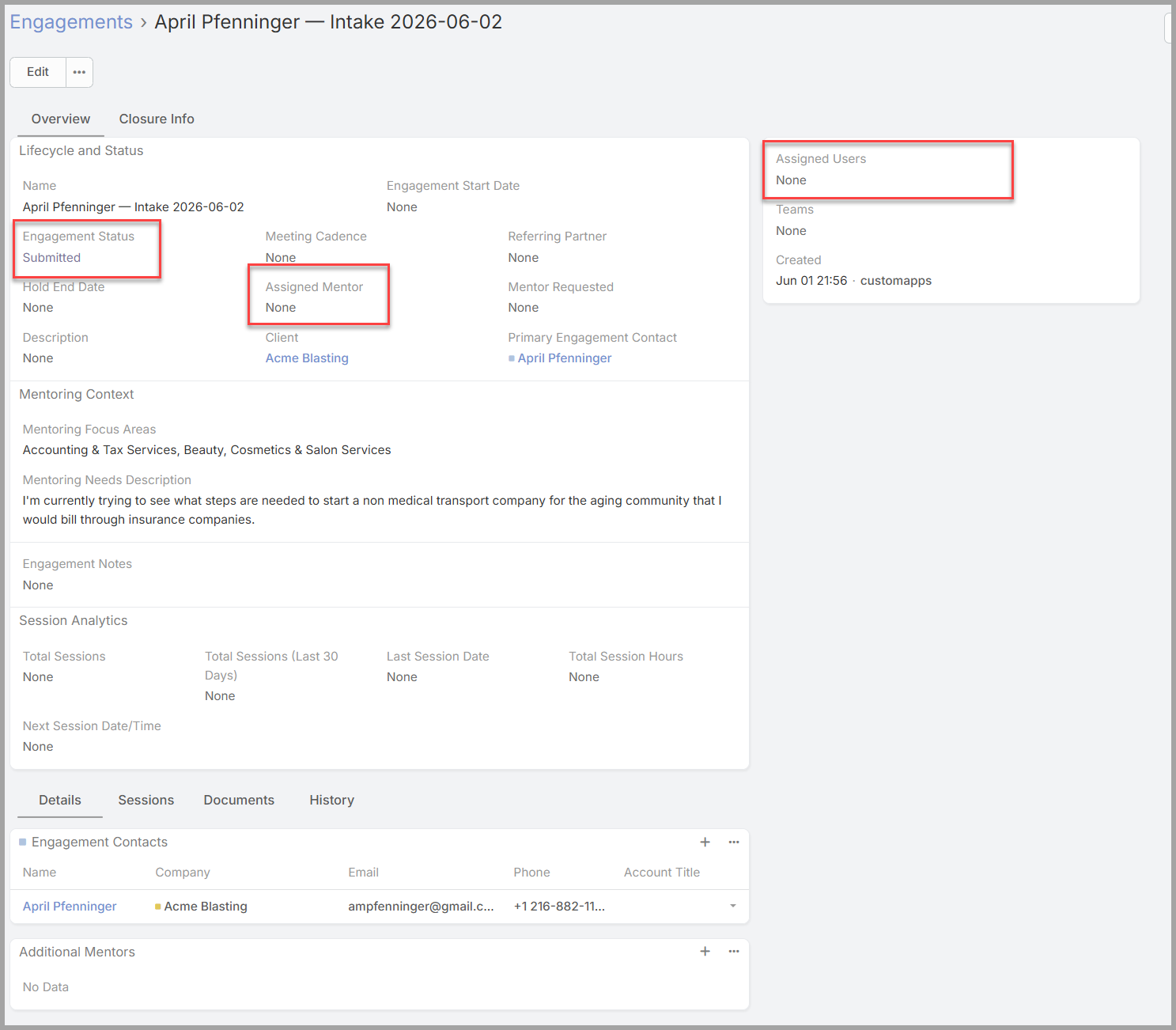
Making the assignment.Open the engagement you're assigning. The goal isn't just to name the mentor — it's to give them access to everything they'll need (the engagement, the people, and the client), so a few steps repeat the mentor across related records.
- In the engagement's Assigned Mentor field, select the mentor you chose.
- In the Assigned Users field, select that same mentor. (This is the access step — the Assigned User, not the Assigned Mentor, is what actually lets them open the record.)
- Change the Status to Pending Acceptance, and save the engagement.
- Give the mentor access to the client's people — for each Engagement Contact, open the contact's record, set its Assigned Use rto the mentor, and save.
- Open the client record linked to the engagement, set its Assigned Userto the mentor, and save.
Why the extra steps.Access follows the Assigned User on each record, so the mentor needs to be the Assigned User everywhere they'll look — the engagement, its contacts, and the client. Miss one and the mentor will see the engagement but won't be able to open a contact or the client.
What happens next.Setting the status to Pending Acceptance hands the engagement to the mentor: it appears in their My Engagements list, where they accept it (moving it to Assigned) or decline it (sending it back to your queue as Assignment Declined— Section 4). Your part is done once a capable mentor and their matching user are set and the status is Pending Acceptance.
|
 Adding a co-mentor or transferring an engagement.The same fields let you adjust who's on an engagement after it's assigned:
- To add a co-mentor,
addselectthemfrom the list of available Mentors to the AssignedMentorMentors and Assigned Users fields alongside the primary mentor, and give them access to the contacts and client the same way (steps 4–5 above) so they see the full picture. - To transfer an engagement to a different mentor, replace the mentor in those fields and move the Assigned User on the contacts and the client to the new mentor as well.
Mentors can make these same changes themselves; the Mentor Guide covers it from their side.