
Finding and Reviewing a New Engagement
Finding new engagements.
Your work starts atby reviewing theClient Assignment Teamdashlet on your home page. It lists the engagements that need your team's attention — those with a status ofSubmitted(new, straight from the intake form), along withAssignment DeclinedandDormantones that have come back for reassignment (Section 4). A new engagement to review is one markedSubmitted.
Opening and verifying the records.Select aSubmittedengagement to open it. Because the intake form creates the engagement together with the clientCompanyand the clientContacts, your first job is to confirm those are right and properly linked:
theCompany— the client business (or a "(Pre-Startup)" placeholder if the business doesn't exist yet);theContacts— the people at the client who'll take part;theEngagementitself — that it's connected to the right company and people.
If something is off or missing, correct it before you assign — a clean record now saves confusion later.
Reviewing what the client needs.With the records verified, read the substance of the request: the client'sindustryand thementoring areasthey've asked for. This is what you'll match a mentor against in the next section, so understand it clearly before you go looking for the right person.
There are two places to find a list of Pending Client Engagements Reports,Report. orThis information is available in two places within the system:
- The Pending Client Engagements Report
- The CBM Engagements Panel.
The Pending Client ApplicationEngagements Report
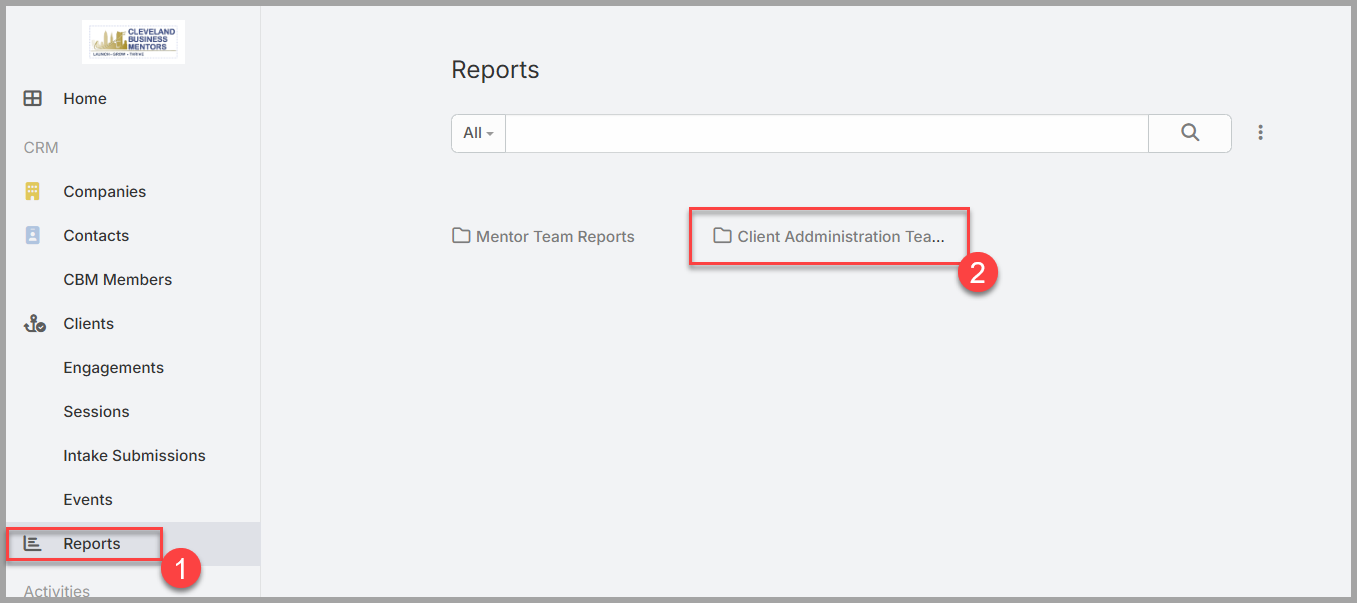
The Reports page provides a number of reports that may be useful, and they are pre-configured to show all Pending Mentor candidates. To access the Pending Mentor Candidate report:
- Click on the Reports link on the left side of your screen.
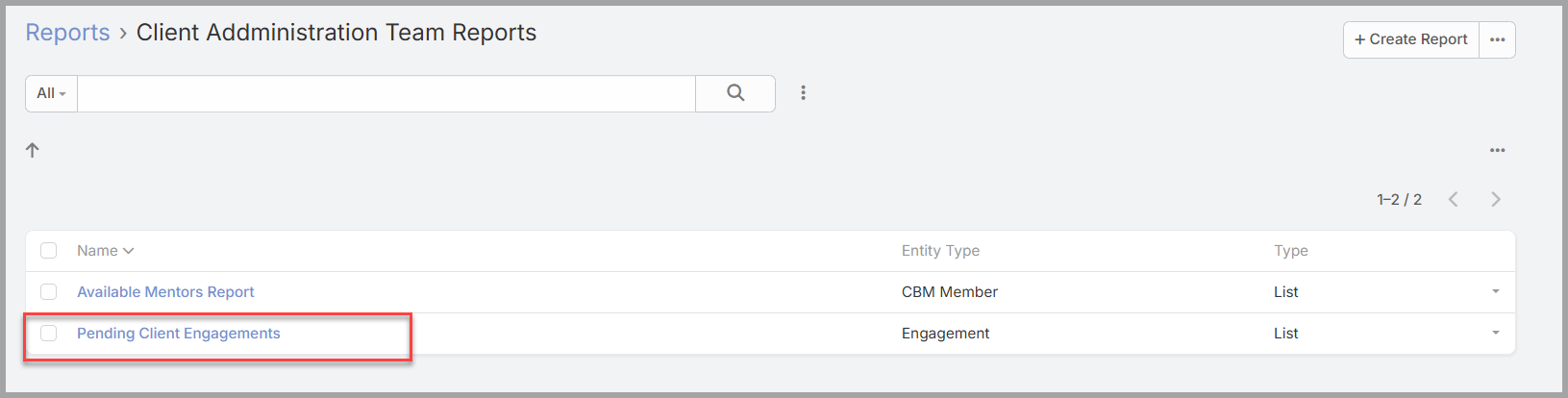
- Select the Folder “
MentorClientAdminAdministration Team Reports” - Click on “Pending
MentorClientCandidates”Engagements” to display the report.
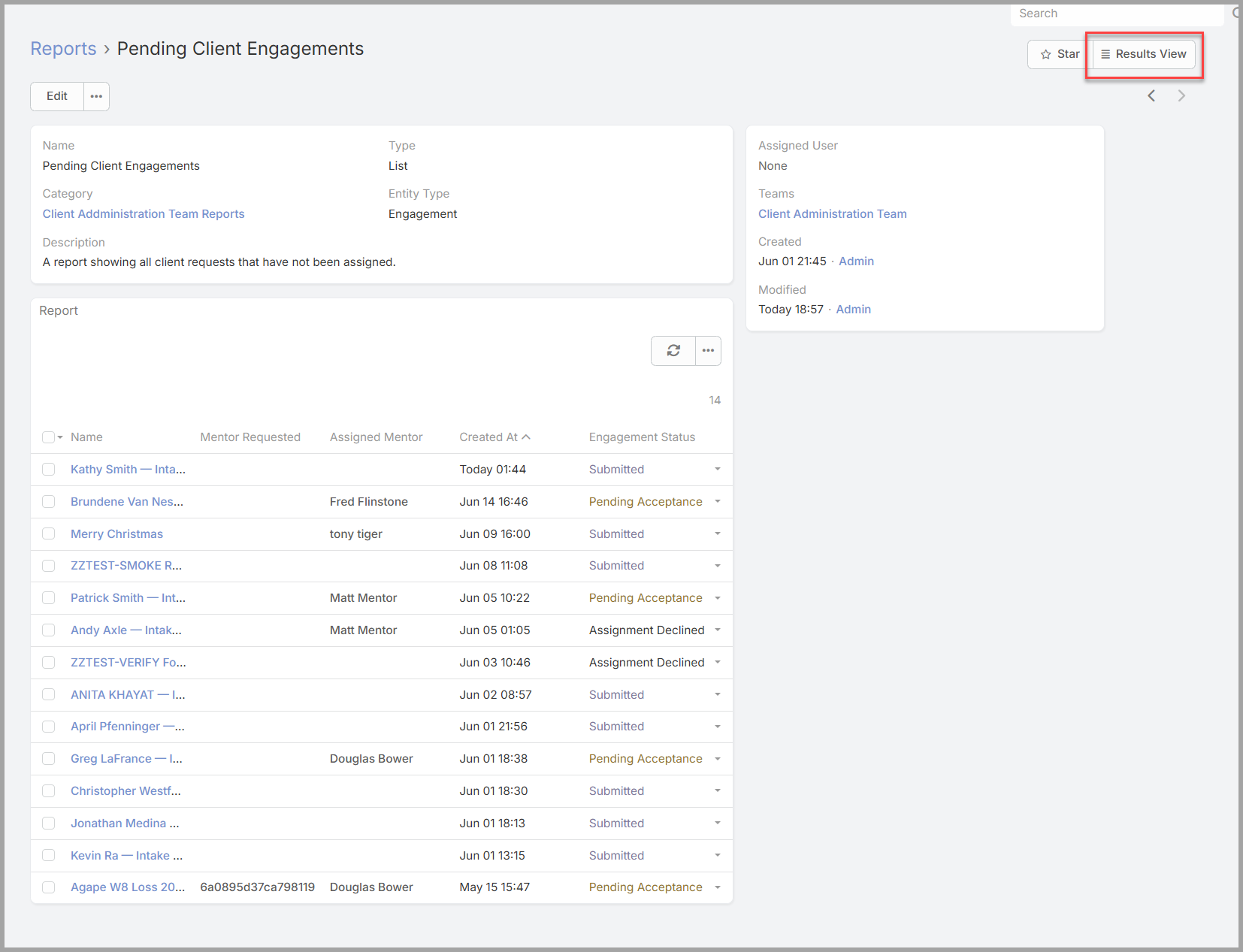
This report lists all of the engagements that need your team's attention — those with a status of Submitted (new, straight from the intake form), along with Assignment Declined and Dormant ones that have come back for reassignment (Section 4). A new engagement to review is one marked Submitted.
Opening and verifying the records.
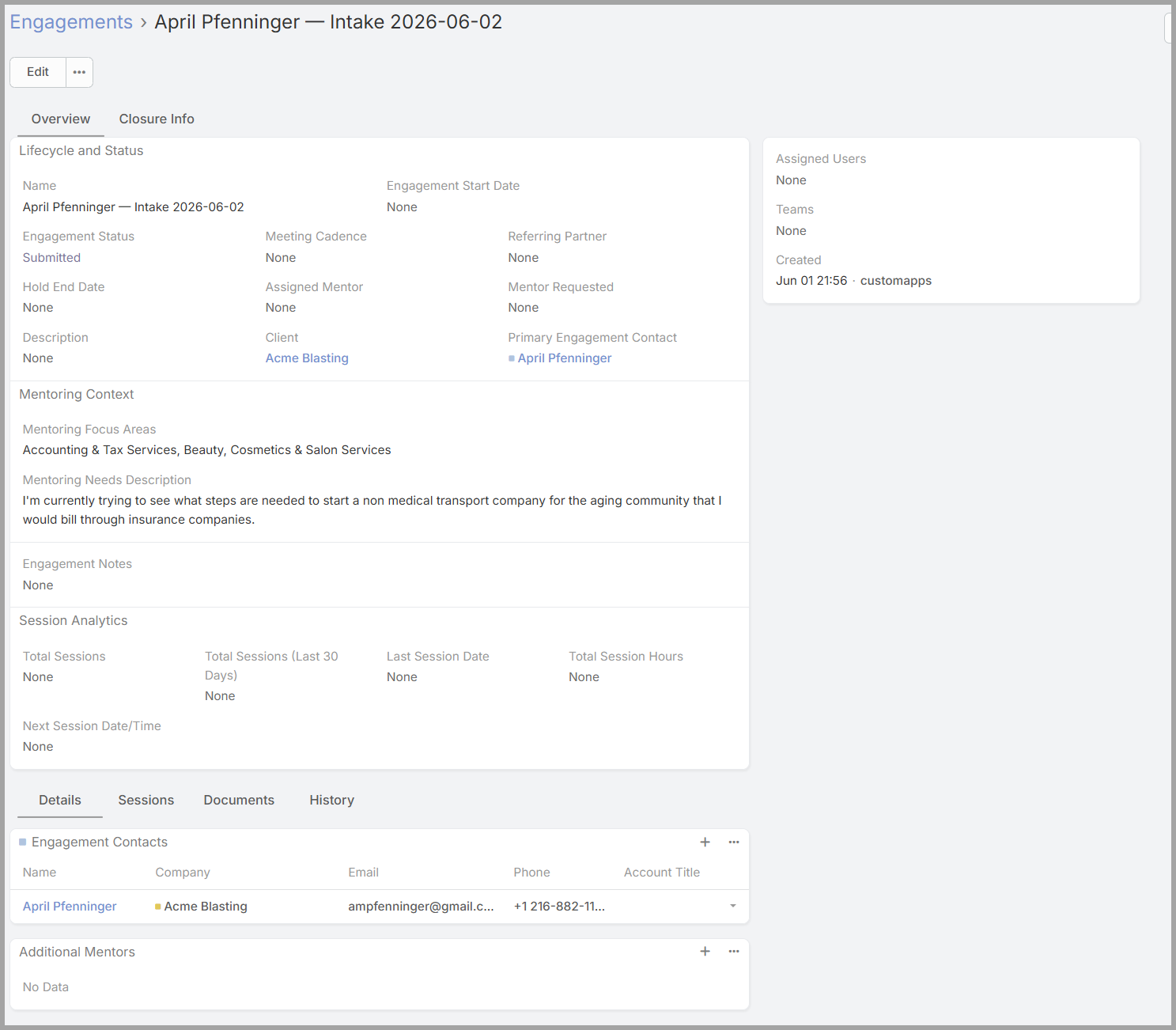
Select a Submitted engagement and open it by clicking on the Engagement Name. It will display the Engagement Detail page. Because the intake form creates the engagement together with the client Company and the client Contacts, your first job is to confirm those are right and properly linked:
- the Company— the client business (or a "(Pre-Startup)" placeholder if the business doesn't exist yet);
- the Contacts— the people at the client who'll take part;
- the Engagementitself — that it's connected to the right company and people.
If something is off or missing, correct it before you assign — a clean record now saves confusion later.
Reviewing what the client needs.
With the records verified, read the substance of the request: the client'sindustryand thementoring areasthey've asked for. This is what you'll match a mentor against in the next section, so understand it clearly before you go looking for the right person.