
Finding and Reading Information
Now that you know what the records are, here's how to find them and read them. Along with Section 3, this is most of what you'll do at first — looking things up and understanding what you see.
Search is the fastest way to a specific record. The search box at the top finds records anywhere in the system by name — a person, a company, an engagement, a session. Start typing a name and matching records appear; select one to open it. Search is the quickest route when you already know what you're after.
Browse from the left-hand menu. When you want to look through a group rather than a single record, use the left-hand menu, which lists the areas you have access to — for example Contacts, Companies, Engagements, Sessions, and the role areas Mentors, Clients, Partners, and Sponsors. Selecting an area opens its list view.
Working with a list view. A list view is a table of records, one per row. You can sort it by selecting a column heading, and narrow it with filters to show just the records you care about — for instance, the Engagements assigned to you. (You'll only ever see the records your access allows; Section 6 explains why.)
Opening and reading a record. Select any row to open its detail view — everything the system holds about that one record, in one place. Information is grouped into panels, and a record's related information sits on its own tabs: open a Company and you'll find its Clients, Partners, or Sponsors profiles on tabs, along with the people who work there; open an Engagement and you'll find its mentors, the employees being mentored, and its Sessions. Each record also has its own Stream — the dated history of what's happened to it.
Following the connections. Because records are linked, you can move between related ones with a click. From a Contact you can jump to the Company they work at; from a Company, to its Engagements; from an Engagement, to each Session. This is how the model from Section 4 plays out in everyday use — start anywhere, and the connections lead you to the rest of the story.
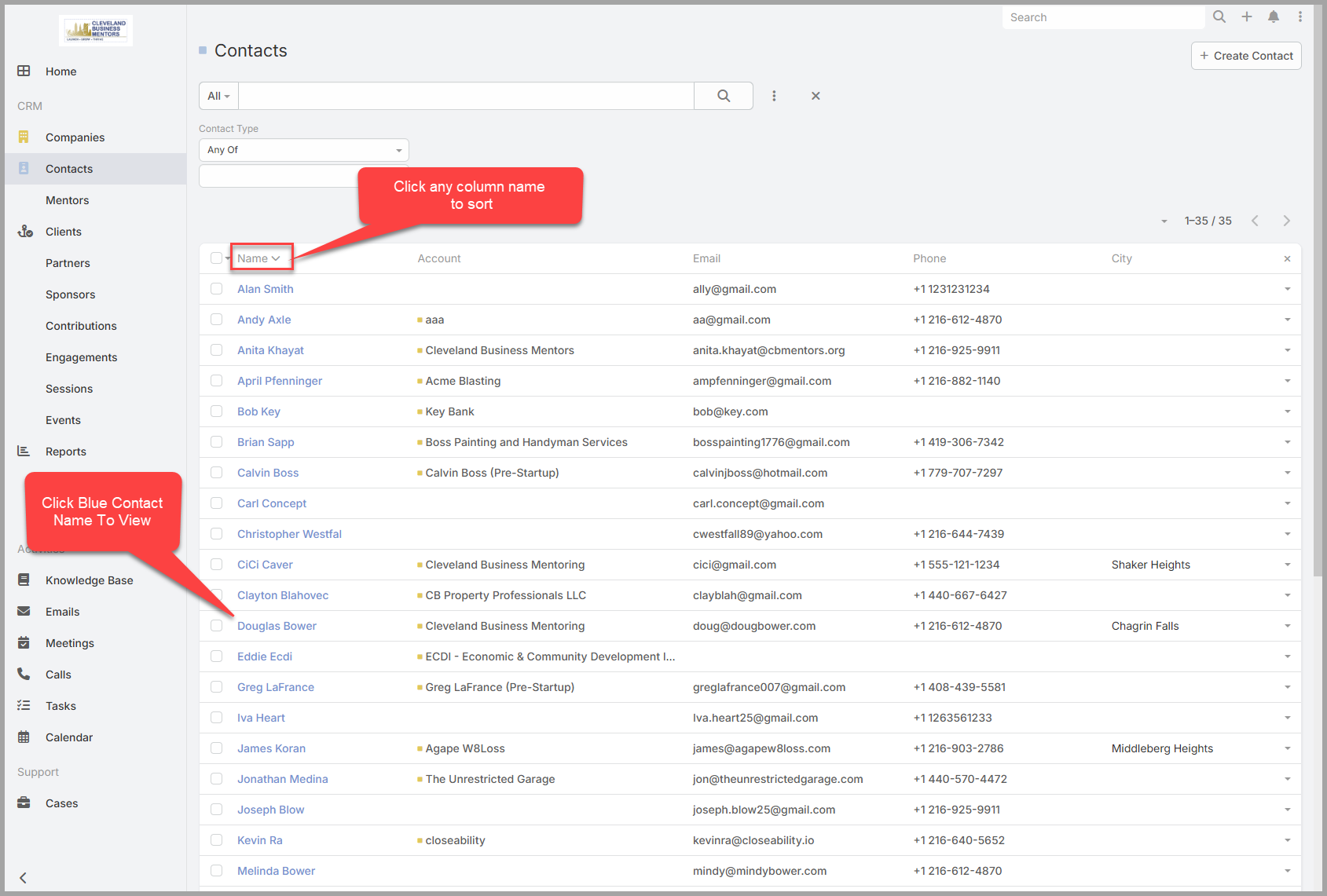
A list view (the Contacts list): select a column heading to sort, and a blue name to open that record.
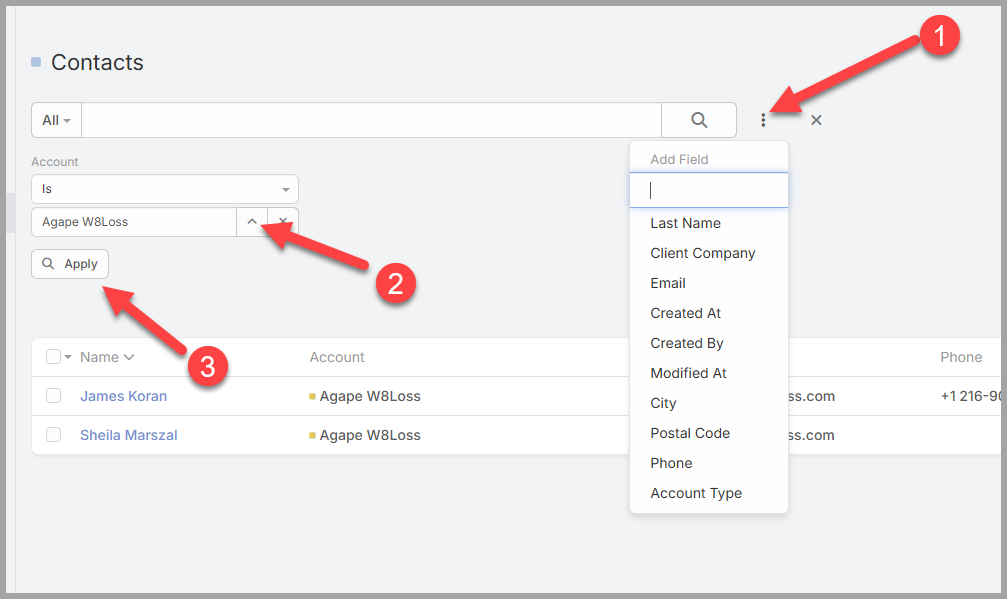
Narrowing a list with a filter: open the filter menu, choose a field and value, then select Apply.
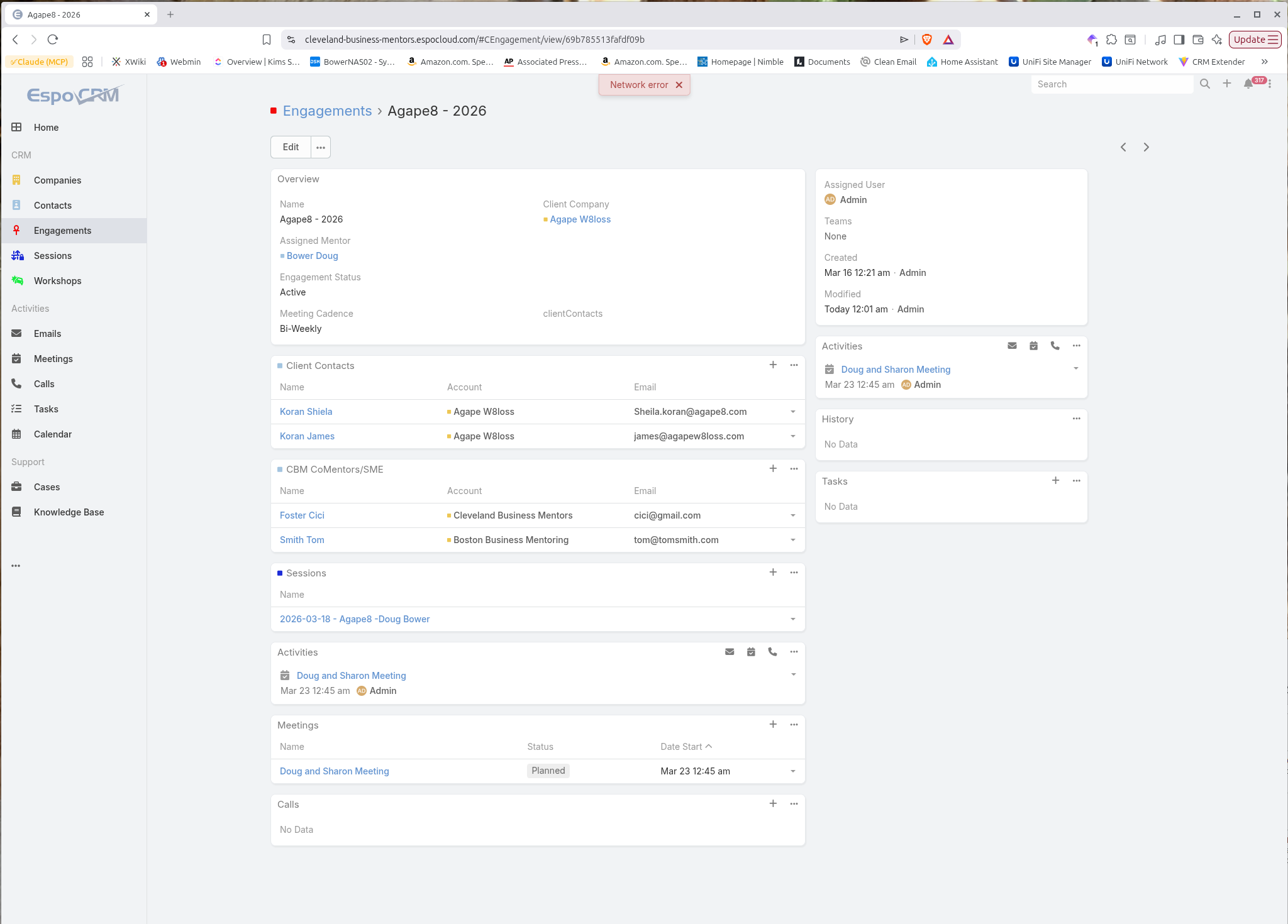
A record's detail view (an Engagement): its panels — Overview, Client Contacts, CBM CoMentors, Sessions — and, on the right, the Assigned User. Note that the Assigned Mentor and the Assigned User can differ.
In short. Use search to jump to a known record, the left-hand menu and list views to browse a group, and a record's detail view to read it — its panels, its related tabs, and its Stream. You'll only see what your access allows.