
Signing In
Before your first sign-in. Your CRM account is created for you by a CBM administrator — you don't set one up yourself. When your account is ready, the system sends you an email with a temporary password, which you'll be prompted to change the first time you log in. If you expected this email and it hasn't arrived, check your spam folder first, then email info@cbmentors.org.
Where to sign in. Open a web browser and go to https://apps.clevelandbusinessmentors.org/. Bookmark this page so it's easy to return to. CONTACT works in any current web browser — Chrome, Edge, Firefox, or Safari — and runs best when your browser is kept up to date. We recommend using Chrome for your work within the CBM environment.
Signing in. On the sign-in screen, enter your username (Your CBM email address) and password, then select Log in. The screen you land on first depends on your role; that's expected, and the next section helps you get your bearings.
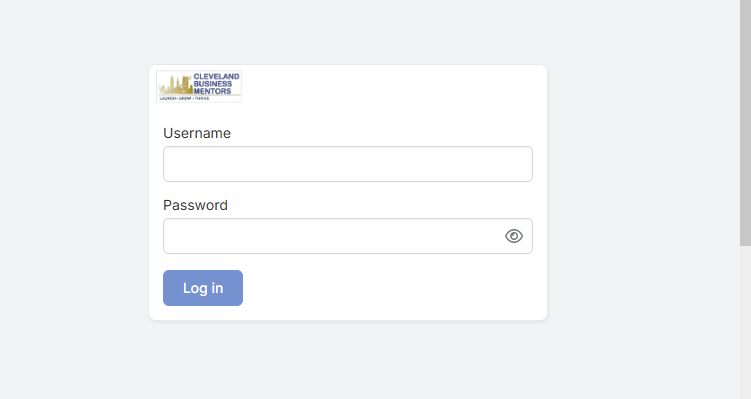
The sign-in screen: enter your Username and Password (the eye icon reveals what you type), then select Log in.
If you forget your password. use the Forgot your password option on the sign-in screen. If you are still having difficulty, email info@cbmentors.org for assistance.
Signing out, and a word on security. To sign out, open your account menu and click the Sign Out button. Because the CRM holds real information about real people, always log out when you're on a shared or public computer, and never share your login with anyone — if a colleague needs access, an administrator can create an account for them.