The Lay of the Land

When you log in, you'll see the CONTACT's main interface. A handful of elements stay with you everywhere you go, and getting familiar with them is most of what it takes to feel at home. One thing to know up front: the exact set of menu items you see is tailored to your role, so your screen may not look identical to a colleague's — that's intentional, and Section 6 explains why. (The screenshots in this section show CBM's actual setup.)


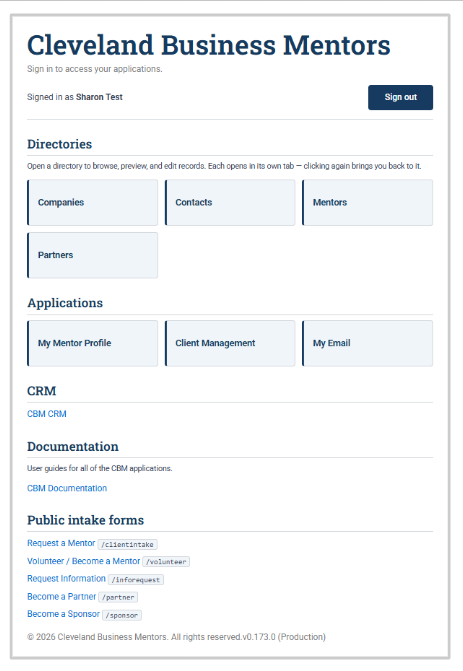
  • Directories: browse,Browse, preview and edit records. Each opens in its own tab. Close the tab when you're finished to return to the list. 


  • Applications: Use these tools to perform the tasks associated with your role.
    • My Mentor Profile: useUse this application to view and edit your profilementor profile.
    • Client Management: useUse this application to review and accept your client engagements, schedule your mentoring sessions, send emails to your clients, enterand record your mentoring sessions. Most of your work with your clients will be done in this application.here.
    • My Email: View every conversation theassociated with the records you managemanage, acrossincluding communications with clients, partnerspartners, and funders can be viewed from this application.funders.


  • CRM: thisThis is the CONTACT system in its raw form. Because weCONTACT have theincludes Directories, Applications, Documentation,and Documentation that organize and simplify your work, there is notgenerally no reason to gowork intodirectly in the CRM.


  • Documentation: clickClick here to read the documentation. Each shelf is divided into booksbooks, which are subdividedfurther divided into sectionssections, making it easy to helpjump you easily jumpdirectly to the information you need.


  • Public intake forms: theseThese are links to the forms that allow clients, volunteers, partnerspartners, and sponsors to become part of CONTACT.


image.pngimage.png

The left-hand menu. Down the left side of the screen is a menu listing the main areas of the system — the kinds of records you work with, such as Contacts, Companies, Mentors, Engagements, and Sessions. Select any item to open that area. A home link returns you to your home page from anywhere.

Search. The search box in the top bar finds records anywhere in the system by name — a person, a company, a mentoring record — and is the fastest way to jump straight to something. Section 5 covers searching in more detail.
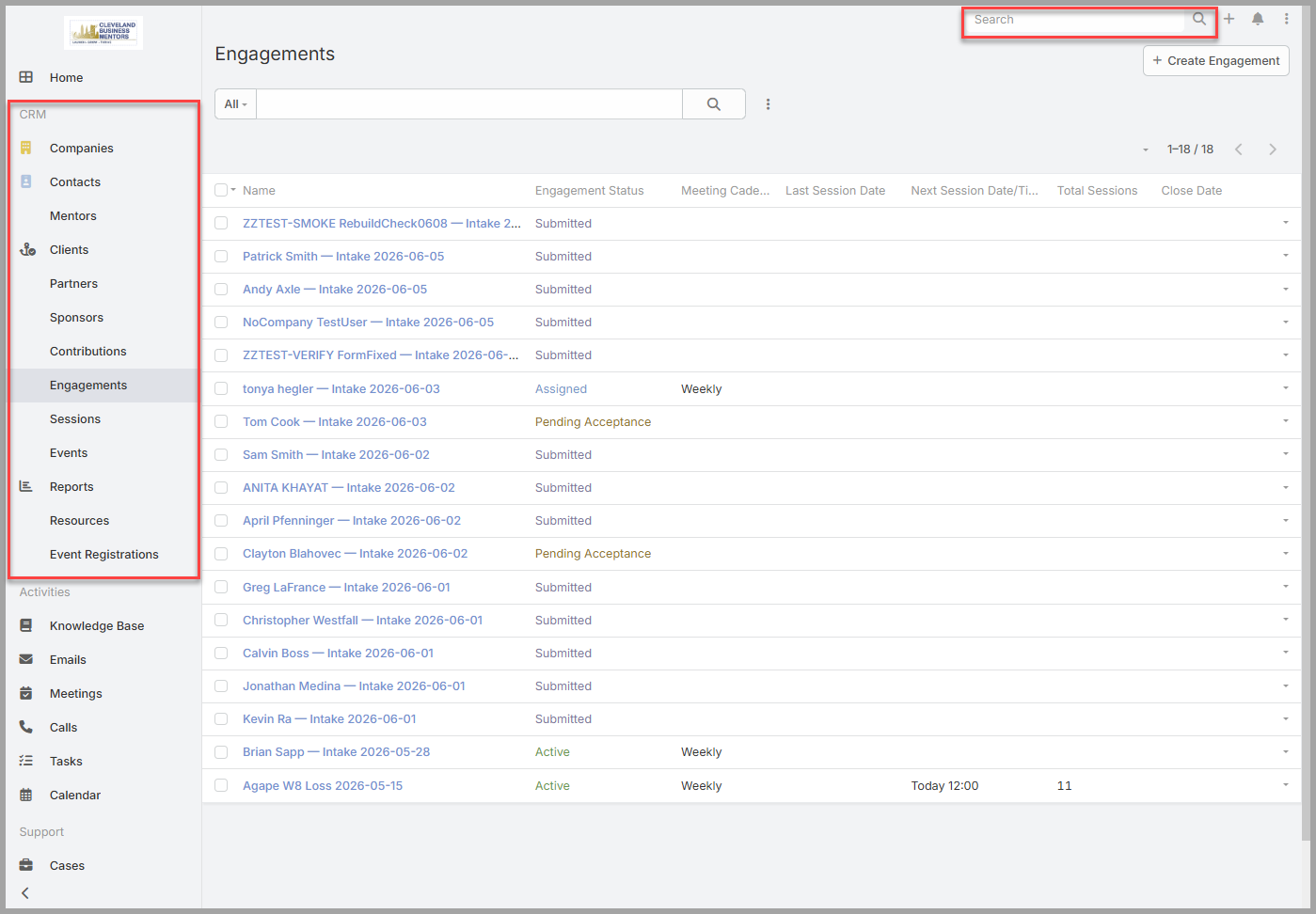

image.png

Your home page. This is the first thing you see after signing in. It's made up of panels — called dashlets — that give you an at-a-glance summary, such as items assigned to you, recent activity, and things coming up. What appears here depends on your role and can be personalized later. Initially, it will not have much information, and you should navigate to your Engagements, or Mentors tab.

Notifications. A bell icon in the top bar alerts you to things that involve you — for example, when a record is assigned to you or a colleague mentions you. A number on the bell means something new is waiting; select it to see what.

Your account menu. At the far top-right, the account menu — the three-dot icon — opens your account options: it shows your name, your personal preferences, and the option to log out. You won't need anything in here to get started.

The activity stream. Across the system you'll encounter the Stream — a running, dated feed of what's happened, newest first. There is a system-wide Stream, and, as you'll see in Section 5, each individual record has its own. Think of it as the system's running narrative of updates.
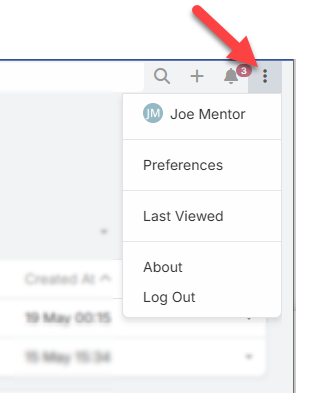

image.png

he top bar: search, create (+), notifications (with a count badge), and the account menu — shown open, with your name, Preferences, and Log Out.