
The Lay of the Land
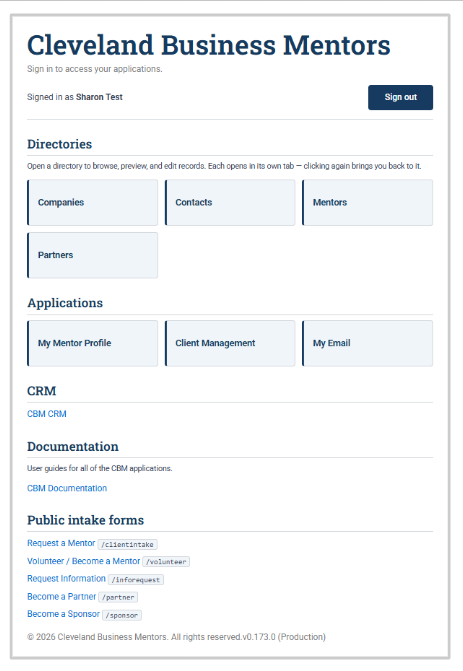
When you log in, you'll see the CONTACT's main interface. A handful of elements stay with you everywhere you go, and getting familiar with them is most of what it takes to feel at home. One thing to know up front: the exact set of menu items you see is tailored to your role, so your screen may not look identical to a colleague's — that's intentional, and Section 6 explains why. (The screenshots in this section show CBM's actual setup.)
|
|
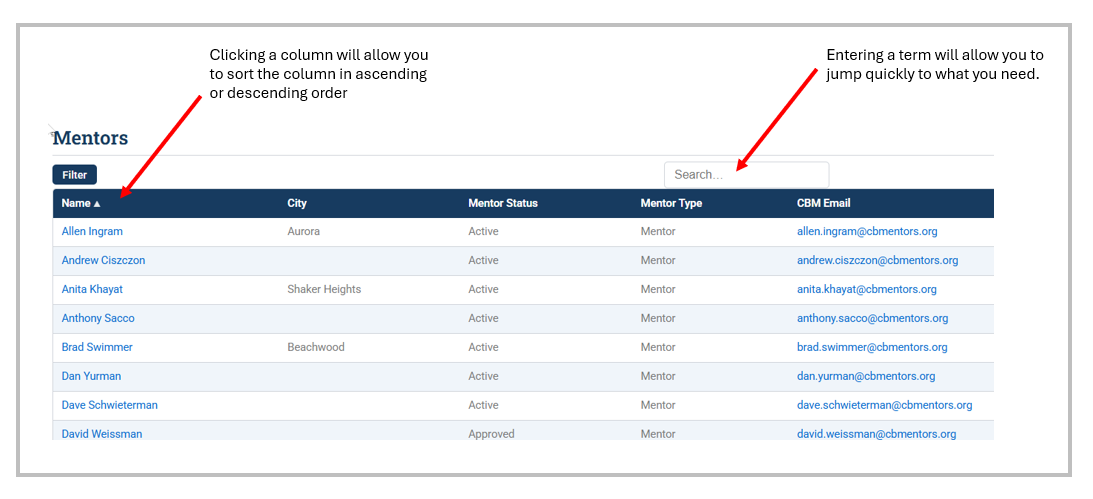
Search. The search box and/or filters at the top of each screen is the fastest way to jump straight to what you are looking for.
Your home page. This is the first thing you see after signing in. It's made up of panels — called dashlets — that give you an at-a-glance summary, such as items assigned to you, recent activity, and things coming up. What appears here depends on your role and can be personalized later. Initially, it will not have much information, and you should navigate to your Engagements, or Mentors tab.
Notifications. A bell icon in the top bar alerts you to things that involve you — for example, when a record is assigned to you or a colleague mentions you. A number on the bell means something new is waiting; select it to see what.
The activity stream. Across the system you'll encounter the Stream — a running, dated feed of what's happened, newest first. There is a system-wide Stream, and, as you'll see in Section 5, each individual record has its own. Think of it as the system's running narrative of updates.
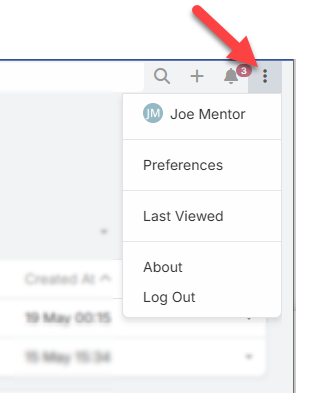
he top bar: search, create (+), notifications (with a count badge), and the account menu — shown open, with your name, Preferences, and Log Out.