Moving a Candidate Through the Process
The status progression. Your team moves each candidate through a sequence of statuses or "States" as the review process advances. The full path from application to approval is:
Candidate → Under Review→ Provisional Accepted →Provisional → Approved→Active
Each step is a manual status change you make on the CBM Member record. There are no automated transitions — every move is your team’s deliberate decision.
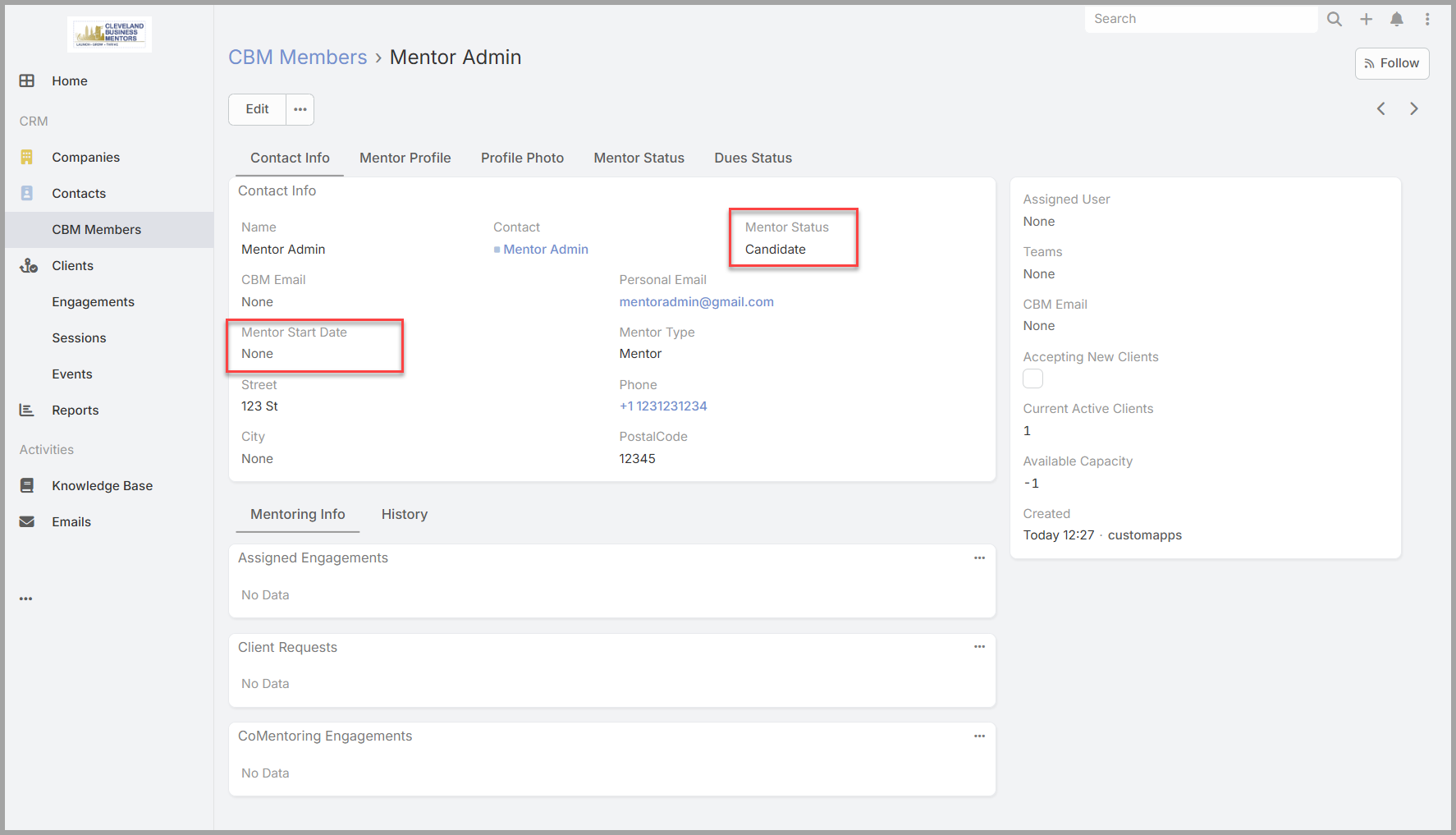
Advancing the status. To move a candidate to the next status:
Open the CBM Member record from the dashlet or from the CBM Members list.Select Edit.Find the Mentor Status field and change it to the appropriate next value.Select Save.
The record updates immediately and the change is recorded in the Stream.
What each step means.
- Candidate → Under Review.The application has passed your initial review and is moving forward. Use this when you’re satisfied with what the candidate submitted but want a further evaluation step — a second review, a conversation, or additional consideration — before making a final decision.
- Under Review → Provisional Accepted . The application has passed further review, and the Mentor Candidate has been granted Provisional status to do co-mentoring and complete the required training to be approved. At this point a CBM Email should be created and issued to the Mentor Candidate. When the email is issued, and the Mentor Candidate successfully logs into the email system, they can be promoted to a Provisional Mentor.
- Provisional Accepted → Provisional. When the user has successfully connected to the email system, their status should change from Provisional Accepted to Provisional.
- Provisional → Approved.The candidate has been accepted as a CBM mentor. This is your team’s final decision. When you set status to Approved, also set the Mentor Start Date field to today’s date — this records when the candidate was formally accepted into the program.
- Approved → Active.The candidate is accepting solo mentoring sessions from the Client Assignment Team.
SettingEach step is a manual status change you make in the CBM Mentor Admin Application. There are no automated transitions — every move is your team’s deliberate decision.
Advancing the status. To move a candidate to the next status:
- Open the CBM Mentor Administration App (Test: Test Mentor Admin App Production: Production Mentor Admin App
- Select the Mentor
Start Date. The Mentor Start Date is set at the same time you move statustoApproved.beIt’sedited, and click on theCBMMentorMembernamerecordtoalongsideopen the Mentor Details page. - Find the Mentor Status
fieldTab—justsetbelowboththe Mentor Information Banner and click on the Tab. - Click on the Status selection text box and select the appropriate status to be assigned to the Mentor.
- Select Save Changes.
The record updates immediately and the Mentor will be able to perform the newly assigned capabilities.
Detailed instructions for the Changes between each Mentor State/Status are described in the samenext edit and save together.section.