
Finding Your Engagements
Finding Your Engagements
ToFind all your engagements from your Contact Home Page by clicking Client Management under Applications.
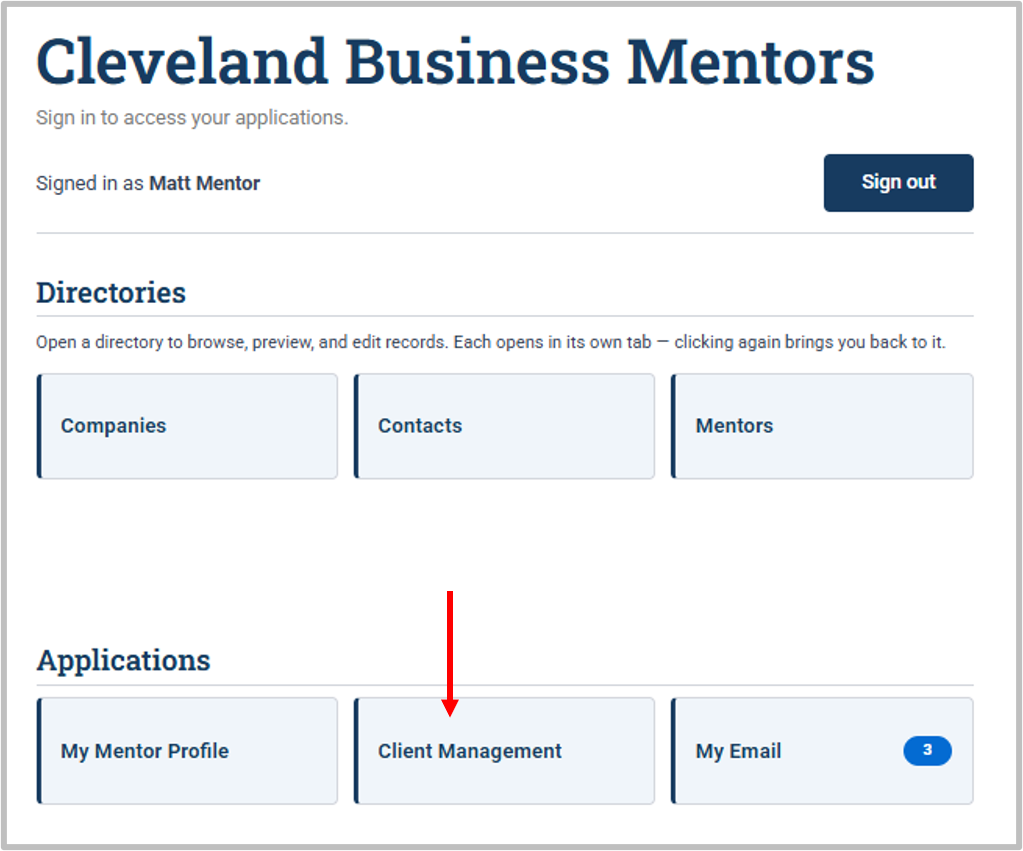
Viewing Your Engagements
You will see a list of your engagements which you can access regardless of status:
-
FromPendingyourhome pageAcceptance(the-MentortheseDashboard),aretheclientsMythatActivehaveEngagementsbeendashletassignedliststoyouryoucurrentbutengagements.you have not accepted or declined yet. -
FromAssigned - you have accepted theleft-hand menu, openEngagementsclient forthe same list.mentoring FromReportsActive,-openthese are clients that have had at least one mentoring session.
Completed - no further work is planned with this client. This status can be changed back to Active if the "Myclient Activecontacts Clientyou Engagement"again report.in the future.
Either way, you should be able to locate a list of engagements for which you are the Primary, or Co-Mentor.
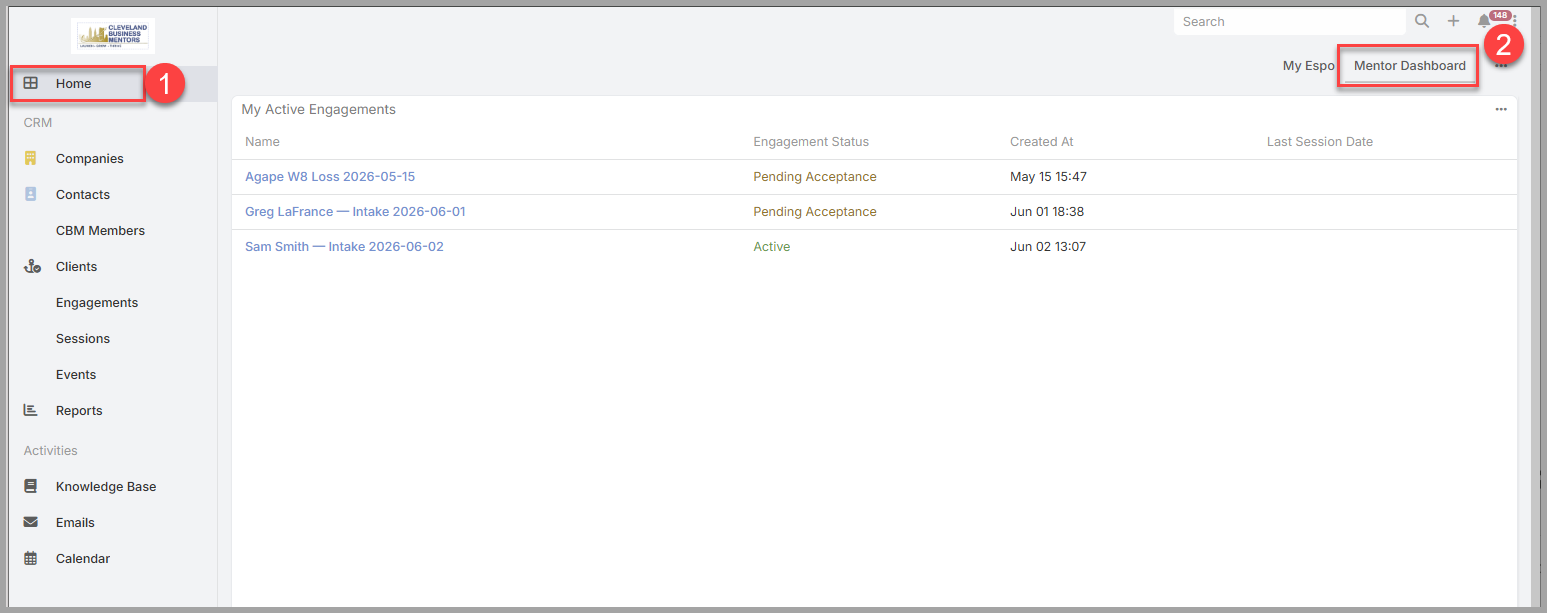
Your My Active Engagements dashlet on the Mentor Dashboard, showing Pending Acceptance and Active engagements together. Click the Engagement Name to view the details.
Opening an engagement.
Select an engagement's name to open it. (For a refresher on reading a record — its panels, tabs, and Stream — see "Finding and Reading Information" in the Introduction.)
What an engagement shows you. Each engagement gathers the whole mentoring relationship in one place:
-
the client company you're helping;
-
the people you're mentoring — the client's employees named on the engagement;
-
your co-mentors, if any;
-
the engagement's status and meeting cadence;
-
the Sessions logged so far, which build the history of your work together.
Two kinds of engagements. Your list holds two kinds:
- Existing engagements — the ones you're already working on.
- Pending Acceptance engagements — new assignments the system has given you, waiting on your decision. They appear right in your engagements list, marked Pending Acceptance, so a new one is easy to spot.
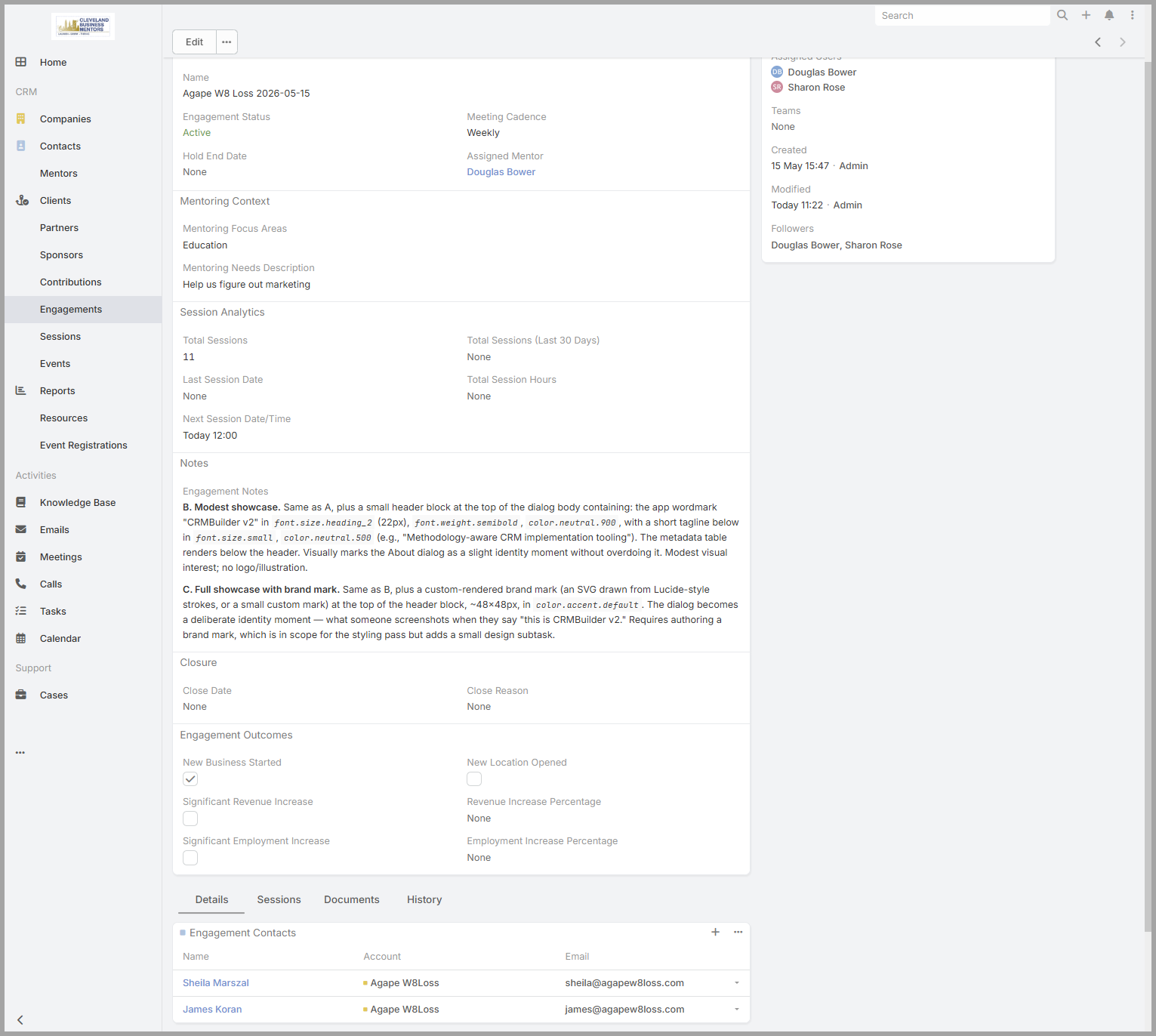
An opened engagement Details Screen — its status and assigned mentor/users, the client's focus areas, the Engagement Contacts, and any additional (co-)mentors.
Accepting or declining a new assignment.
New engagements are assigned to mentors automatically, so from time to time a Pending Acceptance engagement will turn up in your list. When one does:
-
Open it and review the client and the work against your focus and expertise areas — is it a good fit?
-
If you want to accept the Pending Engagement, change the engagement status to "Assigned" (you've taken it on, but haven't contacted the client yet).
-
If there is a reason why you cannot accept the engagement, decline it by setting the status to "Assignment Declined".
Once you accept, the engagement is yours. After your first meeting — when you log that first session — set the status to Active to show the work is underway.
Get oriented before each session.
Before you meet with a client, it's worth opening the engagement to review the client, your notes from last time, and the action items you set — so you pick up right where you left off. The next sections cover logging the session and following up.