Getting Started as a Mentor
Who this guide is for.
This guide is for CBM mentors, and it assumes you've already read the CRM Introduction Guide on the Start Here shelf — so you know what Contacts, Companies, Engagements, and Sessions are, how to sign in and find your way around, and that what you can see is governed by your User account. This guide picks up from there and walks you through what you actually do as a mentor.
What's expected of you.
CONTACT is where your mentoring is recorded. In practice that comes down to a few things: finding the clients you're assigned to, logging each session after you meet, following up with the people you mentored, and keeping your engagement and your own profile current. The sections that follow take these one at a time.
Signing in.
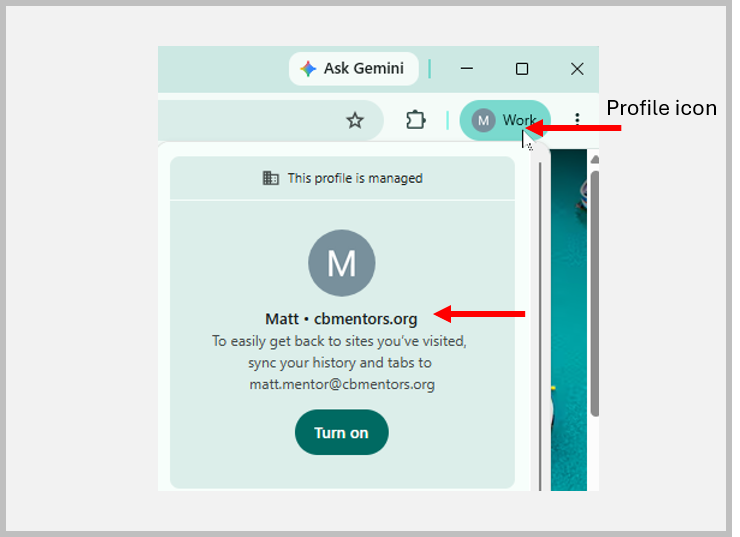
Make sure you are in the CHROME browser and that your profile is your cbmentors profile.. You may want to set Chrome as your default browser.
You reach the CRM the same way as any user — see "Signing In" in the Introduction. As a mentor you have a User account for logging in; if you're ever unable to sign in, contact helpme@cbmentors.org.
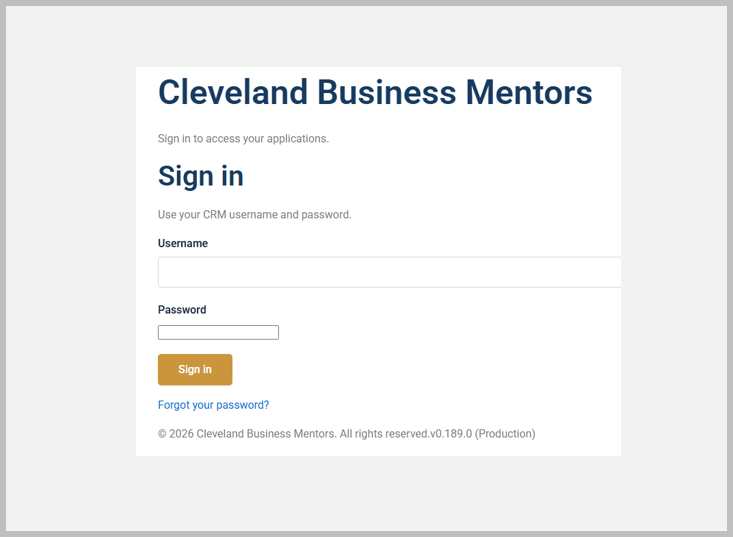
In the browser address bar, type in the Production CONTACT Apps URL: https://apps.clevelandbusinessmentors.org/ or use your shortcut under CBM in the bookmarks bar.
Sign in using your Google Workspace email address and the password you created when you onboarded.
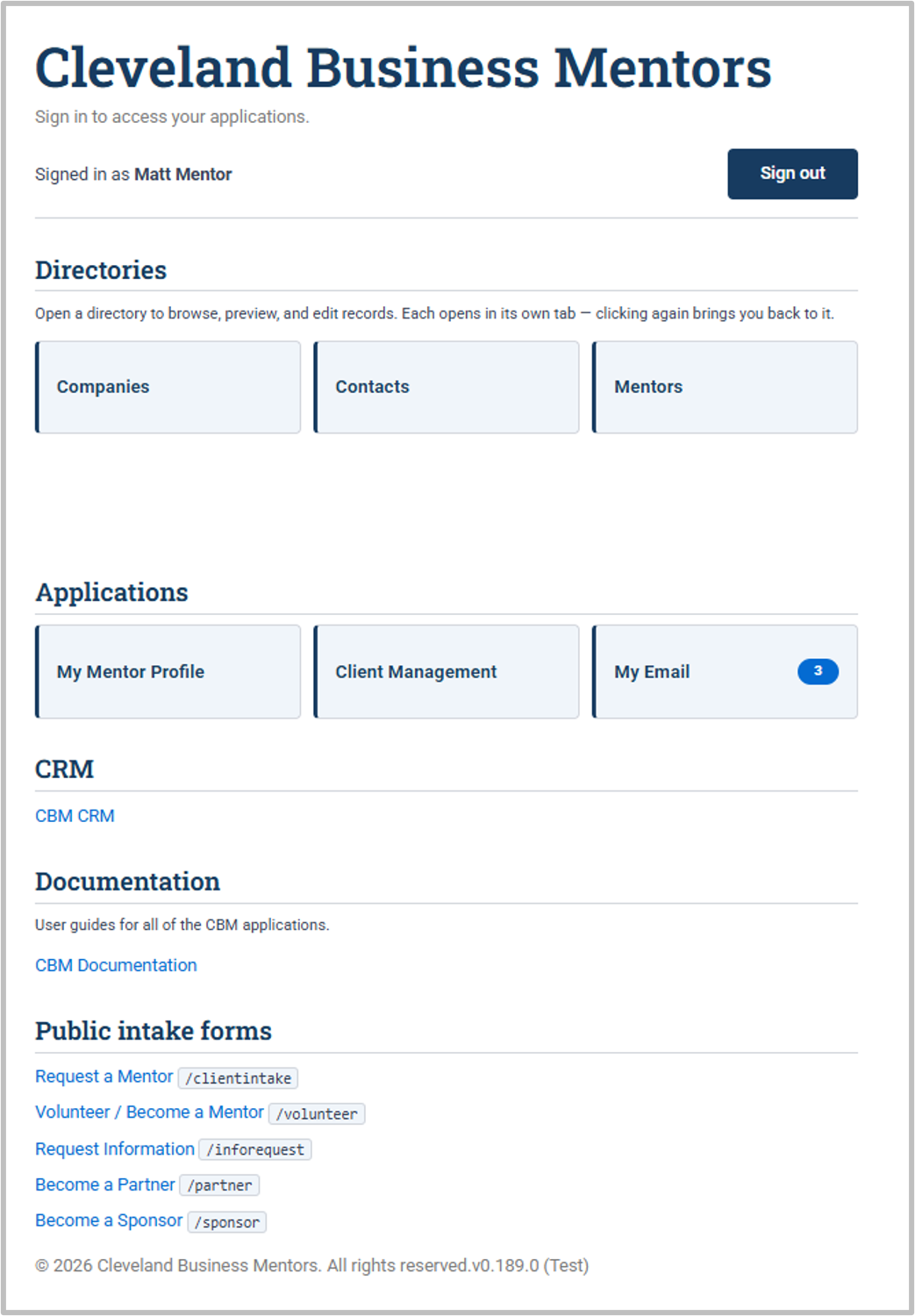
Here you will see the CONTACT Home Page which will shows the areas available to you based upon your role. Matt Mentor's role is Mentor.
Your CBM Member profile. Your information lives on the CBM Members tab — this is your CBM Member profile. It holds the details CBM uses to match you well and stay in touch: your availability, your focus / expertise areas, your capacity (how many engagements you can take on at once), and a short bio. Keeping these current helps coordinators pair you with the right clients.
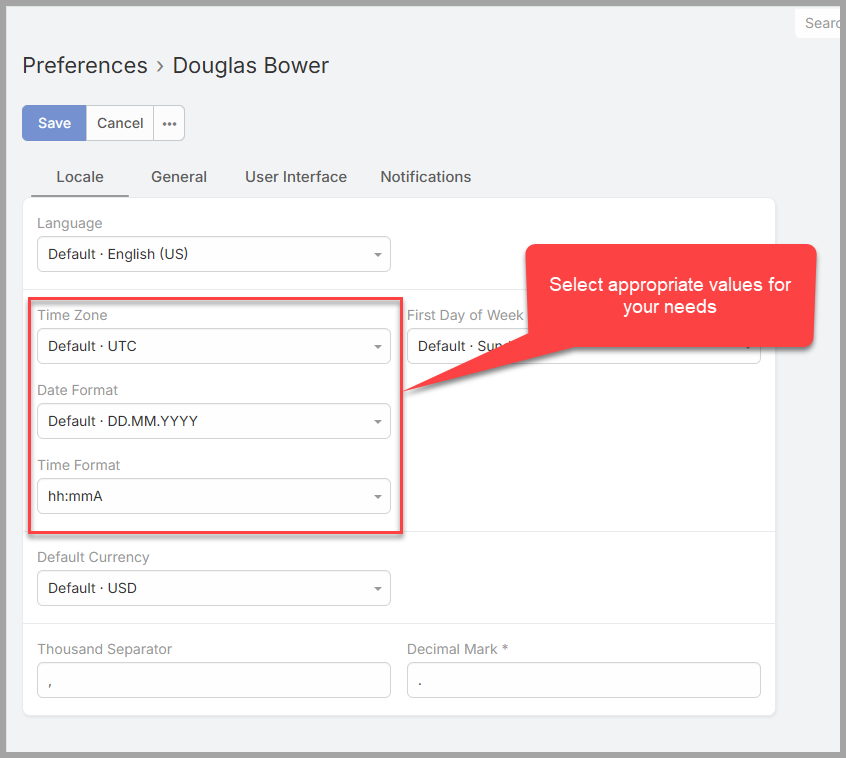
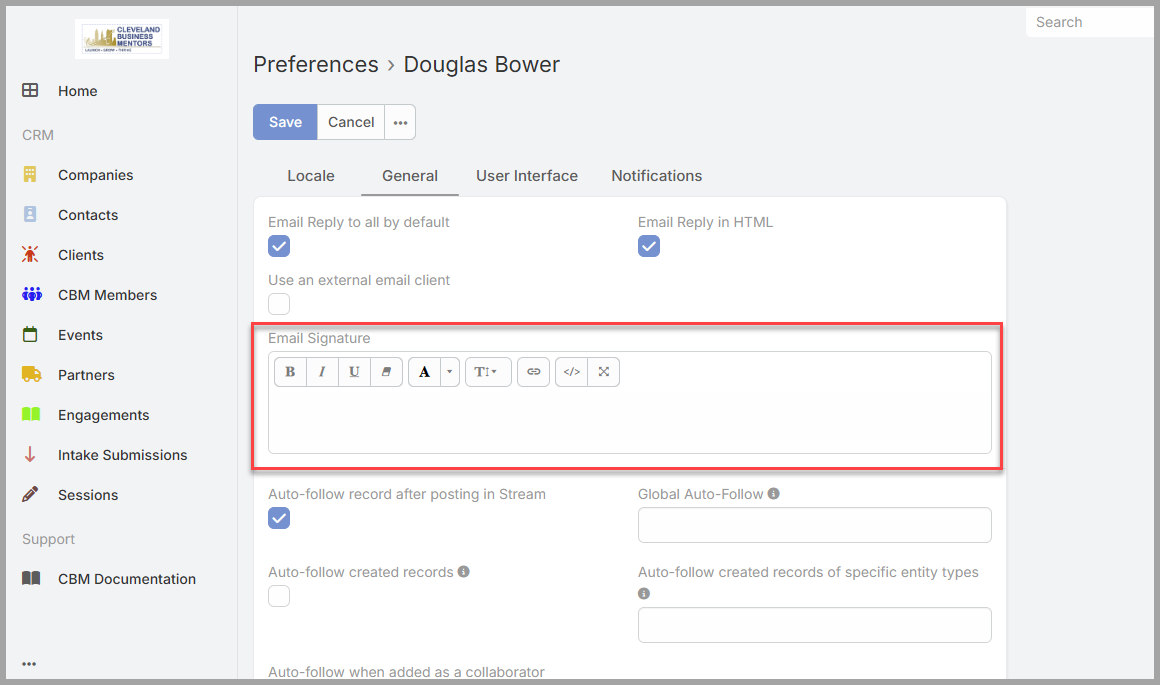
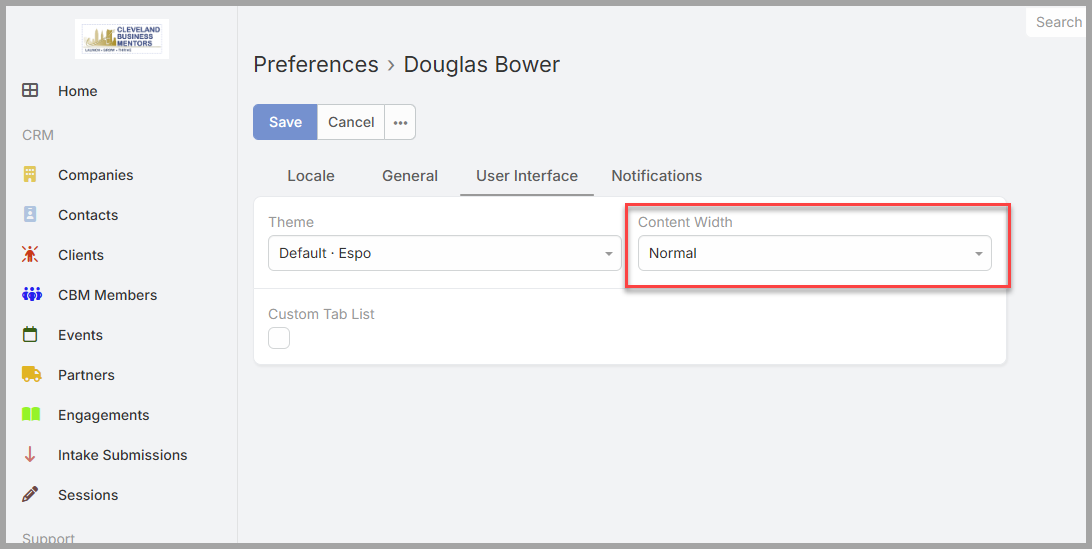
Setting your CRM Preferences:
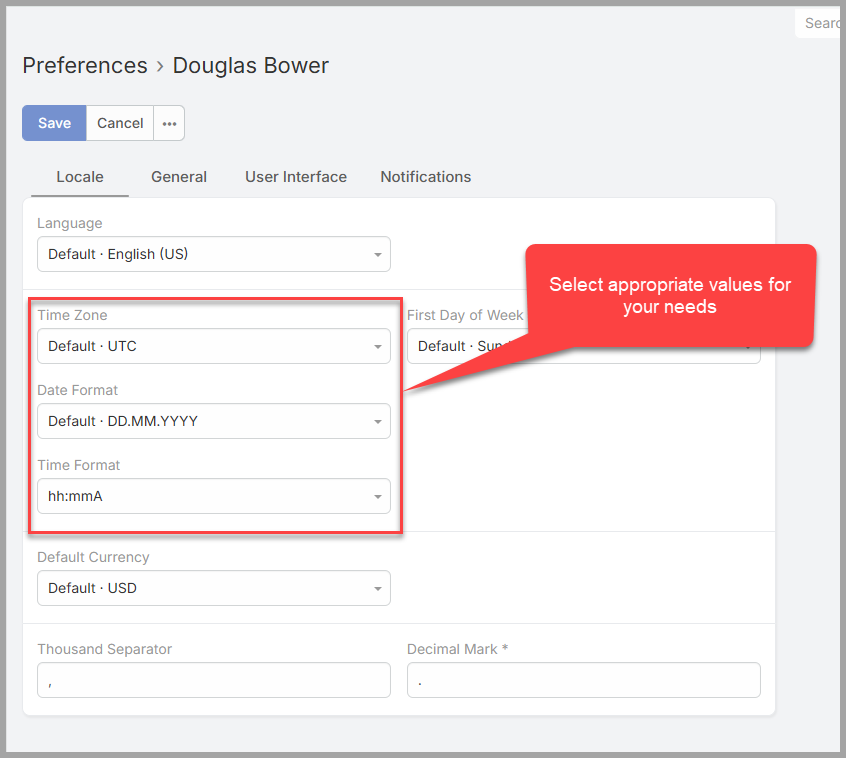
There are a number of user preference settings that you should set to make the CRM match your needs:
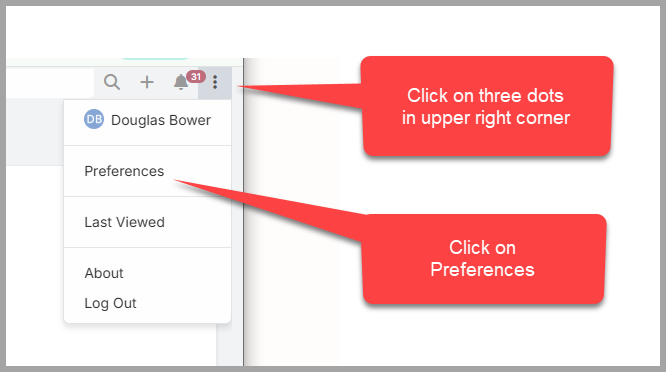
- Click on the menu button in the upper right corner
- Then set the Date Format, Time Format and Timezone:
 Then Click on the General Tab at the top and enter an email signiture
 -
- Finally Click on the User Interface tab, and change the Content Width to Wide
To update your Mentor profile:
-
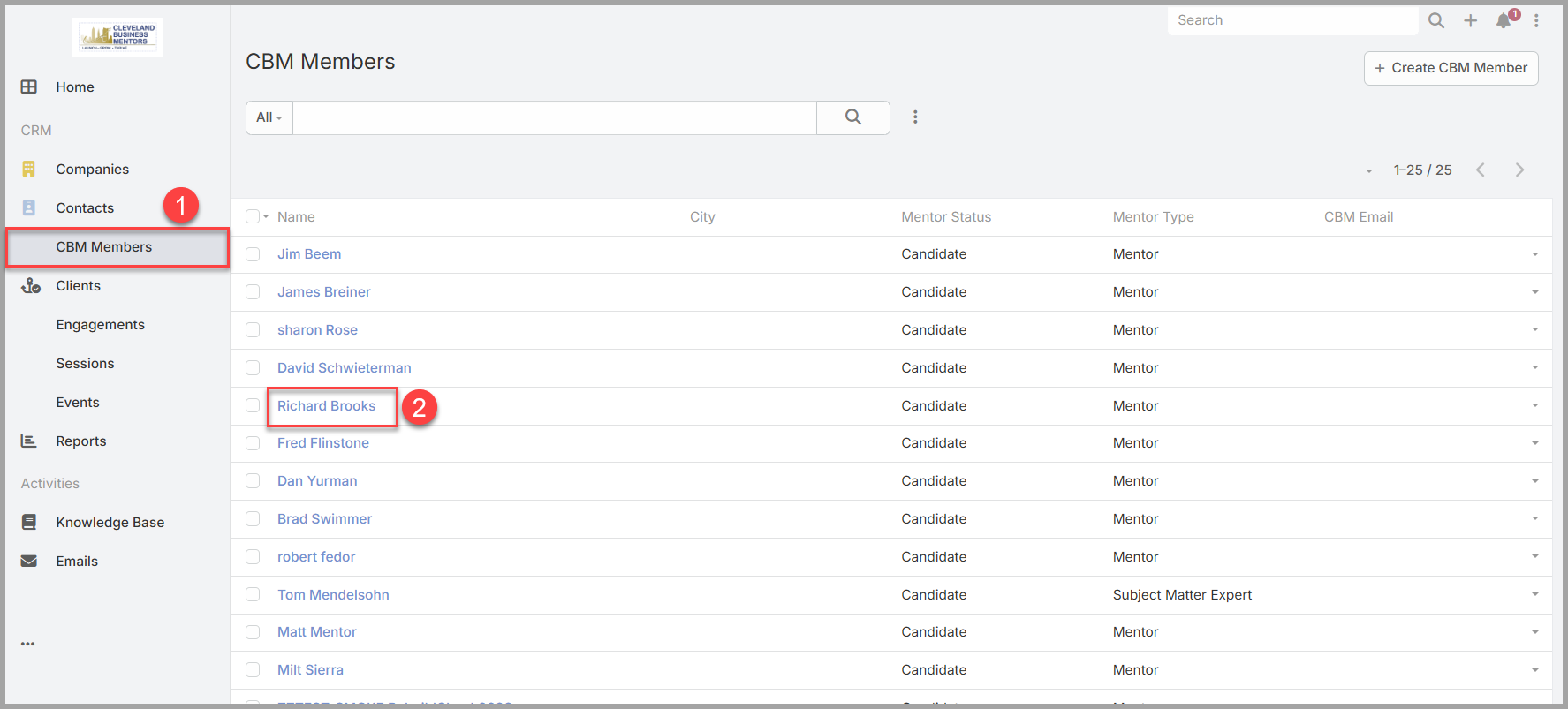
Open your own member record — search your name, or find yourself on the CBM Members tab.
-
Click on the Members Name to display the Mentor Details page.
-
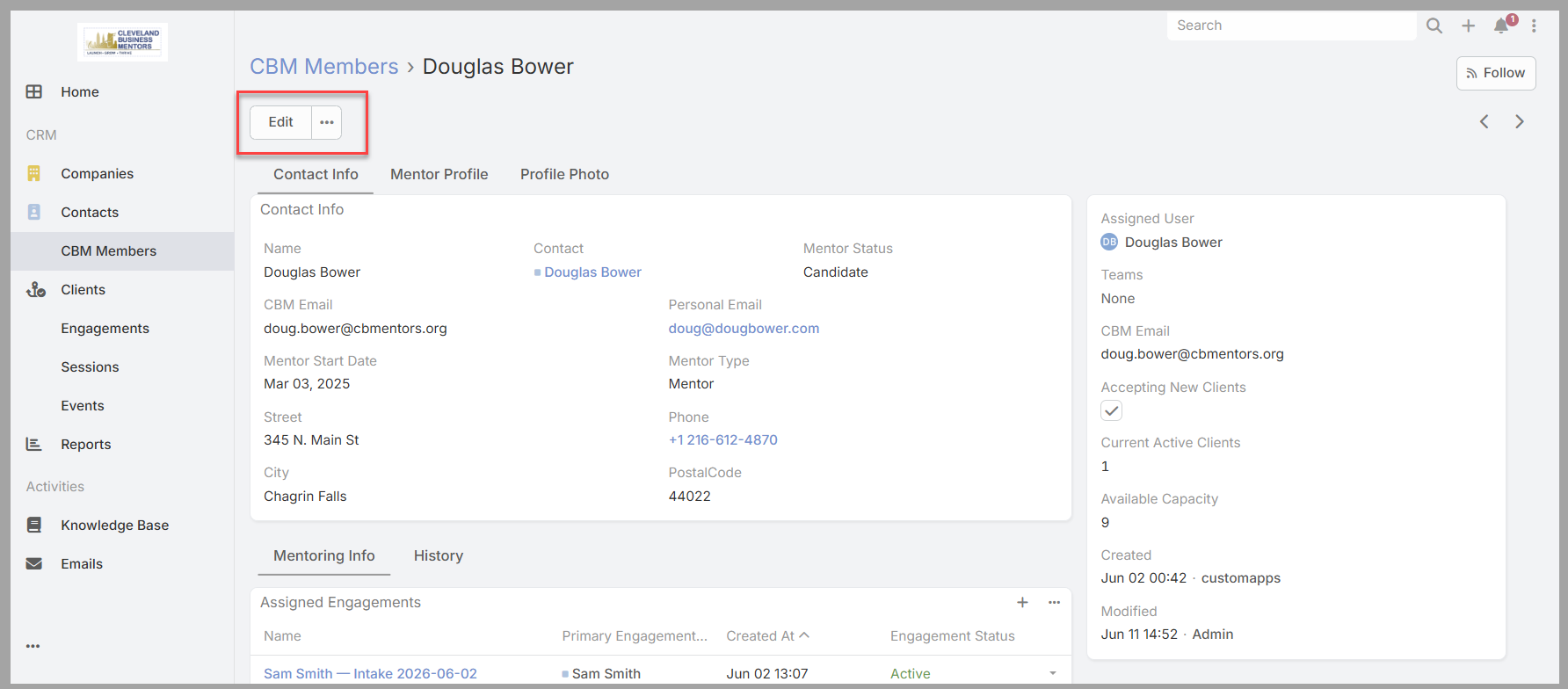
Click on the Edit button in the upper left of the screen.
-
Update your availability, focus areas, capacity, or bio.
-
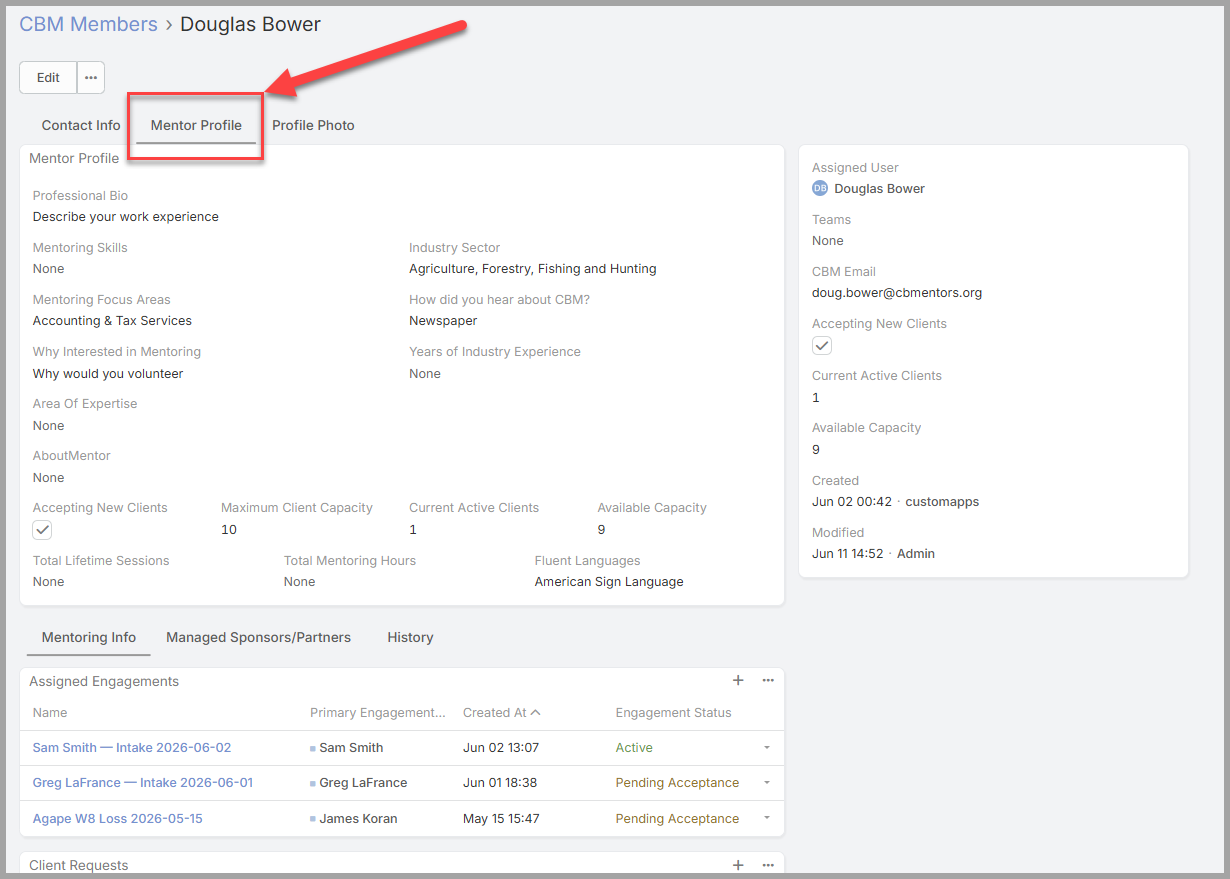
Click on the tabs to gain access to Mentor Profile or Photo information
-
Select Save.
Your updates are visible to coordinators right away, so it's worth revisiting your profile whenever your availability or focus changes.