
Updating Your Profle
The My Mentor Profile application includes all the information and photo that will appear on the CBM website. You must complete this application before your volunteer status can be changed from Approved to Active.
The page is divided into two side-by-side sections:
- Left side – Profile Information: This section contains the information that will appear on the CBM website. Some fields require you to enter text, while others provide a list of pre-set choices.
- Right side – Website Preview: This section shows exactly how your mentor profile will appear on the CBM website. The preview is updated in real time, so you can watch your profile take shape as you complete the application.
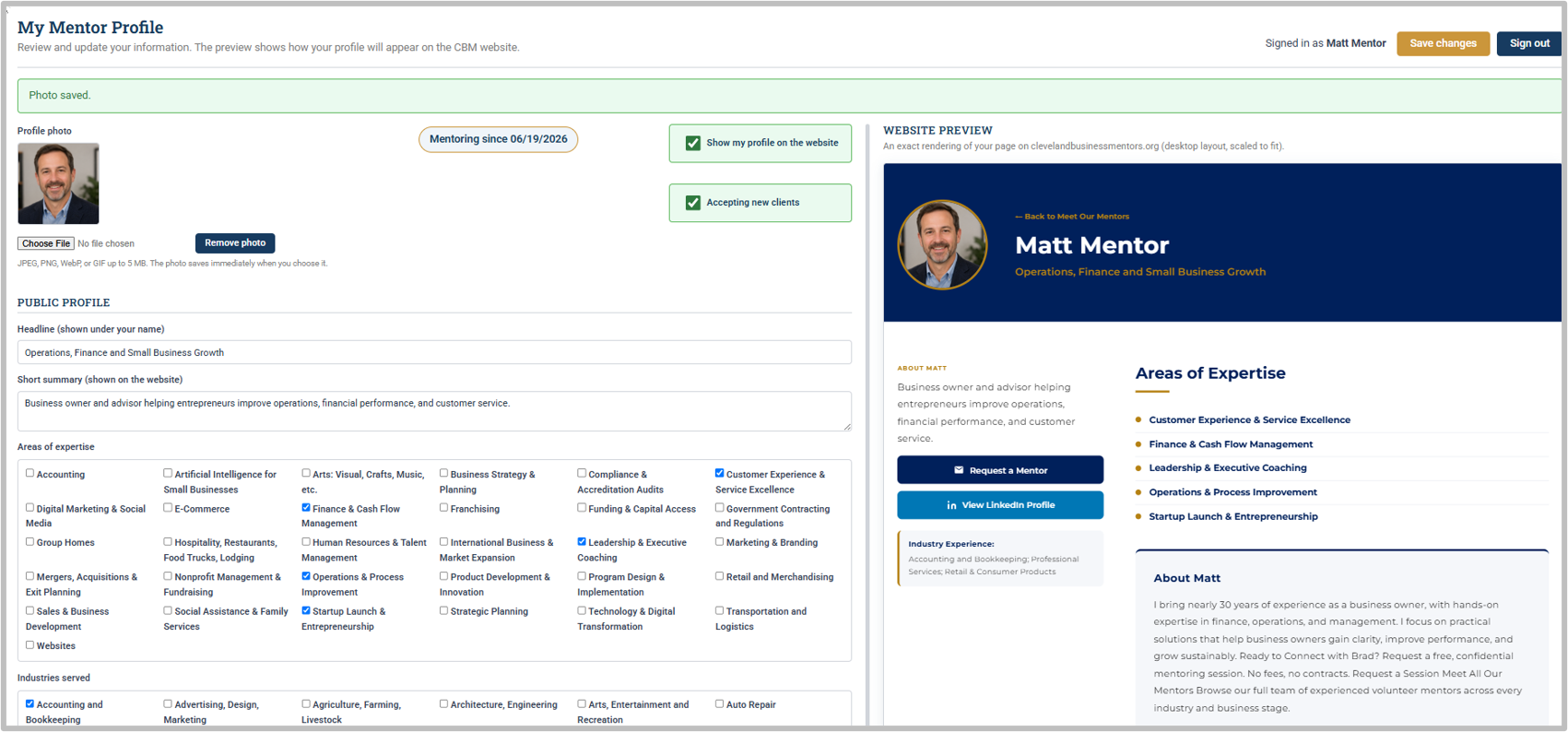
About You
The About You section is one of the most important parts of your profile. This is where you describe who you are, your experience, and the mentoring services you can provide; how you can help your clients.
Your description should be clear, concise, and easy to read.
If you are transitioning from SCORE:
We recommend copying your existing SCORE mentor profile and pasting it into the About You section. You can then edit and update it as needed.
If you are not transitioning from SCORE:
We recommend first reviewing the profiles of other CBM mentors. You can find them at the bottom of the Meet Our Mentors page on the CBM website. Use these profiles as examples when writing your own.
Once you have drafted your profile, we recommend using an AI writing tool to review and improve the wording, clarity, and readability before finalizing it in CONTACT.
Your coach will also review your profile. Once the profile has been completed and approved, your volunteer status can be updated from Approved to Active.
Email Signature
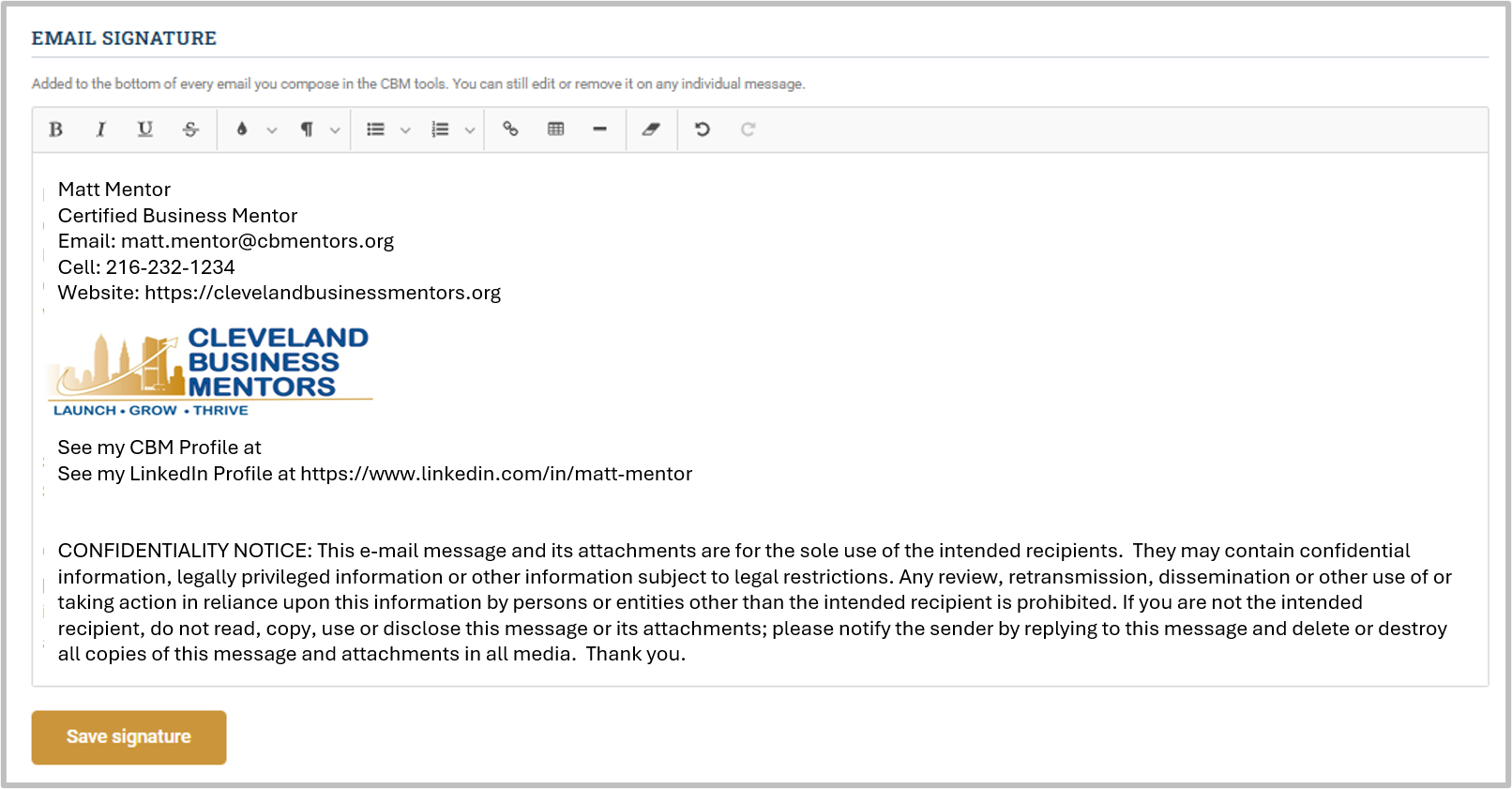
At the bottom of the profile, you can enter your email signature. Once entered, your signature will automatically be added to all outgoing emails you send through CONTACT.
Simply copy and paste from our approved CBM email signature format. Then edit the contents adding your personal information. Be sure to click Save signature when you are done.
*Note: Never add an email-signature inside an email template. When you pick a template, the template text loads into the message and your signature is re-added below it.
Questions on email signatures that arise in training:training
- My compose window opens completely blank:
- Can a signature problem prevent sending? No, if the signature can't be read for any reason, the email message simply opens without it. Sending always works.
- I changed my signature. Do I need to do anything else? No. The next compose window you open uses the new signature. There is nothing to publish or deploy, and nothing to update anywhere else in CONTACT.
- Do I still need to create a signature for my CBM email that is not related to CONTACT? Yes. The information above applies only to CONTACT. To create a signature for your CBM email for the instructions in the documents in the folder Email Signature Template.
Complete your profile
Please continue completing your contact information, including your city, state, and other requested details.
Adding your personal interests can help create connections and encourage relationships with other mentors.
Be sure to also complete your mentoring preferences. Providing this information will help the assignment team identify good matches between you and prospective clients.