
Finding Your Engagements
2. Finding Your Engagements
Two ways to reach your work. There are two routes to the engagements you're working on, and both show the same list:
-
From your home page (the Mentor Dashboard), the My Active Engagements dashlet lists your current engagements.
-
From the left-hand menu, open Engagements for the same list.
Either way, you get the engagements you're assigned to — whether you're the primary mentor or a co-mentor.
Opening an engagement. Select an engagement's name to open it. (For a refresher on reading a record — its panels, tabs, and Stream — see "Finding and Reading Information" in the Introduction.)
What an engagement shows you. Each engagement gathers the whole mentoring relationship in one place:
-
the client company you're helping;
-
the people you're mentoring — the client's employees named on the engagement;
-
your co-mentors, if any;
-
the engagement's status and meeting cadence;
-
the Sessions logged so far, which build the history of your work together.
Two kinds of engagements. Your list holds two kinds:
-
Existing engagements — the ones you're already working on.
-
Pending Acceptance engagements — new assignments the system has given you, waiting on your decision. They appear right in your engagements list, marked Pending Acceptance, so a new one is easy to spot.
Accepting or declining a new assignment. New engagements are assigned to mentors automatically, so from time to time a Pending Acceptance engagement will turn up in your list. When one does:
-
Open it and review the client and the work against your focus and expertise areas — is it a good fit?
-
If it is, accept it by setting the engagement status to Assigned (you've taken it on, but haven't contacted the client yet).
-
If it isn't, decline it by setting the status to Assignment Declined.
Once you accept, the engagement is yours. After your first meeting — when you log that first session — set the status to Active to show the work is underway (Section 3).
Get oriented before each session. Before you meet, it's worth opening the engagement to review the client, your notes from last time, and the action items you set — so you pick up right where you left off. The next sections cover logging the session and following up.
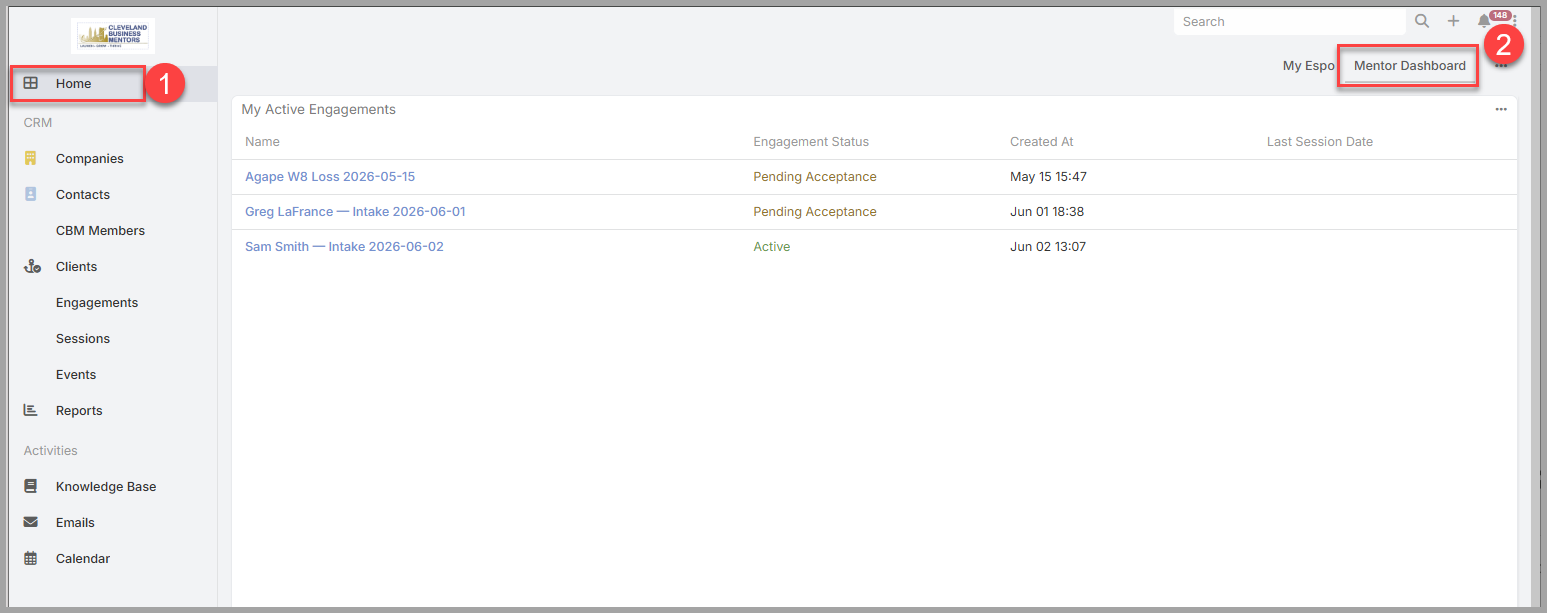
Your My Active Engagements dashlet on the Mentor Dashboard, showing Pending Acceptance and Active engagements together. Click the Engagement Name to view the details.
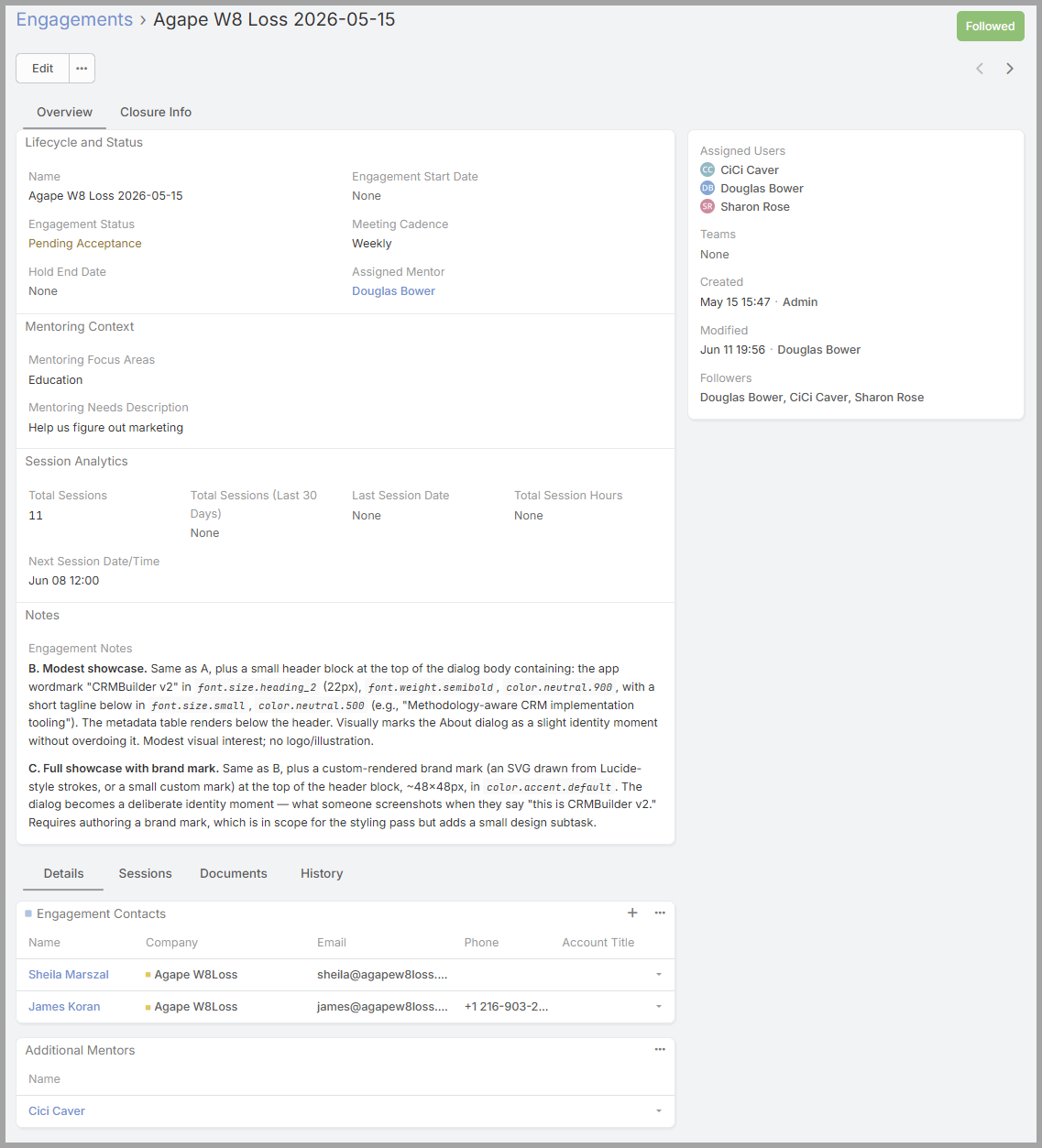
An opened engagement Details Screen — its status and assigned mentor/users, the client's focus areas, the Engagement Contacts, and any additional (co-)mentors.
No comments to display
No comments to display