
Getting Started as a Mentor
1. Getting Started as a Mentor
Who this guide is for.
This guide is for CBM mentors, and it assumes you've already read the CRM Introduction — so you know what Contacts, Companies, Engagements, and Sessions are, how to sign in and find your way around, and that what you can see is governed by your User account. This guide picks up from there and walks you through what you actually do as a mentor.
What's expected of you.
The CRM is where your mentoring is recorded. In practice that comes down to a few things: finding the clients you're assigned to, logging each session after you meet, following up with the people you mentored, and keeping your engagement and your own profile current. The sections that follow take these one at a time.
Signing in.
You reach the CRM the same way as any user — see "Signing In" in the Introduction. As a mentor you have a User account for logging in; if you're ever unable to sign in, contact Sharon Rose [contact method to be added].
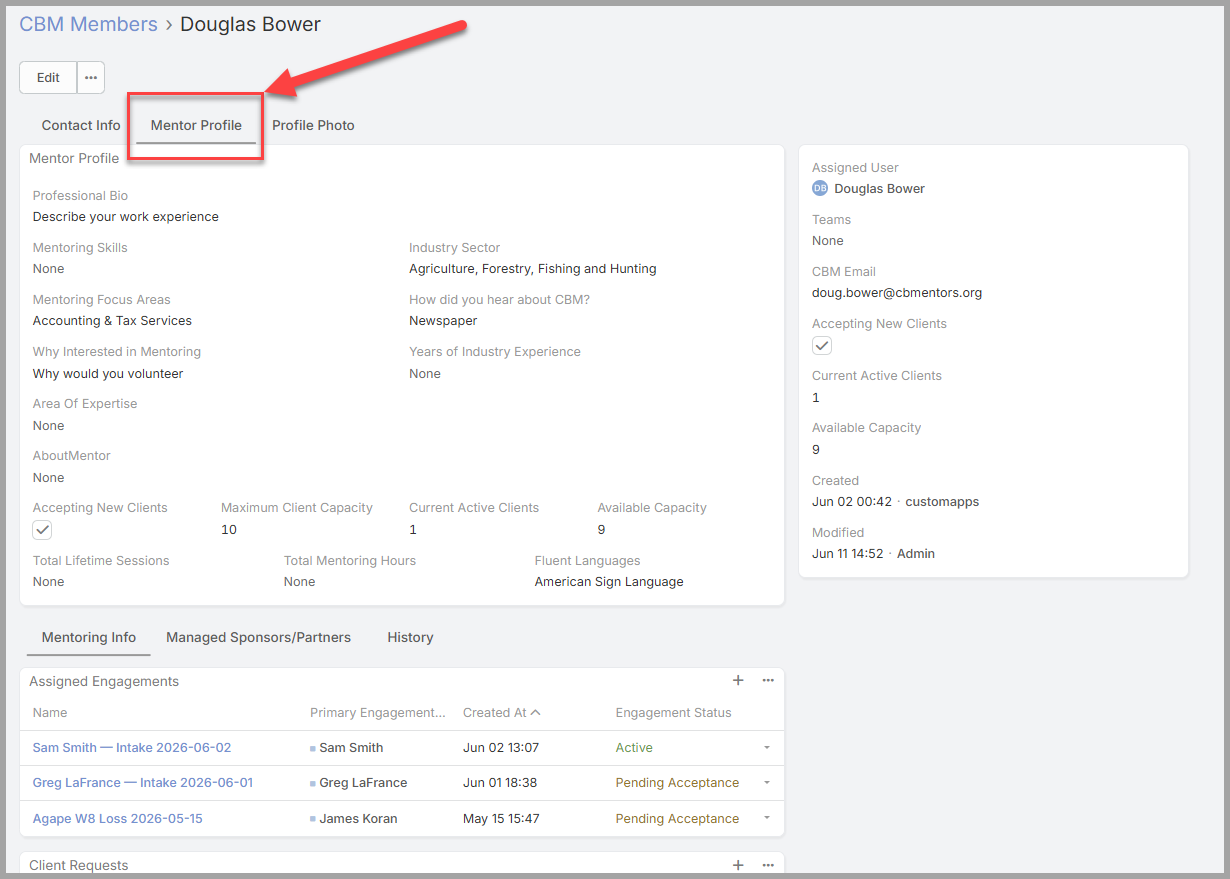
Your CBM Member profile. Your information lives on the CBM Members tab — this is your CBM Member profile. It holds the details CBM uses to match you well and stay in touch: your availability, your focus / expertise areas, your capacity (how many engagements you can take on at once), and a short bio. Keeping these current helps coordinators pair you with the right clients.
To update your profile:
-
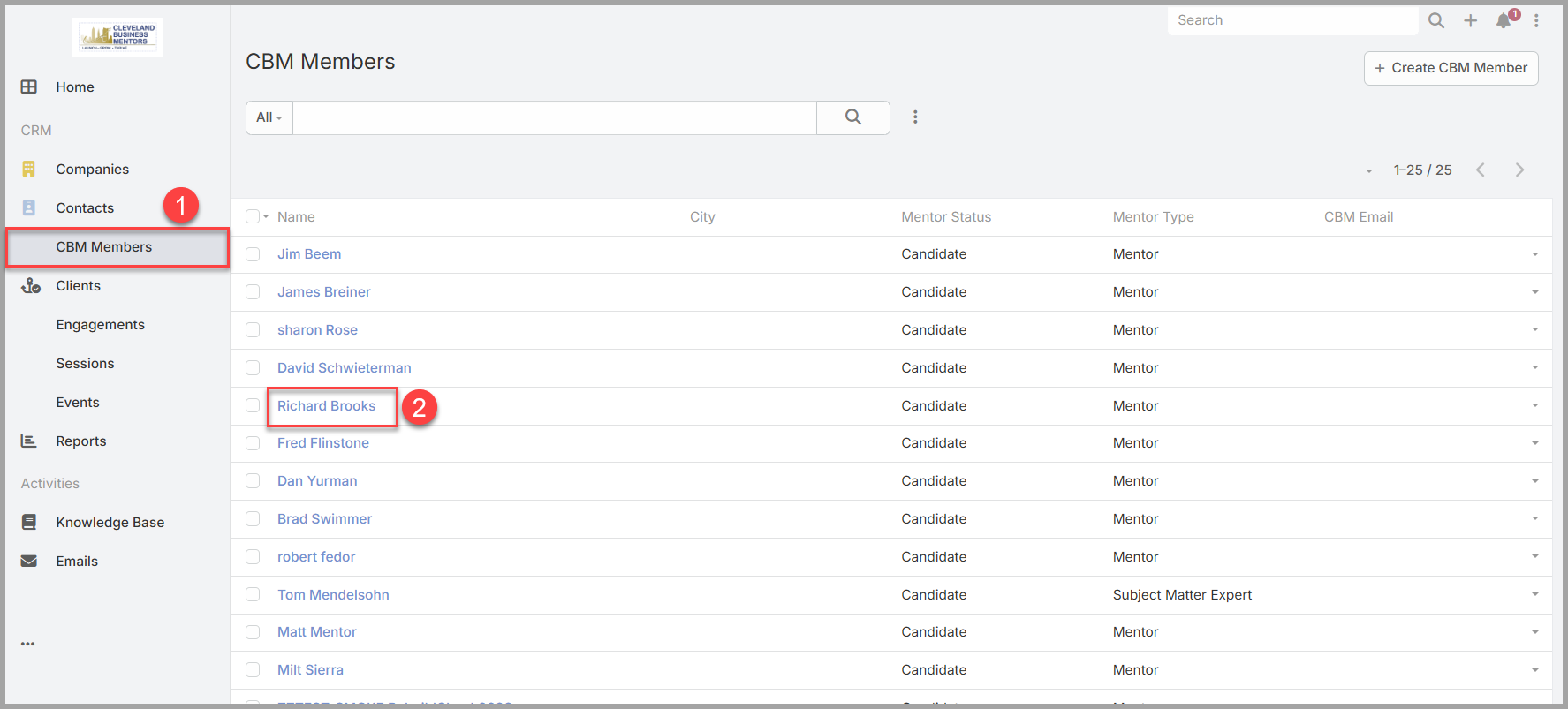
Open your own member record — search your name, or find yourself on the CBM Members tab.
-
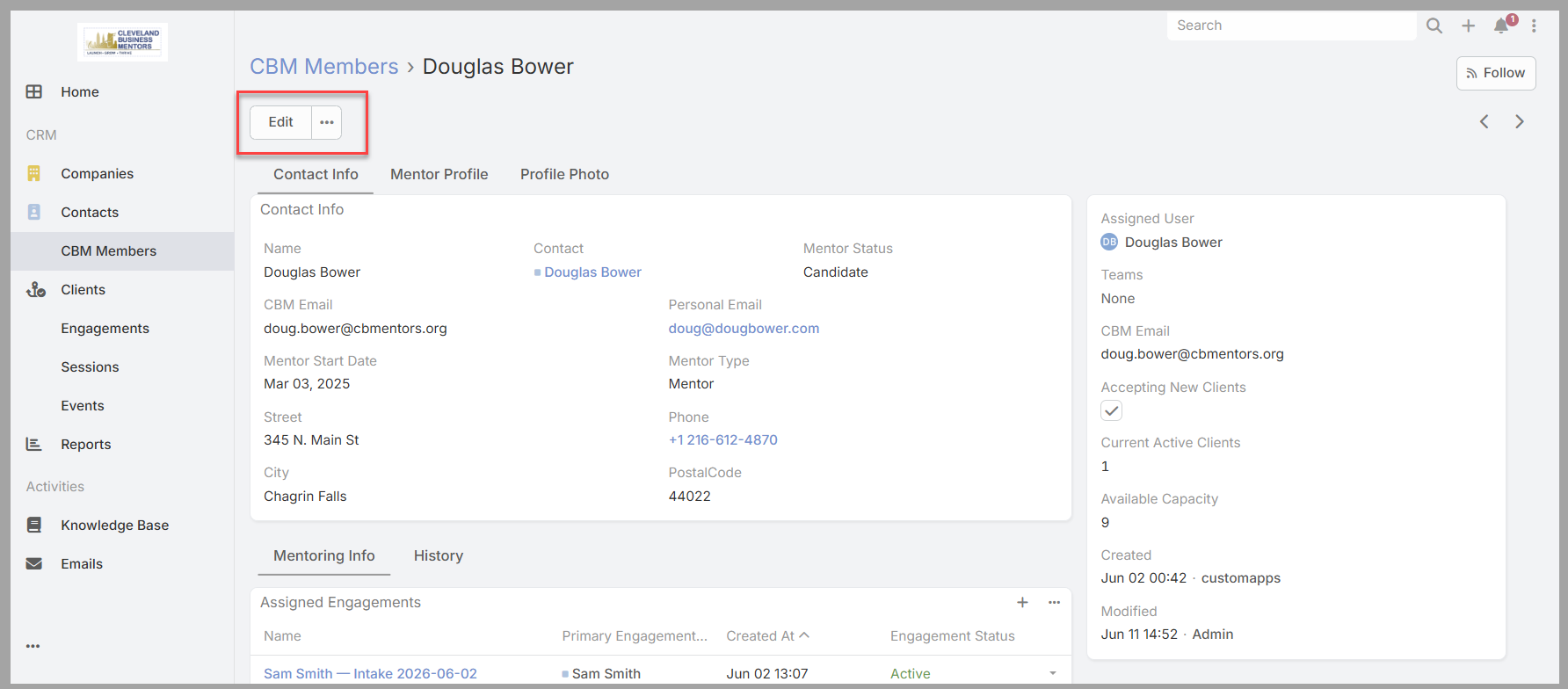
Click on the Members Name to display the Mentor Details page.
-
Click on the Edit button in the upper left of the screen.
-
Update your availability, focus areas, capacity, or bio.
-
Click on the tabs to gain access to Mentor Profile or Photo information
-
Select Save.
Your updates are visible to coordinators right away, so it's worth revisiting your profile whenever your availability or focus changes.
No comments to display
No comments to display