
Following Up After a Session
Once you've logged the session (Section 3), close the loop with the client: send them a recap of what you discussed and lock in the next meeting. Unlike the rest of this guide, this step happens in your Google Calendar and email, not in the CRM — the CRM holds the record; the follow-up goes to the client through your calendar.
By this point you'll usually have agreed on the next session date during the call, and you'll already have entered it on the session record (Section 3).
Sending the summary and the next-session invite.
-
Open your Google Calendar.
-
Create a new meeting request for the agreed next-session date and time.
-
Add the client — and any other attendees — as guests, so they receive the invitation.
-
Include the link to your online meeting tool (Zoom or Google Meet) so everyone can join.
-
Attach your session summary — the notes and action items you recorded — so the client leaves with a clear recap.
-
Send the invitation.
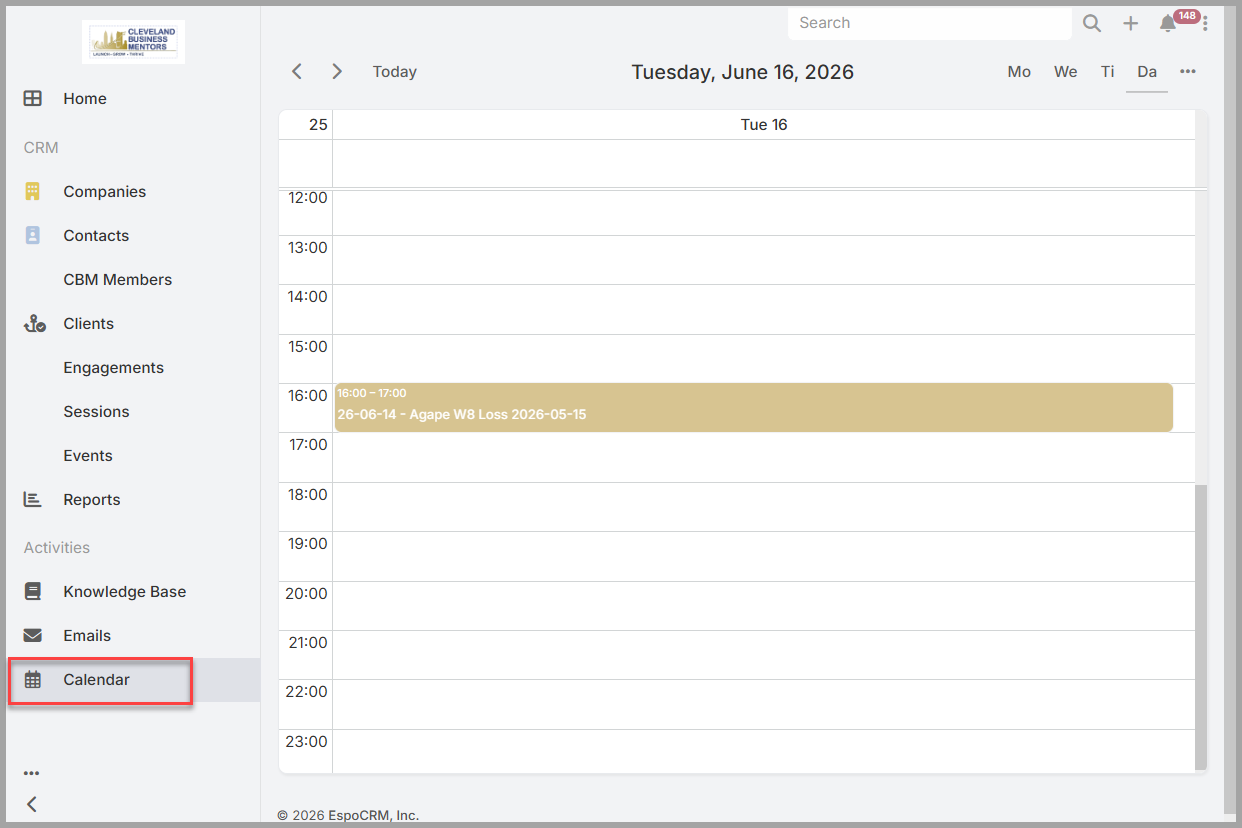
The client receives one message that recaps the last session, sets the next one, and carries the link they'll need to join.
Keep the rhythm. Doing this right after you log the session — summary and next invite together — keeps the cadence clear for the client and makes sure nothing slips between meetings.
No comments to display
No comments to display