
Logging A Client Session
3. Logging a Session
After every mentoring meeting, log a Session. This is the heart of your work in the CRM: it builds the running record of the engagement and feeds the follow-up you send to attendees (Section 4). Log it while the meeting is still fresh.
Where a session lives. A Session always belongs to an Engagement, so you create it from inside the engagement and it attaches there automatically.
Logging a session, step by step.
-
Open the appropriate Engagement Details. (See Section 2)
-
Open the Sessions panel, and press the “+” button to add a new session.
-
The first screen shown is a summary screen. If you want to add more details, press the “Full Form” button to add additional information.
-
-
You should NOT enter a Name. It will be assigned automatically.
-
Set the session Date Start — the day you met.
-
Record who attended — the client employees who were present, and any co-mentors who joined you.
-
Write your Session Notes — what you covered, what was decided, and the progress since last time.
-
List the action items for next session in the Next Steps field— what the client will work on, and anything you'll prepare.
-
If you set a follow-on session enter the date in the Next Session Date.
-
Select Save.
The session is named automatically (date – engagement – mentor) and added to the engagement's Sessions panel, joining the history of your work together.
Your first session on an engagement? After saving, set the engagement status to Active — that moves it on from Assigned and marks the work as underway.
Why notes and action items matter. Good notes pull double duty — they give a coordinator or another mentor a clear picture if anyone ever needs to step in, and they become the summary you send to attendees right after the meeting (Section 4). Clear action items mean everyone leaves knowing what happens next.
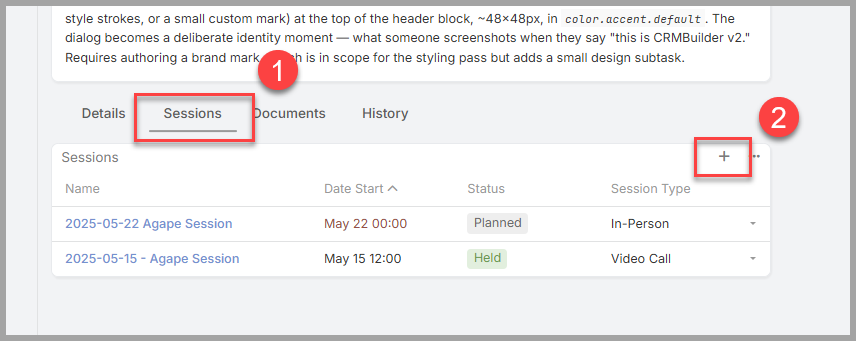
From the engagement's Sessions panel, select + to add a session.
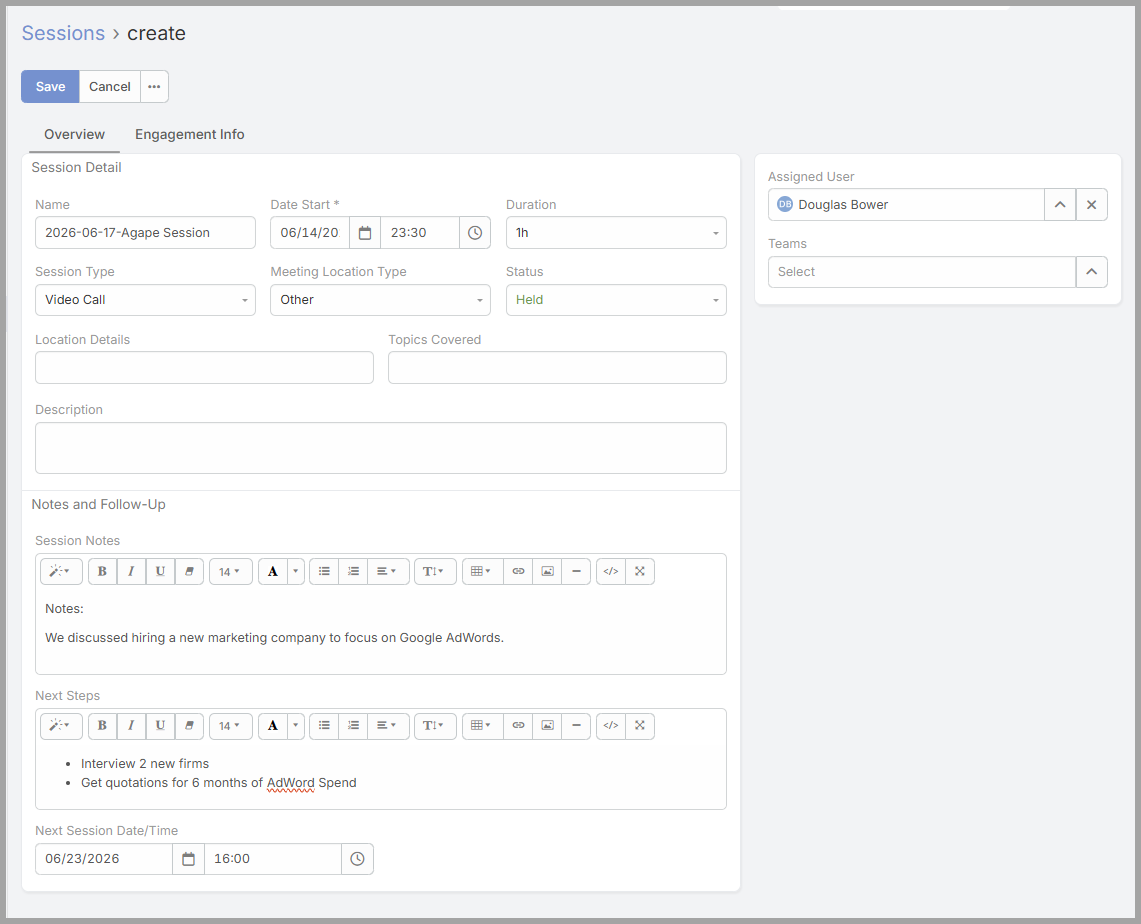
The new Session form — date, your session notes, the next steps (action items), and the next session date.
No comments to display
No comments to display